Revision 14
95 August 02, 2019
5.8 Events Tab
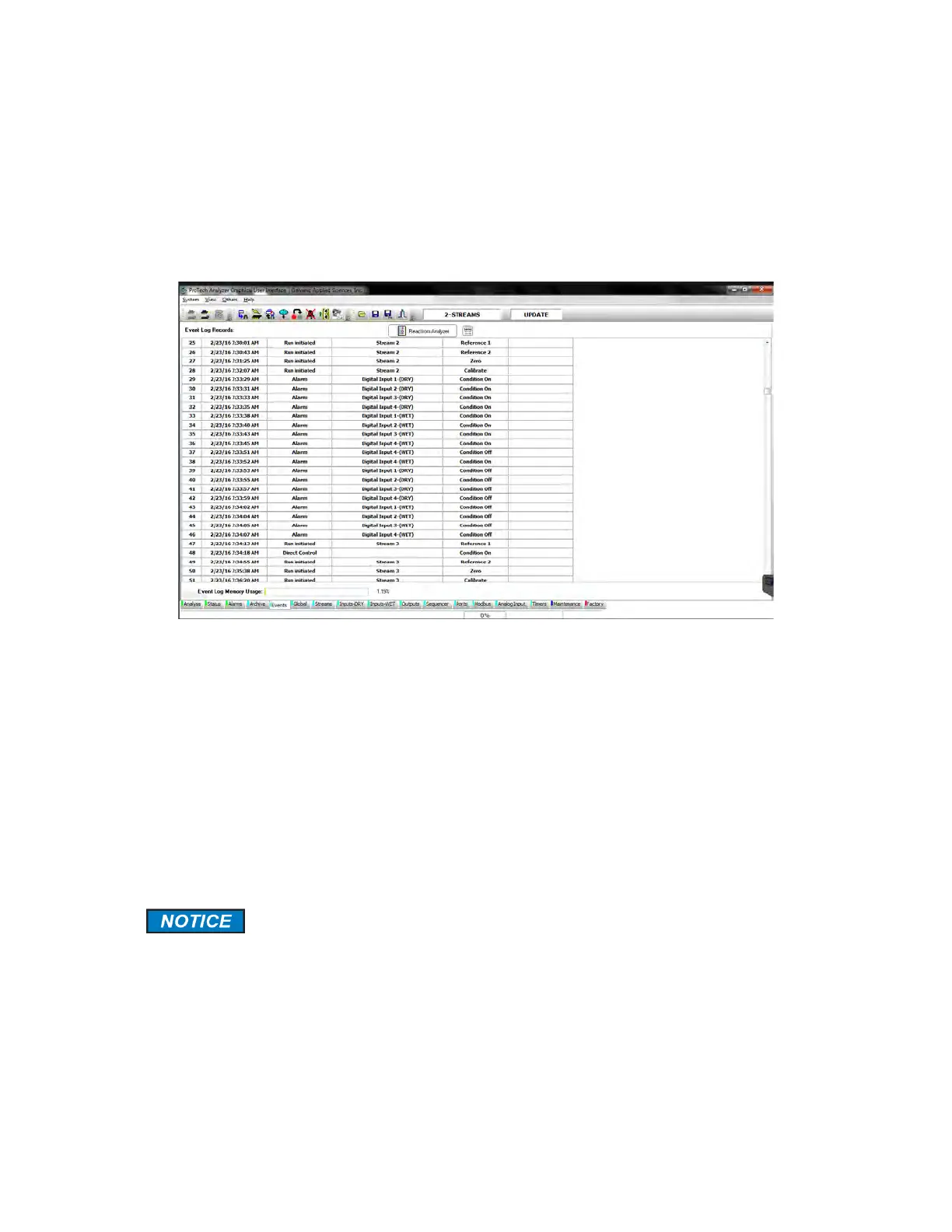
The Events tab (Figure 5-18) contains a list of all of the various conditions (alarms, power
on/off, configuration changes, discrete input conditions, etc. that occur as the analyzer runs
and is primarily used as a troubleshooting aid. The Event Log may be very useful in tracking
down the source of a problem with the system.
Figure 5-18: Events Tab Window
In addition, the Event Log also maintains a record of the types of alarms that have occurred
during operation of the analyzer and the time when the alarm was sent. To obtain a full list of
all of the Event Log records from the analyzer, simply press the Read from Device button at
the top of the screen.
Records in the Event Log can be sorted according to date. The same procedure as described
in Section 5.7 for the Archive tab should be used. Since the Event Log does not contain
numerical data, numerical sorting is not possible, but it is possible to sort it according to the
type of event that caused data to be recorded. As an example, if the user wished to show all
the alarms that had been triggered in the system since it began operating, it is possible to
filter the event column using the parameter =Alarm. This will show all alarms stored in the
Event Log. The Event Log also lists changes in the configuration and power up events.
The Event Log only shows that a configuration change has taken place – it
does not store a record of WHAT configuration change was made.
The Event Log Memory Usage bar graph at the bottom of the tab shows the percentage of
the event log memory currently used by the event log. When this number reaches 100%, the
analyzer will start writing over the oldest records with the newest records. An example of an
Event Log is shown in Figure 5-19.


 To Next Page