Revision 14
92 August 02, 2019
5.7.3.3 Exporting Data
A variety of data export formats are provided by the application program. To access a list of
formats, right click on the archive data table. The formats are listed below:
• Load From File - loads a previously saved proprietary data file (.dcar).
• Save to File - saves the data to a Galvanic proprietary format (.dcar).
• Save as Packet CSV – Saves all the archive data for the displayed tab, not just the number
of records currently being displayed, as a CSV file. When saving the archive to a CSV file,
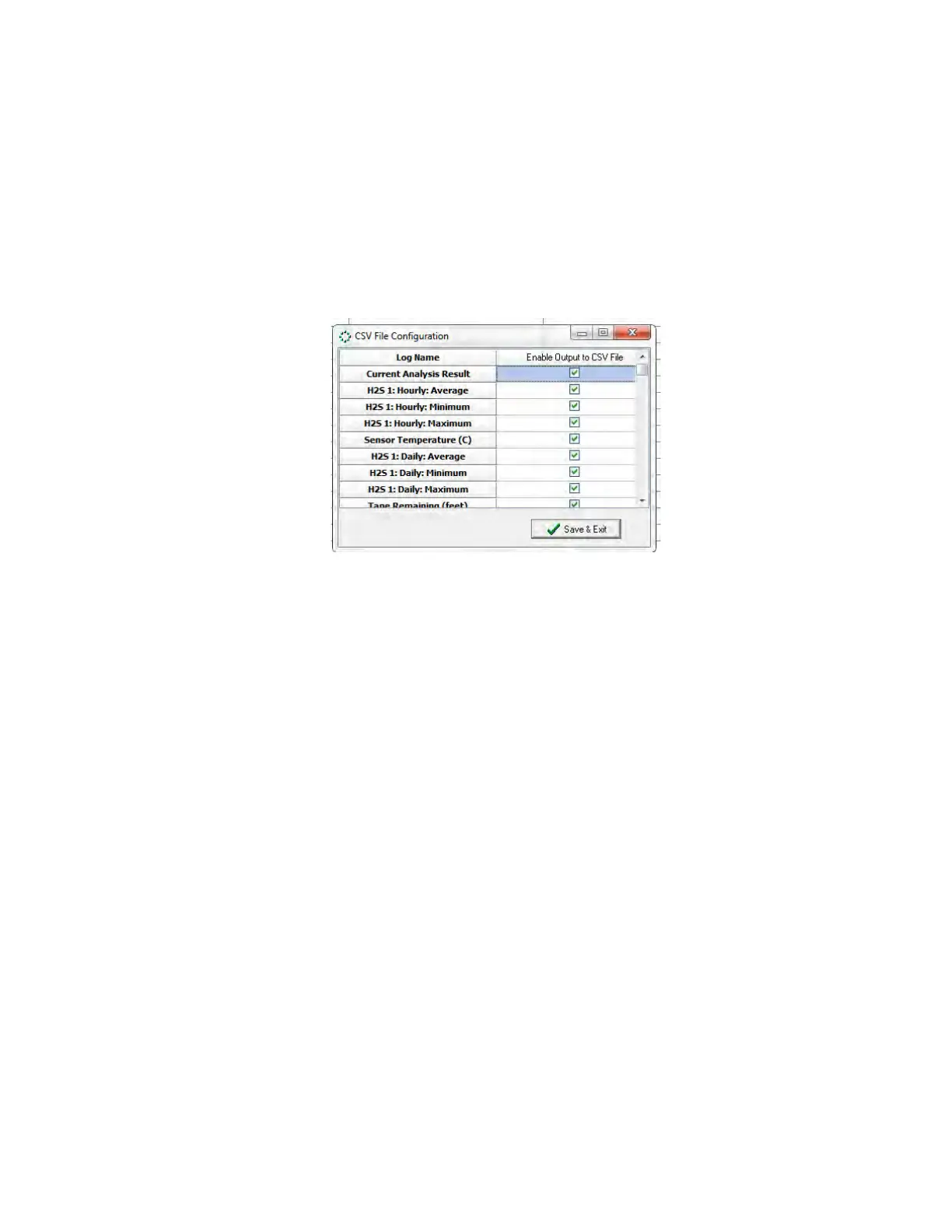
the following dialogue box is presented.
Figure 5-16: Save to a CSV File Dialogue box
This dialogue box allows the user to decide which data point(s) they wish to save to the
CSV file.
• Save as Legal CSV – Saves all the archive data, not just the number of records currently
being displayed, for all tabs as a CSV file. The dialogue box as shown in Figure 5-16 is
shown when saving to a CSV file as in the Packet CSV file.
• Save as XLS - saves the data in the number of records currently being displayed to a
Microsoft Excel File
• Copy Selection To Clipboard - allows the user to copy a selection from the data table to
the clipboard to be pasted into another program, such as Microsoft Excel.
• Copy Image to Clipboard - copies an image of the table to the clipboard that can be
pasted into an image-editing program or into a Microsoft Word Document.
• Hide Selected Column(s) - hides one or more selected columns. If a table is exported to a
Microsoft Excel file while columns are hidden, those hidden columns will NOT be exported
to the file.
• Unhide All Columns - displays any columns of data that may have been previously hidden.


 To Next Page