Revision 14
87 August 02, 2019
The archive on the analyzer is quite large, so downloading data from the
archive can take several minutes, especially if the computer is connected
to the analyzer via a serial connection. Once the data has been retrieved,
the user will be prompted to choose a directory and a file name for the
archive data to be saved to. If it is not required to save the archive data,
press Cancel in the Save File dialog box. The archive data will not be
saved but it can still be viewed and exported.
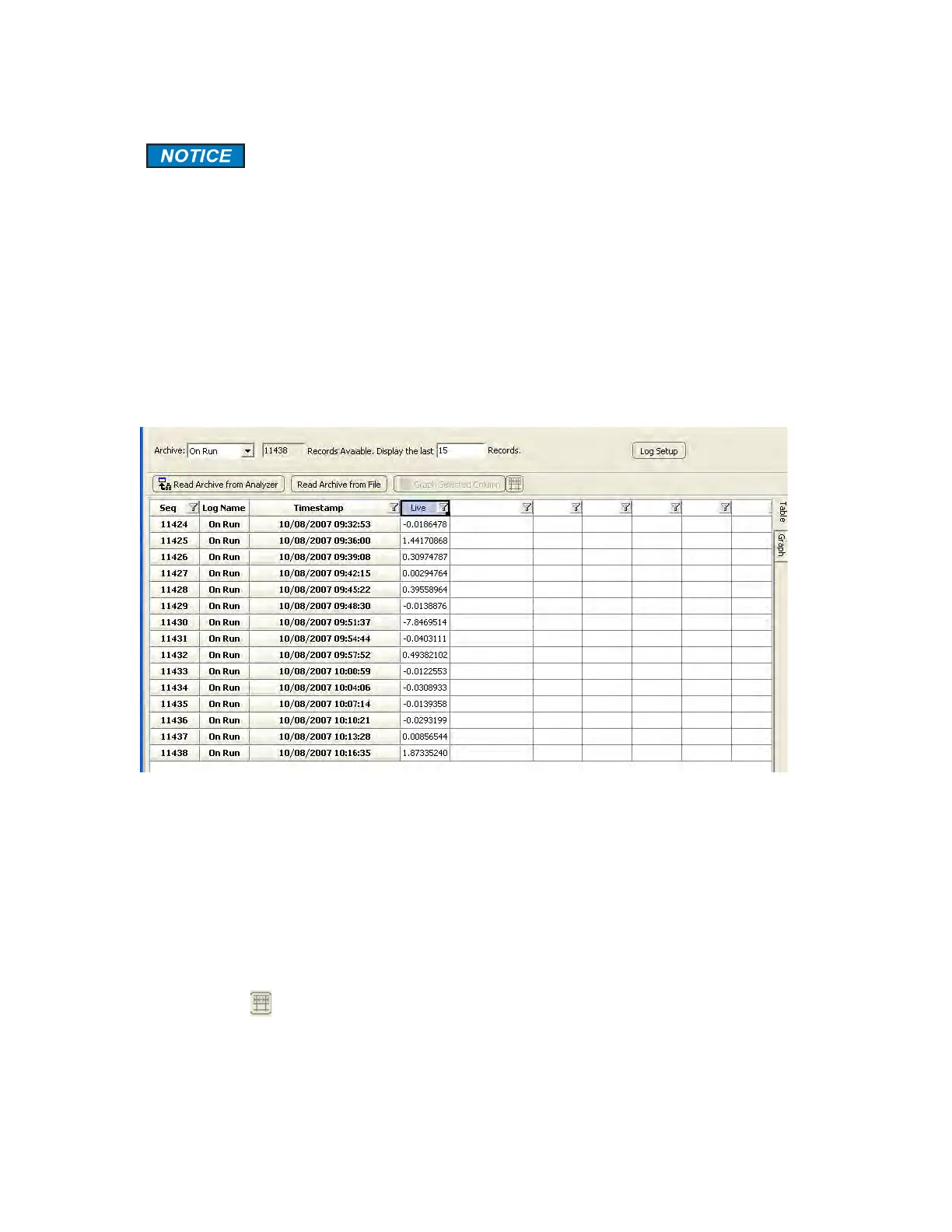
The Archive field at the top left of the screen includes a pull down menu which allows the
user to select which archive should be viewed. The field immediately to the right of this menu
shows how many records are stored in the currently selected archive. To retrieve data from
this archive, enter a value in the Display the last ______ Records field and press the Enter
key on the keyboard. This will pull up the number of records entered in the field, as shown in
Figure 5-12.
Figure 5-12: Archive Window - Data Displayed
• The Seq field identifies each data point in a sequential manner
• The Log Name field indicates which log the data came from - this is useful when the data is
exported (Section 5.7.3.3). To look at another log, select the desired log from the pull down
menu adjacent to the Archive indicator. For more information on the various types of logs,
see Section 5.7.3.4).
• The Timestamp column shows the date and time when the data in a given row was
obtained. To the right of these grey columns are several white columns containing data.
The first row in the archive has data labels that identify exactly what data is in each column.
The column widths can be automatically scaled to fit the data by pressing the Auto-Size
Columns ( ) button at the top of the screen. The archive is set up at the factory to log the
data points of the most interest to operators, though the archive is fully configurable to log
many more data points (Section 5.7.3.4).


 To Next Page