page | 67
Basic Operation
Using Presets
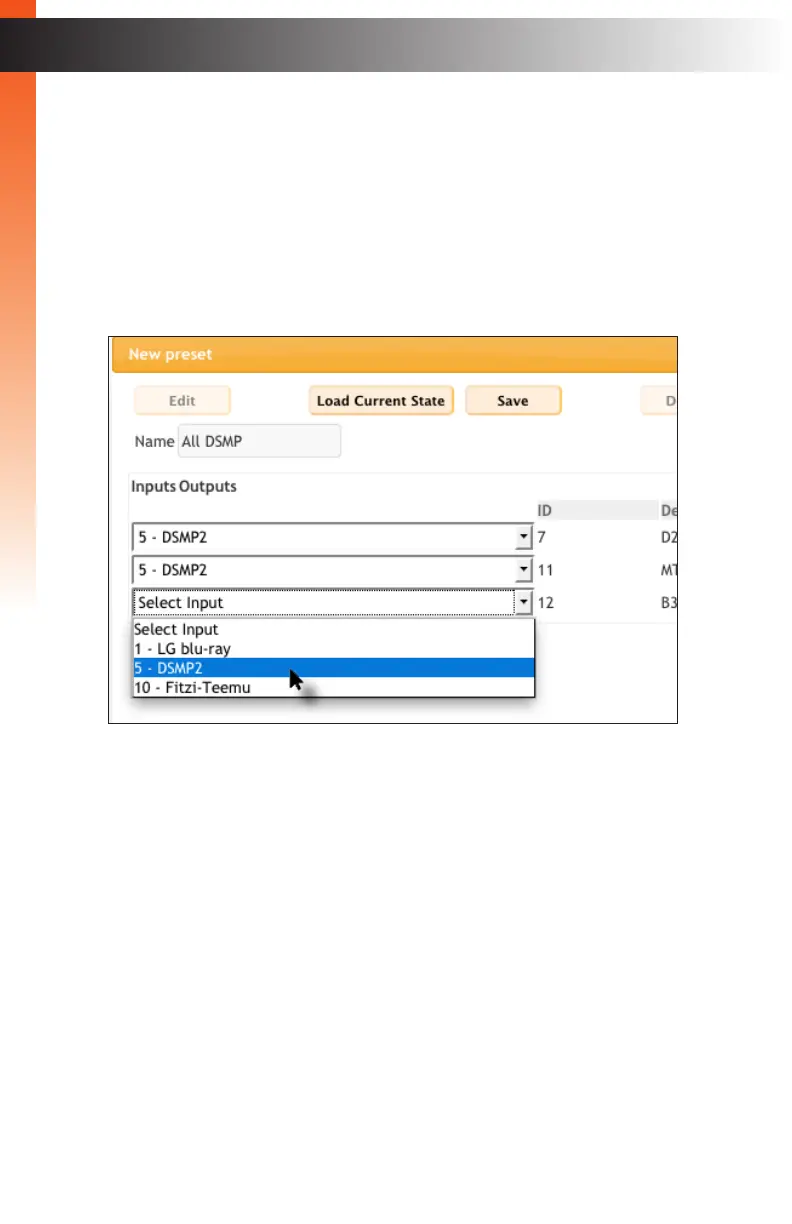
5. Enter the name of the preset in the Name eld. This is required.
6. Perform one of the following:
► Click the Load Current State button to use the current routing state as a preset.
If this option is used, skip to Step 8.
► Click the drop-down list, under the Inputs column.
7. Click the drop-down list, under the Inputs column, and select the desired input.
Only one input can be selected.
For demonstration purposes, our group only contains three inputs and three outputs.
The input(s) and output(s) that are displayed in this dialog box will be determined by
the devices which have been assigned to the Associated Inputs and Associated
Outputs column under the Group menu.
When creating user presets, only one input can be selected for each output that is
listed. Only inputs can be selected. Outputs cannot be selected when creating a
preset. If you wish to change the availability of an output, under the Outputs
column, go the Groups menu and change the list of Associated Outputs, as desired.
See Creating Groups (page 38) for more information.
8. Click the Save button to save the changes to the preset or click the Cancel button to
close the New preset dialog box.
9. After the preset has been saved, a button will appear (with the provided name),
under the Presets - User column, near the bottom of the page.



 To Next Page