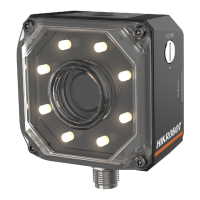
ID2000 Series Industrial Code Reader User Manual
42
Steps
Note
For different Windows versions, the specific setting path and interface may differ.
Please refer to the actual condition.
1. Go to PC network settings page: Start → Control Panel → Network and Internet →
Network and Sharing Center → Change adapter settings.
2. Select NIC and set the IP obtainment mode.
●
Select Obtain an IP address automatically to get an IP address of the PC automatically.
●
Or select Use the following IP address to set an IP address for the PC manually.
Figure 7-3 Set PC Network
7.2.3 Check USB Drive for USB Device
Checking the USB drive on the PC is required before using the USB device. After connecting
the USB device to the PC, the Windows system will automatically detect a new hardware
device and install its corresponding drive.
Go to Device Manager by either pressing Win+X or right-clicking on the Windows menu
button, and locate and expand the Network adapters to check the drive.
Note
●
You can use the drive management tool to reinstall the USB drive if the installation is failed.
●
You can search the device with USB data interface in GigE of Device Connection.
●
Regarding type VI device, you need to execute “remote NDIS compatible device” operation
when updating it firmware. Contact the technical support if necessary.


 To Next Page
 Loading...