Need help?
Do you have a question about the HikRobot ID2000 Series and is the answer not in the manual?
Instructions for using and managing the product, subject to change.
Hikrobot's ownership of copyrights and patents for products and documents.
Manual and product provided "as is"; Hikrobot disclaims warranties and liability for damages.
Information regarding compliance with laws and regulations for product usage.
Ensuring personal and device safety during installation, operation, and maintenance.
Safety precautions for laser class, handling, environment, and power.
Guidelines for preventing electromagnetic interference during installation and wiring.
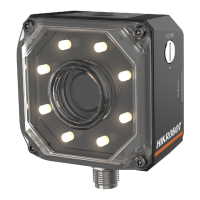
Overview of the ID2000 series code reader's functions and applications.
Lists key features like compact design, code reading algorithms, aiming light, indicators, and protocols.
Details on connectors and pins for devices with Fast Ethernet interface.
Details on connectors and pins for devices with USB interface.
Connector and cable details for Type VII devices with RS-232 interface.
List of accessories required for installation.
Steps and precautions for installing the device.
Electrical features and wiring for Type V devices, focusing on input circuits.
I/O features and wiring for devices other than Type V.
Pin definitions for the RS-232 serial port connector.
Steps to download and install the IDMVS client software.
Configuring the PC environment for stable client operation and data transmission.
Setting device network and connecting it to the client software.
Overview of the main window of the client software and its components.
Steps for basic operation, including selecting operation mode.
Overview of the feature tree and its parameters for device configuration.
Configuring code reading modes like accurate and batch mode.
Setting image-related parameters via the client software.
Adding and setting code parameters for reading different code types.
Customizing lines for input or output.
Setting trigger parameters and modes for image acquisition.
Methods for stopping the trigger, including TCP, UDP, IO, Serial, USB, timeout, and code number.
Configuring output signals, line inverter, and event sources.
Configuring communication protocols like SmartSDK, TCP, Serial, FTP, etc.
Setting filter rules and other data processing parameters.
Configuring multicast function for multiple devices.
Setting up main-sub networking for collaborative device operation.
Comparing read data with preset data for contrast results.
Counting data related to code reading.
Monitoring memory, CPU usage, and other events.
Saving, loading, and switching user parameter sets.
Introduction to setting codes for configuring parameters.
Activating and deactivating setting codes function.
Setting which code types the device reads.
Setting code color options (white on black, black on white).
Setting the quantity of codes to be read.
Setting prefix and suffix for outputted code results.
Enabling, disabling, and setting delay for the aiming system.
Enabling/disabling light source and setting polling interval.
Enabling/disabling buzzer and setting duration.
Enabling/disabling USB communication and setting modes.
Enabling/disabling serial port and setting baud rate, parity, stop bit.
Sending device information (name, version) to PC.
Switching trigger modes (press, self-trigger, response, disable).
Saving, initializing user parameters, and restarting the device.
Updating device firmware via the client software.
Synchronizing device time using NTP.
Automatically entering operation status after power-on.
Rebooting the device via client software.
Troubleshooting steps for when no device is listed in the client software.
Troubleshooting steps for dark images during live view.
Troubleshooting steps for low frame rates or image tearing.
Troubleshooting steps for when no image is displayed in the live view.
 General
| Image Sensor | CMOS |
|---|---|
| Light Source | Red LED |
| Interface | USB, RS-232 |
| Supported Barcode Types | Code 128, QR Code, Data Matrix |
| Communication Interface | USB, RS-232 |
| Operating Temperature | 50°C |
| Supported Symbologies | 1D, 2D |


 To Next Page