- 154 - - 155 -
Windows utilities Windows utilities
4
5
1
3
2
4
5
1
2
3
Convenient print
functions
Appendix Index
Checking and
Changing Printer
Settings Using
the Control Panel
Network
Setup
Matching
Colors
Using Utility
Software
Convenient print
functions
Appendix Index
Checking and
Changing Printer
Settings Using
the Control Panel
Network
Setup
Matching
Colors
Using Utility
Software
(4)
Enter the web port number in [Port
Numbers].
(5)
Click [OK].
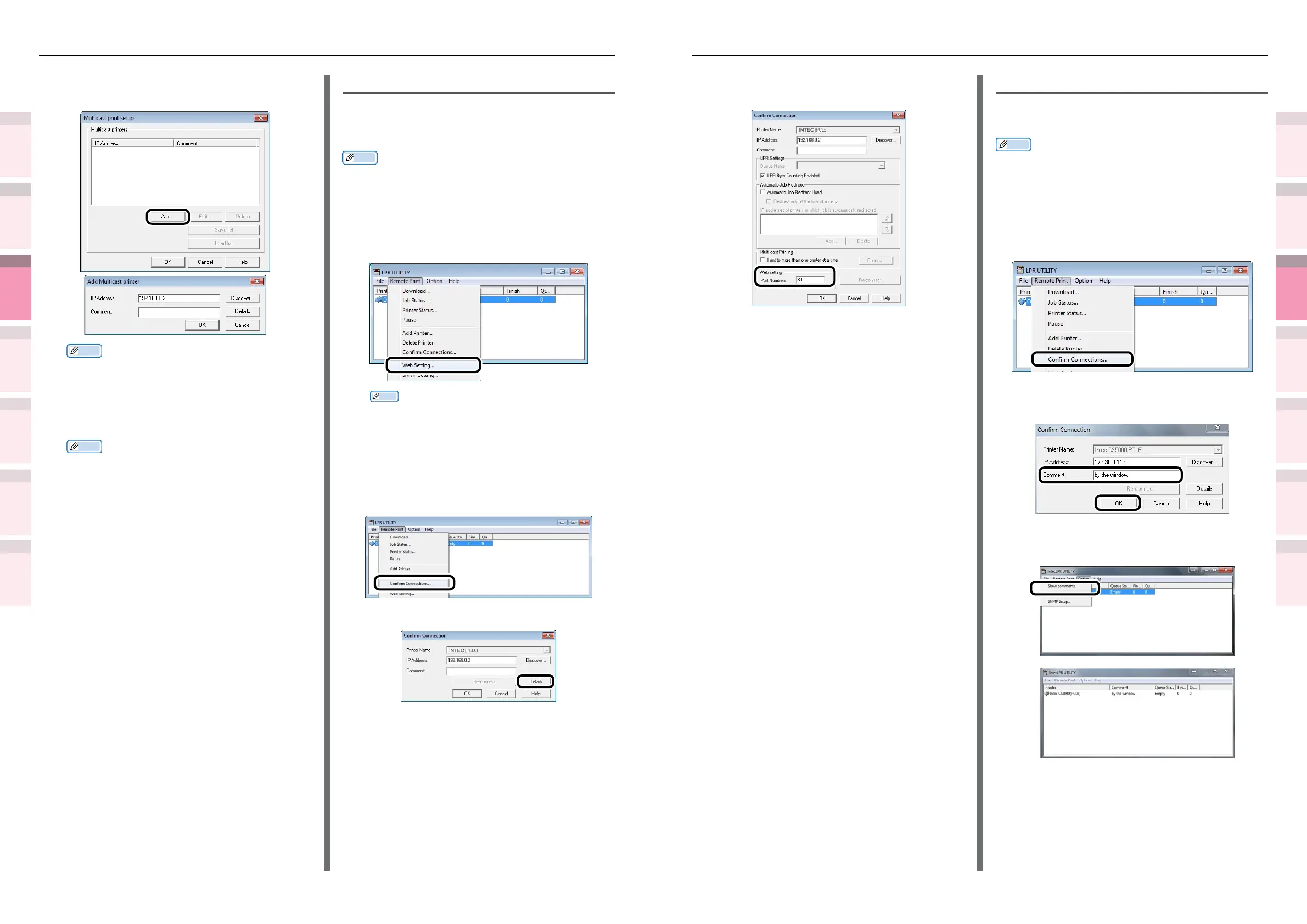
Adding comments
You can add comments to the printers added to
the Direct Network Printing Utility (LPR).
Memo
z
This is convenient for entering the printer installation site
and optional installations.
1
Select the printers.
2
Select [Conrm Connections] from the
[Remote Print] menu.
3
Enter the comments in [Comment], and
click [OK].
4
Select [Show comments] in the [Option]
menu.
5
Click [Add], and set the IP addresses of
the printers to print simultaneously.
Memo
z
You can also add comments to the printers to print
simultaneously. See “Adding comments” (P.155).
6
Repeat the operation in Step 5 as many
times as there are printers to be added.
Memo
z
Click [Save list] to save the information for the
added printers.
z
The saved printer information an be read and
deleted by clicking [Load list].
7
Click [OK].
Starting the web browser
Start your web browser to set the printer
network and menus using the Direct Network
Printing Utility (LPR).
Memo
z
For how to set up the settings, see the "Basic".
1
Select the device.
2
Select [Web Setting] from the [Remote
Print] menu.
Memo
z
If the web port number has been changed, change
the port number setup of the Direct Network
Printing Utility (LPR) using the following procedure.
(1)
Select the device.
(2)
Select [Conrm Connections] from
the [Remote Print] menu.
(3)
Click [Details].



 To Next Page