EasyManua.ls Logo

Intel FALCON 8+ - User Manual

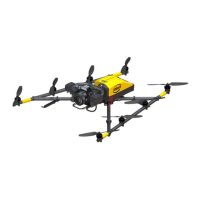
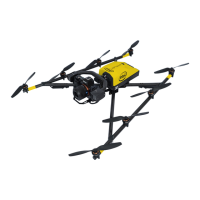
Intel FALCON 8+
233 pages
Print Icon
To Next Page IconTo Next Page
Loading...
INTEL
®
FALCON™ 8+
UNMANNED AIRCRAFT SYSTEM
ENGLISH
MAY 2018
USER MANUAL

Table of Contents

Other manuals for Intel FALCON 8+

Questions and Answers

  • T
    Terry JohnsonAug 3, 2025
    What to do if there is no preview video on the Intel Quadcopters touchscreen tablet?
    • D
      Donna LongAug 3, 2025
      If you are not receiving video on the CTR's touchscreen tablet, begin by checking the connection between the camera and the Intel® Falcon™ 8+ UAV, and ensure that all devices are switched on. Then, check the payload adapter. If available, test with a different payload to check video reception. If the issue persists, try using a different Intel® Falcon™ 8+ UAV system to see if you can receive the video signal. If video is received from a different UAV, the original Intel® Falcon™ 8+ UAV has a video transmission issue.
  • N
    Nicole TorresAug 8, 2025
    How to fix Intel Quadcopters flight logs issues?
    • J
      Jessica FisherAug 8, 2025
      If the Intel® Falcon™ 8+ UAV cannot access a storage device due to a mechanical connection issue or a corrupted file system, remove the User SD card, create a backup copy, and format it. Reinsert the SD card into the Intel® Falcon™ 8+ UAV to make it accessible again. As an alternative, switch off the Intel® Falcon™ 8+ UAV, wait 10 seconds, and then switch it back on to format the internal SD card.
  • R
    Raymond McconnellAug 13, 2025
    How to establish a connection between the CTR and the Intel Quadcopters UAV?
    • P
      phillipsashleyAug 13, 2025
      If the UAV and the CTR do not automatically connect, the Status Display will indicate this on the Start Screen. To establish a connection manually on your Intel Quadcopters, push the ENT button on the Status Display and enter the Falcon Serial number.
  • K
    kathyjensenAug 18, 2025
    What to do if there is no preview video on the touchscreen tablet of the Intel FALCON 8+ CTR?
    • R
      Ronald FlemingAug 18, 2025
      To troubleshoot the absence of a preview video on the touchscreen tablet of your Intel Drones CTR, start by verifying the connection between the camera and the Intel Falcon 8+ UAV. Ensure that the camera, Intel Falcon 8+ UAV, touchscreen tablet, and the CTR are all properly switched ON. Also, if the signal from the payload might not be fed correctly, check the payload adapter. If available, test with a different payload to check the video reception. Furthermore, if available, try using a different Intel Falcon 8+ UAV system with the original CTR or a different CTR with your Intel Falcon 8+ UAV to isolate the issue.
  • S
    Stephen CarpenterAug 23, 2025
    Why am I having data link connection issues with my Intel FALCON 8+?
    • P
      Pamela McleanAug 23, 2025
      To analyze data link connection issues with your Intel Drones, the issue might stem from a defect in either the UAV or CTR transmitter/receiver modules. To diagnose, take the CTR of the problematic Intel Falcon 8+ UAV and connect it to a different Intel Falcon 8+ UAV to repeat the test. If the issue persists, it is very likely the CTR is the source of the problem. If the issue disappears, it very likely comes from the Intel Falcon 8+ UAV. Alternatively, use a new CTR with the problematic Intel Falcon 8+ UAV and repeat the test. If the issue persists, the problem likely lies with the Intel Falcon 8+ UAV; if it disappears, the CTR is likely the cause.
  • A
    Alan BowersAug 28, 2025
    How to fix Intel Drones flight logs issues?
    • C
      Cristina RiveraAug 28, 2025
      If you are experiencing issues with flight logs on your Intel Drones, it could be due to a mechanical connection issue or a corrupted file system on the storage device. To resolve this, remove the User SD card, create a backup copy, and format it using FAT32 with a 32-kilobyte allocation unit size. After reinserting the SD card into the Intel Falcon 8+ UAV, it should be accessible again. Alternatively, switch off the Intel Falcon 8+ UAV, wait 10 seconds, and switch it back on. During boot-up, the internal SD card will be formatted, which should restore its accessibility.

Summary

1. Intel Falcon 8+ UAS

1.1. Safety and Usage Guidelines

Covers intended use, safety guidelines, and operational warnings for safe system operation.

1.2. UAS and Safety Checks

Outlines essential checks before and after each flight to ensure system integrity and safety.

1.3. Pre-Flight Check

Details the mandatory steps to perform a close pre-flight check of the UAS before operation.

1.4. Post-Flight Check

Provides the necessary steps to conduct a thorough post-flight check of the system.

2. Description of the System

2.1. Intel Falcon 8+ UAV Components

Details the physical components and structure of the Intel® Falcon™ 8+ Unmanned Aerial Vehicle.

2.2. Intel Cockpit Controller (CTR)

Describes the main control hub for the UAV, including its interface and display functionalities.

2.3. Independent Camera Control (ICC)

Explains the optional component for controlling the camera via a gamepad.

2.4. 2 nd Operator Monitor Package

Details the accessory for a second operator to view camera feeds.

2.5. Payloads - Camera Options

Discusses various camera payloads, their specifications, and integration with the UAV system.

3. Operating the System

3.1. Preparing the UAV and CTR

Step-by-step guide for powering up and preparing the UAV and CTR for flight operations.

3.3. Touchscreen Tablet and Cockpit Control Application

Details the functionality and interface of the touchscreen tablet for flight control and monitoring.

3.4. Automated Start-up Checks

Explains the automated system checks performed during UAV startup, including regional settings and magnetic field detection.

3.5. Link Loss Procedure

Describes the procedures to follow in case of lost data link connection between the UAV and the CTR.

3.6. Flight Modes

Explains the different flight modes available, their control parameters, and operational characteristics.

3.7. Starting and Stopping Motors

Provides instructions on how to safely start and stop the UAV's motors.

3.8. Taking Off

Details the procedures for launching the UAV in different flight modes, emphasizing safety and pilot experience.

3.9. The Flight

Explains fundamental flight principles, control inputs, mission planning, and general operational advice for flying.

3.10. In-Flight Emergencies

Outlines potential in-flight emergencies and provides recommended responses and operational guidelines.

3.11. Landing Procedures

Provides step-by-step instructions for landing the UAV safely in different flight modes.

3.12. Warnings and Error Messages

Details various system warnings, their causes, signals, and possible resolutions for safe operation.

3.13. Operational Limitations

Lists the operational limits and restrictions for the UAV, including wind speed, temperature, and altitude.

4. Status Display

4.1. Status Display Overview and Menu Structure

Provides an overview of the Status Display, its buttons, and the menu navigation structure.

4.1.2. Main Information Screens

Details the various information screens available on the Status Display for monitoring flight parameters and system status.

5. Special Functions

5.1. Circle of Interest (COI)

Explains the semi-automatic flight function for creating a 360° circle around an object for aerial photography.

5.2. Panorama Functions

Describes how to capture images for creating panoramic shots, including camera settings and procedures.

5.3. Quick Surveying Assistant

Details the function for performing automated mapping flights without prior computer planning.

5.4. Waypoint Navigation Using AscTec Navigator Software

Explains how to use pre-planned missions from AscTec Navigator Software for complex flight patterns.

6. Maintenance, Troubleshooting, and Support

6.1. Maintenance and Caring for the UAV

Provides essential maintenance procedures to keep the UAV in good condition and ensure optimal performance.

6.1.1. Firmware Updates

Guides users through the process of updating the firmware for the UAV, CTR, and Cockpit Control Application.

6.1.3. Propeller Replacement

Instructions on how to safely inspect, remove, and replace propeller blades.

6.1.4. Motor Rail Replacement

Details the procedure for replacing a motor rail, including necessary tools and checks.

6.1.5. Exchanging a Payload Adapter

Step-by-step instructions for removing and attaching payload adapters.

6.1.6. Updating a Payload

Explains the process of updating payloads for compatibility with the Intel Falcon 8+ UAV.

6.2. Troubleshooting Common Issues

Offers solutions for common problems related to connection, data links, video preview, and flight log access.

6.2.1. Establishing CTR-UAV Connection

Guides users on how to manually establish a connection between the CTR and the UAV if automatic connection fails.

6.2.2. Analyzing Data Link Connection Issues

Provides steps to diagnose and isolate issues related to data link disturbances or failures.

6.2.3. No Preview Video on CTR Touchscreen

Troubleshooting steps for resolving issues where no video preview is displayed on the CTR's touchscreen.

6.2.4. Flight Logs

Explains how the UAV manages flight logs and potential issues with storage device access.

6.3. Support Information

Provides information on what details to supply when requesting support for malfunctions or accidents.

7. Technical Specification

7.1. Technical Data

Comprehensive technical specifications of the Intel Falcon 8+ UAV, its components, and operational parameters.

Intel FALCON 8+ Specifications

General IconGeneral
TypeOctocopter
Easy to useYes
Product colorBlack, Yellow
Maximum speed16 m/s
Frequency band2.4 GHz
Number of rotors8 rotors
Maximum flight time26 min
Maximum weight capacity2.8 kg
Maximum operating distance1000 m
Maximum pitch angular velocity50 °/sec
Operating temperature (T-T)-5 - 40 °C
Transmitter power consumption100 mW
Built-in processor-
Moving control functionsBackward, Forward, Turn left, Turn right, Upward
Weight and Dimensions IconWeight and Dimensions
Depth817 mm
Width768 mm
Height160 mm
Weight1200 g
Rotor diameter203.2 mm

Related product manuals