Chapter 3. Creating User Accounts
Kaye Validator AVS User’s Manual 40
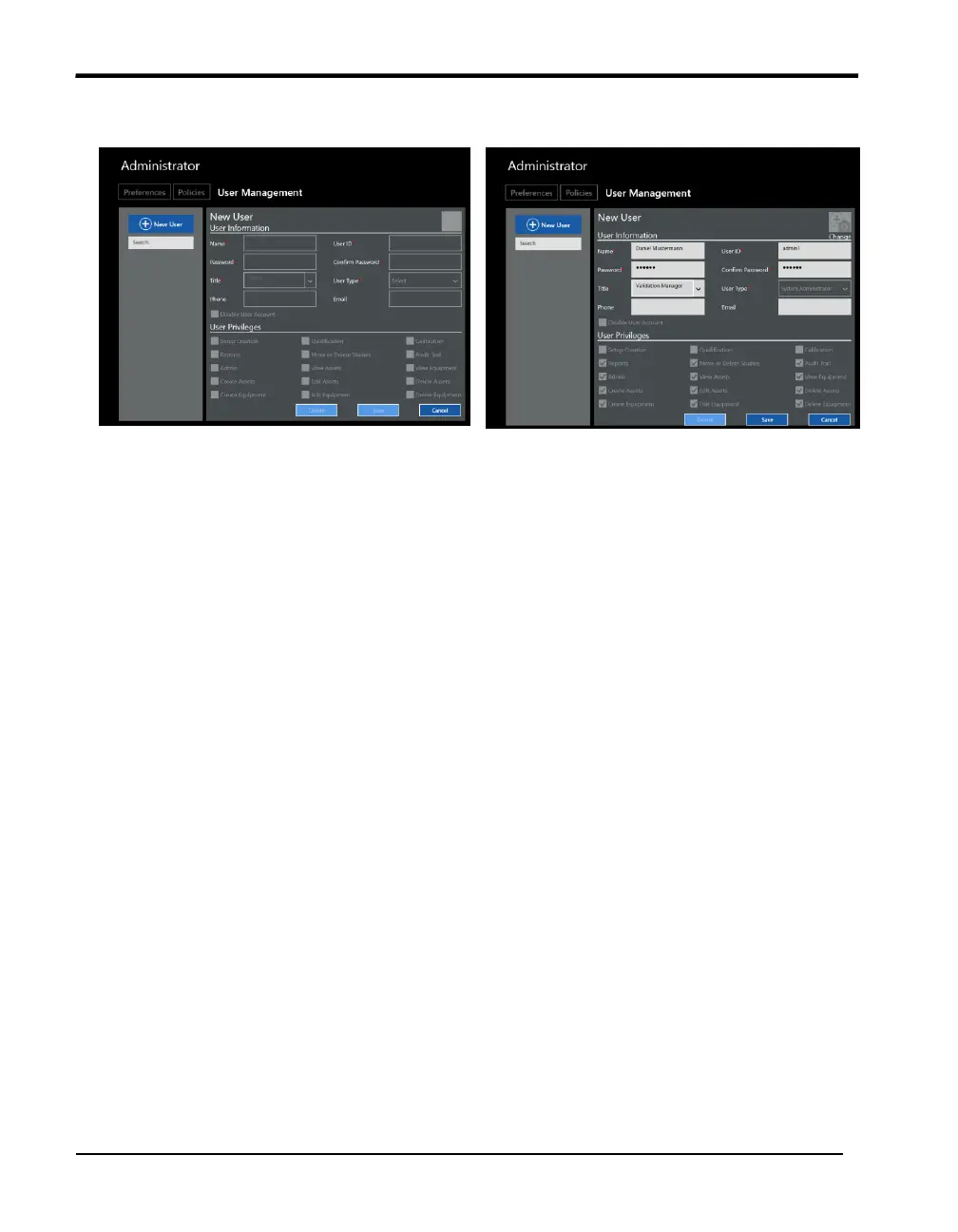
After the initial Login you start directly with the creation of a new system administrator in
the user management screen.
Figure 21: New User Screen - Create initial system administrator
1. Press the blue “New User” button and create a system administrator. The fields with
red asterisks are mandatory: User IDs are unique and the password is following the default
rules for passwords (minimum of six characters).
Enter your new System Administrator identification in the User ID text box. Your user ID
can be any combination of numbers and characters, up to a maximum of 16. A user ID
cannot be used by more than one active account.
2. Enter your new System Administrator password in the Password text box. Your
password can be any combination of numbers and characters, up to a maximum of 16. For
security reasons, it is preferable to use more than six characters or numbers.
3. Enter your password again in the Confirm password field and press OK.
At this point you should record your user ID and password for future reference. You need
both to log in to the Validator AVS. If you do not enter the correct user ID/password
combination, you will be denied access.
For the initial system administrator the User Type and User privileges are preset. You can
enter a title, phone and email and even associate a picture by using the build in camera.
After creating the new system administrator, by pressing “Save” the software automatically
logs out. From now on the initial Kaye/411 user is not available anymore. The next time you
log in to the Kaye Validator AVS Software, you will need to enter your own System
Administrator user ID and password. The system is able to identify you by name using your
unique user ID and password combination.
The Main screen appears (see below). You are now ready to create other accounts and set
the preferences and policies as required.


 To Next Page