Page 26
Step 1: Using the menu navigation buttons, navigate the menus to Configuration,
Config Inputs, then to Photocell, and press Select/Save
Step 2: Enter the Input Number. Usually a photocell is connected to the PhotoCell
input and the screen would read as follows
Step 3: Select Photocell Behavior
• Force Off - The photocell will be turning off
relays when the input receives
voltage, usually indicating that the photocell is receiving more light. The
trigger to turn on the relays must be from another source, like the
scheduler or a switch. This application is useful for parking lot lighting
which is turned on by the scheduler and off during the day.
• Force On/Off - The photocell will be turning on and off relays and no other
source (at the current or lower priority level) will be able to alter this
condition. This behavior is appropriate for applications where the photocell
will be the only controlling source for the relays.
• Force On - The photocell will only be turning on lights and some other
control will turn off the lights. This behavior is appropriate when lights
must be on when it’s dark, but only turned off by a switch, building sweep,
scheduler, switch, or other control device.
Step 4: Enter the delay time. This is the time between when the photocell
triggers the action and the action actually occurs. Longer delay times are
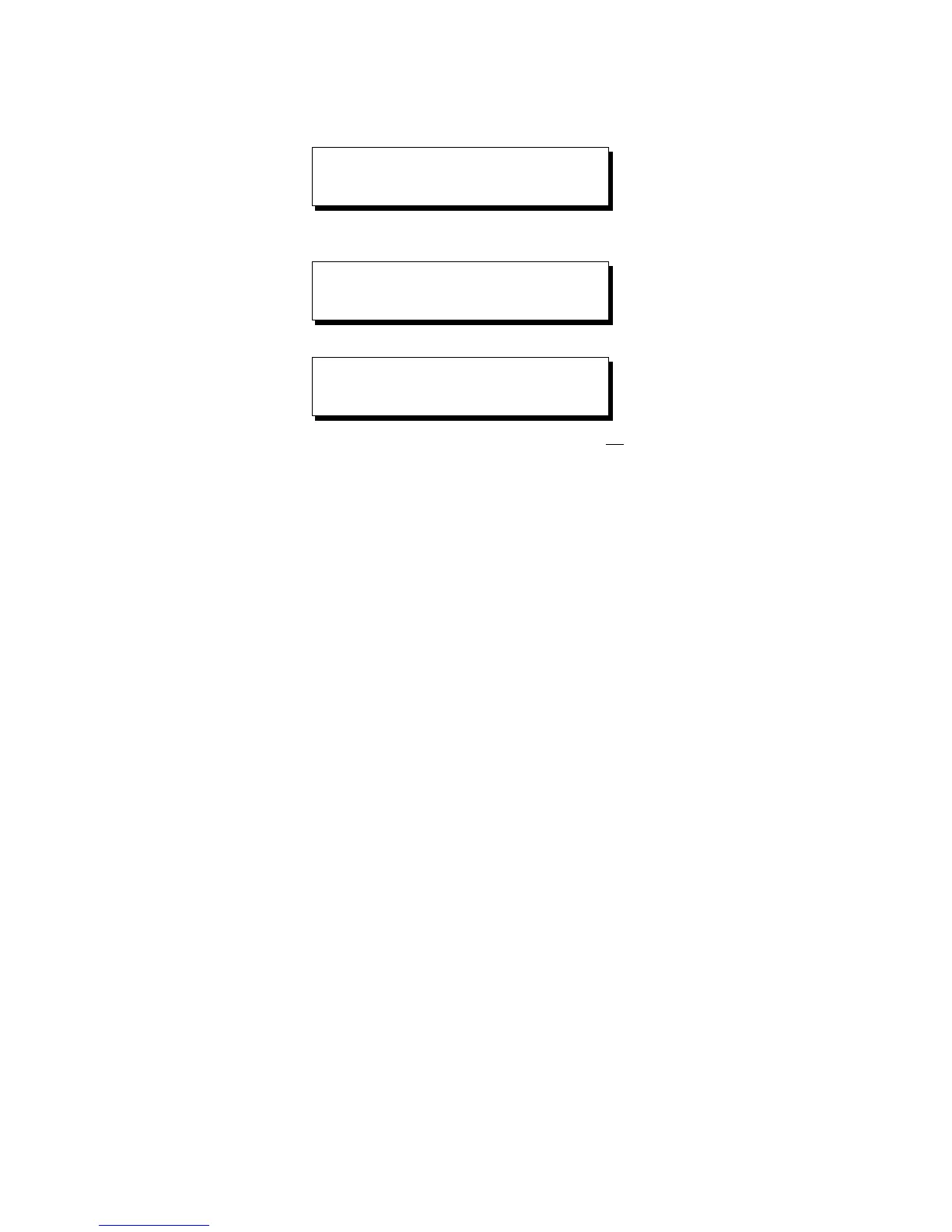
CONFIGURATION
PHOTOCELL
ENTER PHOTOCELL
INPUT NUMBER:PC
SELECT BEHAVIOR
FORCE OFF



 To Next Page