McAfee VirusScan
28 McAfee Office
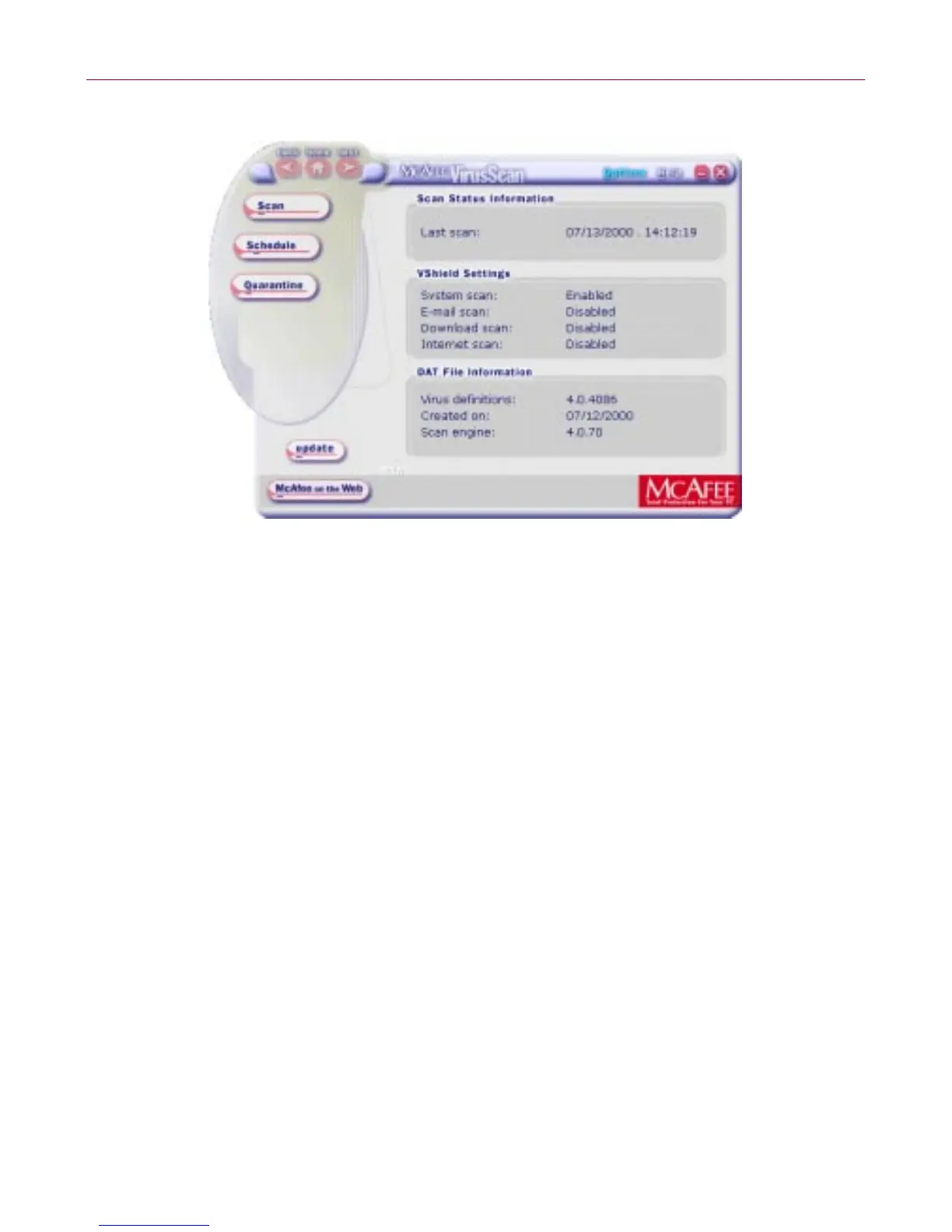
Figure 3-1. McAfee VirusScan Central screen
Through this user-friendly interface, you can access the main functions of
McAfee VirusScan. C lick the appropriate b uttons a s displayed to start
perform in g a particular task w ithin McAfee VirusScan (e.g., Sc an, Sc hedule,
Quarantine, etc).
You c an also click the Update button to start searchin g and downloading an y
available updatesto McAfeeVirusScaninstalled onyourcomputer.Makesure
that you are connected to the Internet p rior to usin g this feature. For more
inform at ion a nd step-by-step instr uctions, clic k the H elp ico n on the upper
right-hand corner of the window. To view available options in customizing
how y ou want McAfee VirusS can components to work on y our P C, click the
Options b utton.
• The VirusScan Console. T his component allow s you to create, configure
and run VirusScan tasks at times you specify. A “task” can include
anyt hing from running a scan operation on a set of disks a t a specific tim e
orinterval, to runningan updateorupg rade operation. Youcan alsoenable
or disable the VShield scanner from the C onsole win dow. The Console
comes with a preset list of tasks that en sures a minimal level of protection
for y our s ys tem—yo u can, for example, immediately scan and clean your
C: drive or all disks on your computer. See “Creating and Confi guring
Scheduled T asks” on page 191 of the VirusScan User’s Guide for det ails.



 To Next Page