107/128
Integrating the Door Station into a Network with Static IP Addresses
© MOBOTIX AG • Security-Vision-Systems • Made in Germany
www.mobotix.com • sales@mobotix.com
Mac OSX
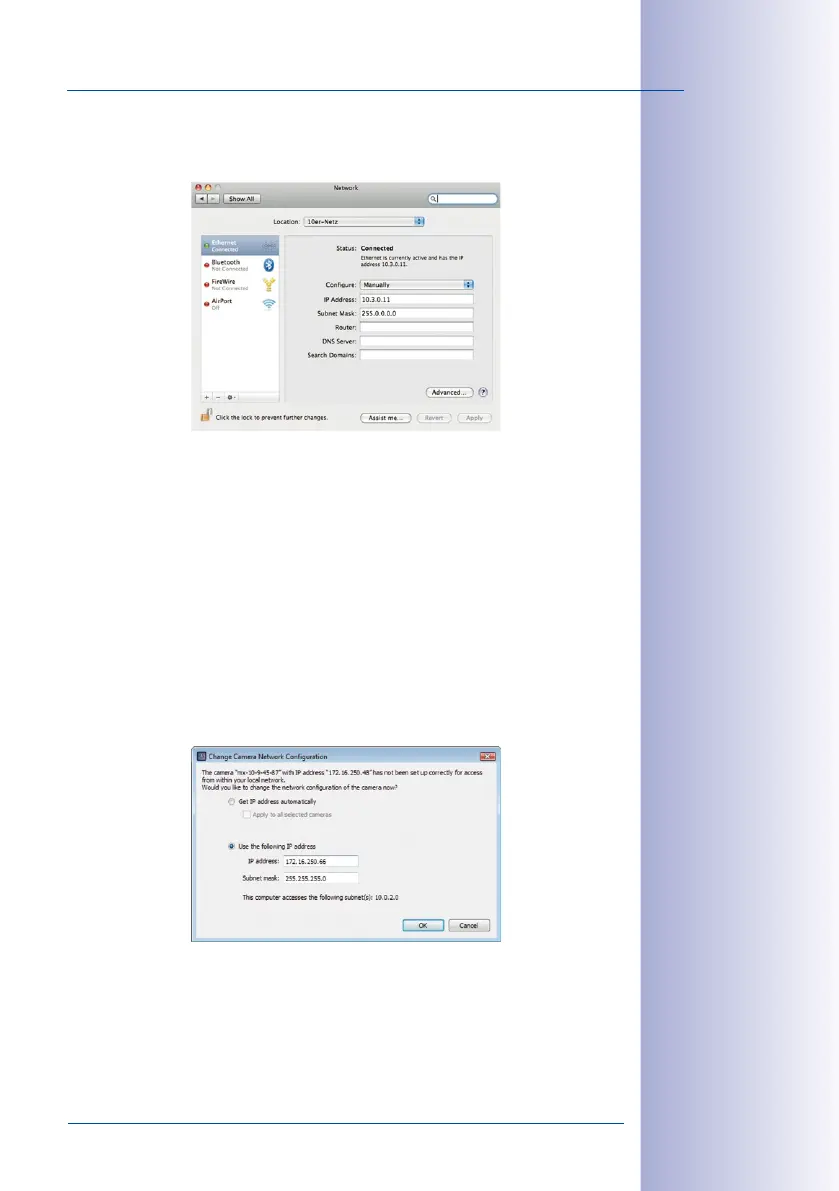
1. Open System Properties> Network..
2. Select Ethernet. Select the option Manual under Configuration and enter a static IP
address (e.g., 10.3.0.11) with the subnet mask 255.0.0.0.
3. After you have clicked Apply, the computer uses the IP address 10.0.0.20.
Step4: Assign Static IP Address to T25 (See Also Section 2.3.2 of the MxEasy Manual)
Install MxEasy on a computer and start the program. The MxEasy Wizard opens (see
Section 5.1.3, «Connecting a Door Station Using the MxEasy Wizard»
):
Select your T25 door camera. The Network status icon will probably be blue. This color
indicates that even though the operation computer and the Door Station are in the
same physical network, they are still in dierent IP address ranges and therefore can
-
not communicate with one another (yet). Click Continue. The Network Configuration
prompt window opens. Click OK to confirm.
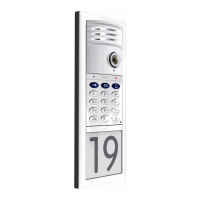
In the Change Camera Network Configuration dialog box that opens next, enter a static
IP address appropriate for the LAN and a subnet mask for your Door Station under the
activated Use this IP address option. Click OK to finish. If you have more than one T25,
repeat the process for entering the IP address. The T25 is now reconfigured and the Select
Integration with MxEasy window opens.


 To Next Page