99/128
Setting Up Computers as T25 Remote Stations
© MOBOTIX AG • Security-Vision-Systems • Made in Germany
www.mobotix.com • sales@mobotix.com
2. Activate the desired checkboxes.
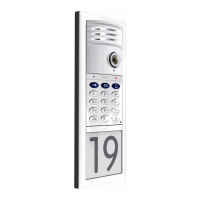
– Door sensor and/or door lock sensor:
Specify the door sensors that are present in the system and which connection
terminals have been connected. This is important in order to get the correct status
displays in (door open/closed/locked) in MxEasy.
If you do not know, if and which door sensors are attached, test the dierent
selections that are available and check them against the displayed status.
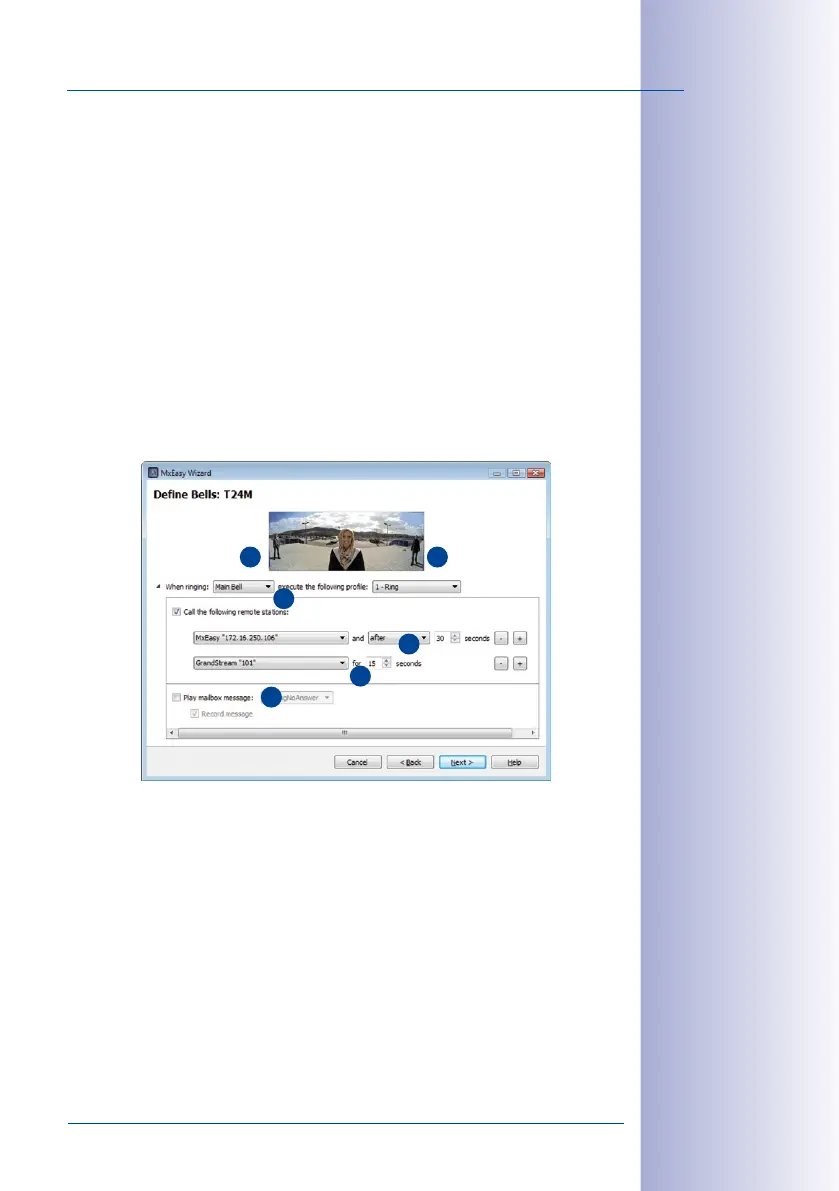
3. Click on Next. The Define Bells window opens.
Step7: Define Bell Actions and Finish Wizard
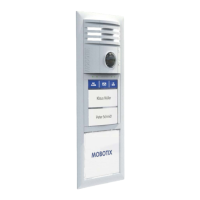
This window allows selecting, which actions are to be performed when the doorbell
rings at the Door Station (except on a Grandstream video phone). The addressees, which
can be reached at the Door Station, are the equipment bell buttons and (optionally) the
contact numbers set up with the blue user cards.
1. Select the Addressee for which an action profile is to be entered (bell button or
contact number).
2. Specify how a ringing at the door station should be answered:
– No ringing at the remote station (no phone ring)
– Only with ringing (ring only)
– With ringing and mailbox (ringing and visitors can leave messages if the home
-
owner does not answer)
– With mailbox only (no ringing, visitors can leave messages immediately)
– Only with announcement (visitors hears an announcement after ringing, but
cannot leave a message)
1 2
3
4
5
6


 To Next Page