SW
41
Innovation. Quality. Performance. Best in Industry. Worldwide.
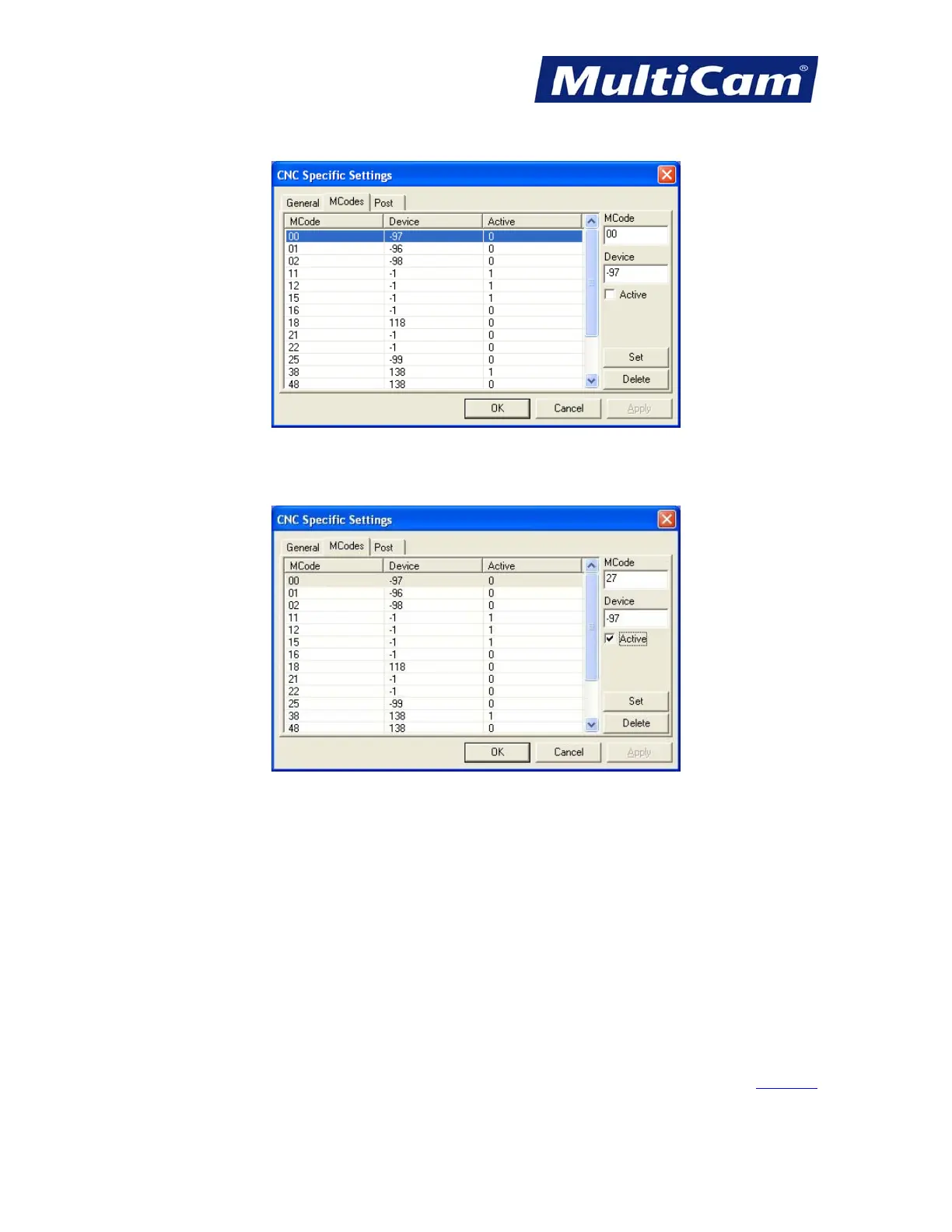
4. Click on the MCodes tab at the top.
5. Enter the M Code (e.g., 27), correct the device as needed, set the status to Active by clicking in the check
box, and select Set. Active indicates a motion command (e.g., start spindle) while Inactive indicates a non-
motion command (e.g., end of job).
Any M Code, including M12, can be mapped per the operator’s preference; however, JobConsole treats the
M12/M22 coding specifically for the start/end of a contour.
6. Download and store an MCode_Device_Map.uc file to location 3. For assistance on any of these steps,
please contact
MultiCam Tech Support.
Operators may also modify or delete M Codes from this same dialog.
Modify - Highlight an existing M Code, make changes (e.g., Device -1 instead of -97), and select Set.
Delete - Highlight an existing M Code and select Delete.
Software
Routers * Lasers * Plasma * WaterJets * Knife Cutters
www.MultiCam.com v. 11 10


 To Next Page