Panel setup menu PrismJET 54 Gen2 OPERATION MANUAL
202 5.9 Roll Length Manage menu
5.9 Roll Length Manage menu
Before replacing with another roll media, you can print the remaining roll length information on the roll
media.
This information can be printed with a code that your printer can read. The next time when the roll media
is loaded, your printer will read the code and will automatically specify the Roll Length settings.
• The Roll Length Manage menu will not be displayed if "Media Initial" is set to "Off".
5.1.4 Media Initial menu
• The Roll Length Manage menu will not be displayed if the media is not loaded.
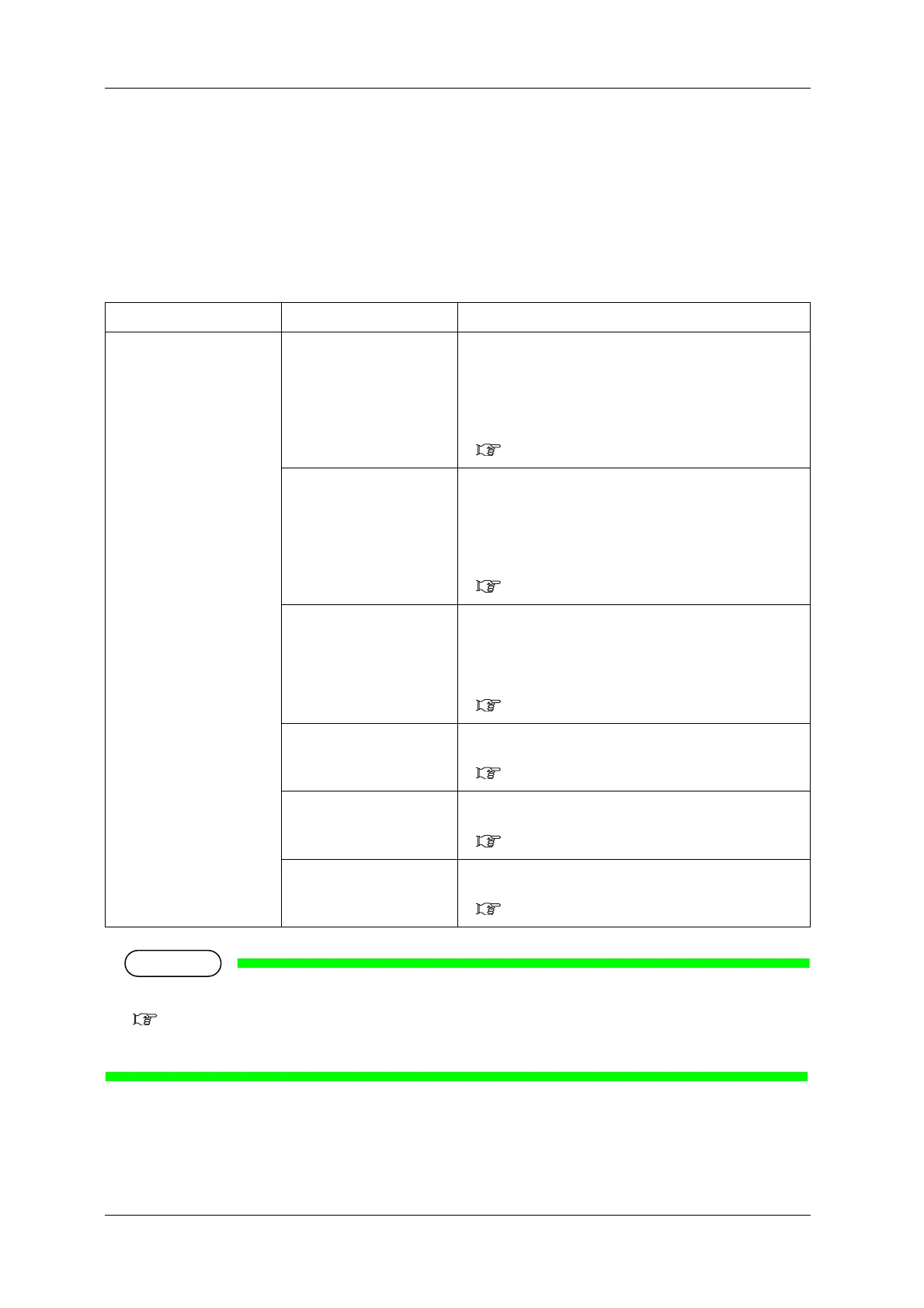
Setup item Setting Description
Roll Length Manage Print Print the remaining length management information with text
and code on the roll media.
•[Enter] key:
“Cut Media? No” is displayed on the operation panel.
Select “Yes” or “No”, then press [Enter] key, and print
starts.
5.9.1 Print menu
Simple Print Print the remaining length management information with text
only on the roll media.
•[Enter] key:
“Cut Media? No” is displayed on the operation panel.
Select “Yes” or “No”, then press [Enter] key, and print
starts.
5.9.2 Simple Print menu
Scan Your printer can scan the remaining length management code
that was printed on a roll media with "Print".
•[Enter] key:
“Please wait” is displayed on the operation panel, then scan
starts.
5.9.3 Scan menu
Roll Length Sets up the roll media length.
• [Enter] key: shifts to the sub menu.
5.9.4 Roll Length menu
Auto Scan Goes to the auto scan menu.
• [Enter] key: shifts to the sub menu.
5.9.5 Auto Scan menu
—
• [Cancel] key: cancels the setting and shifts to the previous
menu.
5.1 Setup menu


 To Next Page