This chapter describes how to view different types of information in the event log
and how to generate reports from the log and other sources.
Using the Event Log Window and Toolbar
The Event Log window allows you to view Maxicom
2
events and alarms. It also
allows you to sort, filter, and clear entries in the event log and to create reports
from event log data. The Event Log window shows the following information about
all events in the system that have not been cleared:
• Type — shows alarm, warning, or event.
• Date — shows the date of the event.
• Description — shows a short description of the event.
•From— shows where the event occurred.
• Acknowledged — shows whether or not the event has been acknowledged.
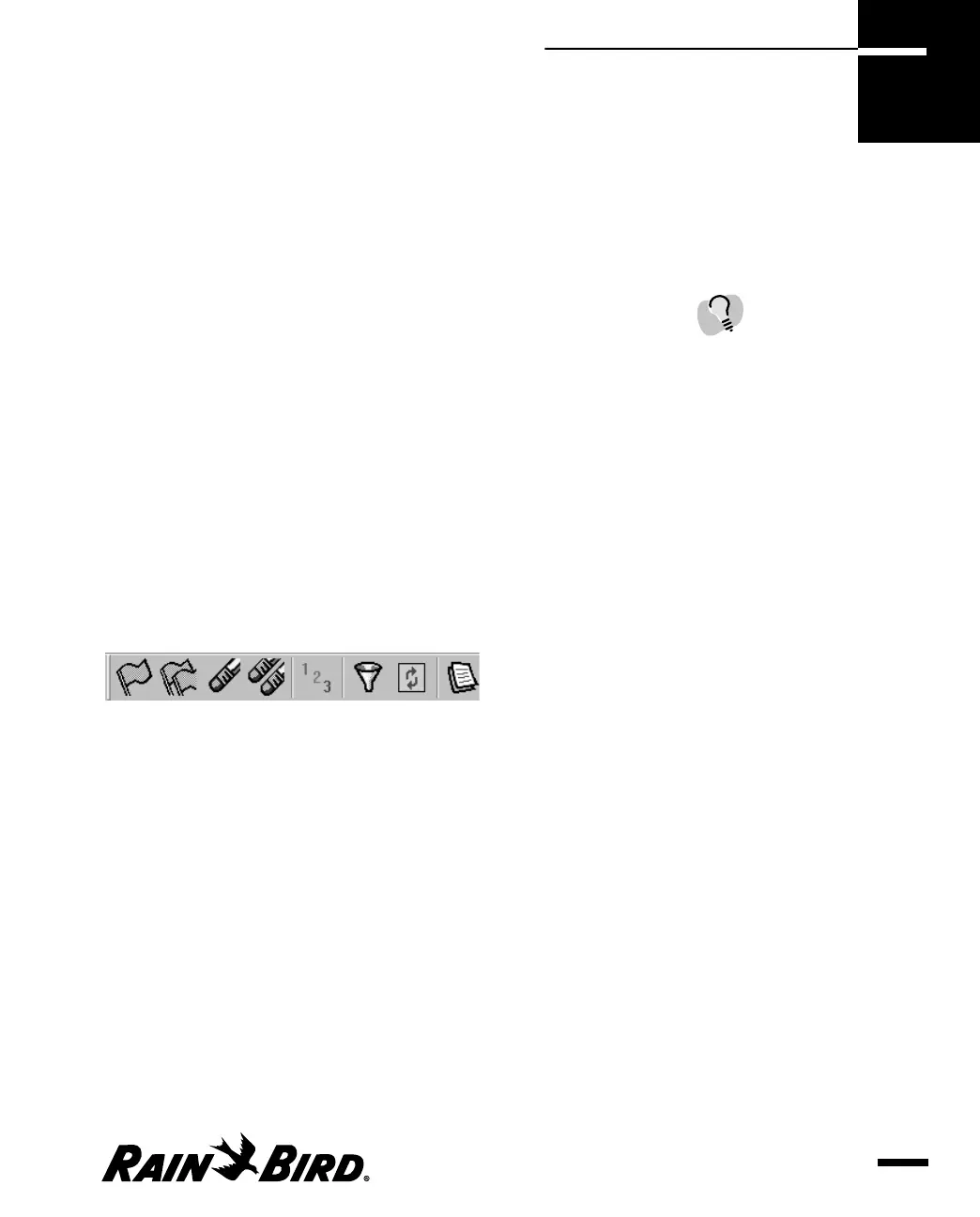
The Event Log window toolbar contains the following icons, which are described in
detail in this section:
Event Log Window Toolbar
• Acknowledge — allows you to acknowledge an alarm.
• Acknowledge All — allows you to acknowledge all the alarms in the Event Log
window.
• Clear — allows you to clear entries from the log.
• Delete All — Deletes all events from the Event Log.
• Statistics — Shows specific event statistics for all sites or weather sources.
• Filter — allows you to select which events to display in the Event log window.
• Refresh — allows you to update the data displayed in the Event Log window.
• Report — allows you to create a report from the event log.
You can change how you view the data in the event log, but you cannot edit the
information in the log.
Viewing the Event Log and Generating Reports
9.1
Viewing the Event
Log and Generating
Reports
9
If there are alarms present in
the Event Log window,
Maxicom
2
will display an
alarm in the Selection Pane
and you will hear an alarm
bell. There are four ways
turn off the alarm(s):
• select the alarm in the
Event Log window and
click on the Acknowledge
button to acknowledge the
alarm
• click on the Acknowledge
All button to acknowledge
all of the events in the
Event Log window
• select the alarm in the
Event Log window and
then click on the Clear
button to delete the entry
from the Event Log
window
• click on the Delete All
button to delete all
Event Log entries



 To Next Page