1-18
1 Printer Driver
ComColor Series User’s Guide 09
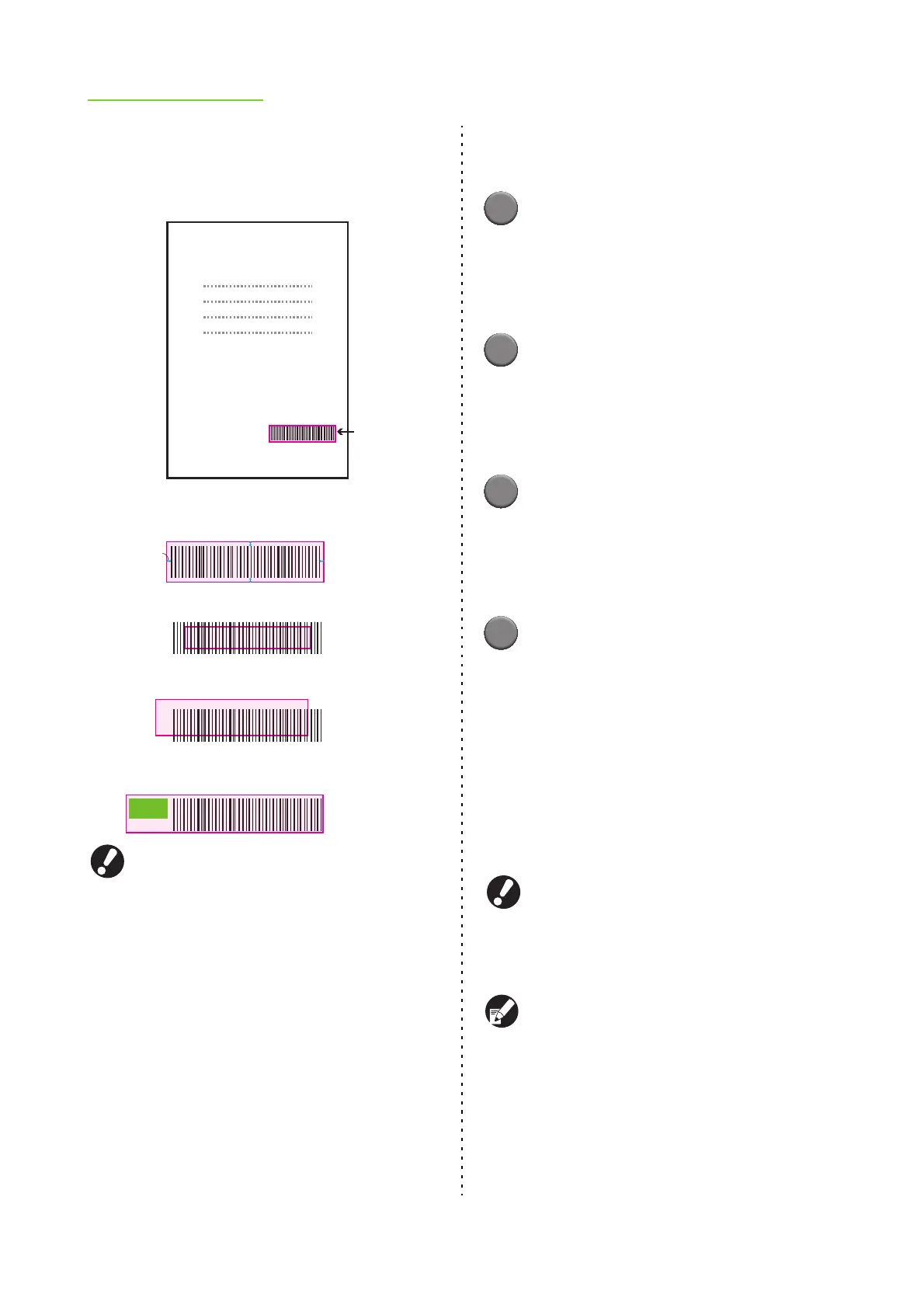
If the specified area is not neatly aligned, correct
the "a barcode area definition file" with the attached
barcode area definition application.
● In an area specified using the barcode print
function, regardless of the color of the original,
the base color is white, and the barcode color
is black.
● The type of targeted barcodes is one-
dimensional. If the barcodes are two-
dimensional (e.g., QR code), you do not need
to perform this setting.
● If you print using different resolutions for the
application that has created the original and
the printer, barcodes may not be able to be
read correctly even using this function.
■ The flow of printing a barcode
original
1
Save an original to the printer
driver as a PRN format file.
Set [Output] to [Save as a file] in the [Basic] tab,
and specify a directory from [Details]. Perform the
output setting as needed.
2
Specify a barcode area, and save it
in CSV format.
Activate the barcode area definition application,
open the print format file mentioned in step a and
specify a barcode area.
3
Register a barcode area definition
file to the printer driver.
Register the CSV format file mentioned in step b
to the printer driver. ("Barcode area file entry"
(p. 1-37))
4
Print an original with a barcode in
the printer driver.
Select the [Barcode area definition] in the printer
driver's [Image] tab, select a barcode area
definition file, and print.
Select the [Barcode area proof] check box, click
[OK], and a printout to check is output. Check
whether the specified area is out of alignment. If it
is, return to step b. If it is not, uncheck [Barcode
area proof] and click [OK].
For information on installing the "Barcode area
definition application" and on step
b
, see "Using the
Barcode Area Definition Application" in the "Basic
Guide".
Set a frequently used original to the default. You can
omit some necessary settings and perform barcode
printing easily.
Request for Toner
Collection
● Surround the barcode with a margin of around
1 mm (0.04") or more
● RISO KAGAKU CORPORATION
Correct Specification
Specified
barcode area
(shaded part)
● Do not surround an area smaller than the
barcode
● Do not surround an area which is not aligned
with the barcode
● Do not include another object with the barcode
Content other than the black lines included in the area
will be printed out white (disappear).
1mm
(0.04")
OK
NO
NO
NO












 To Next Page