50
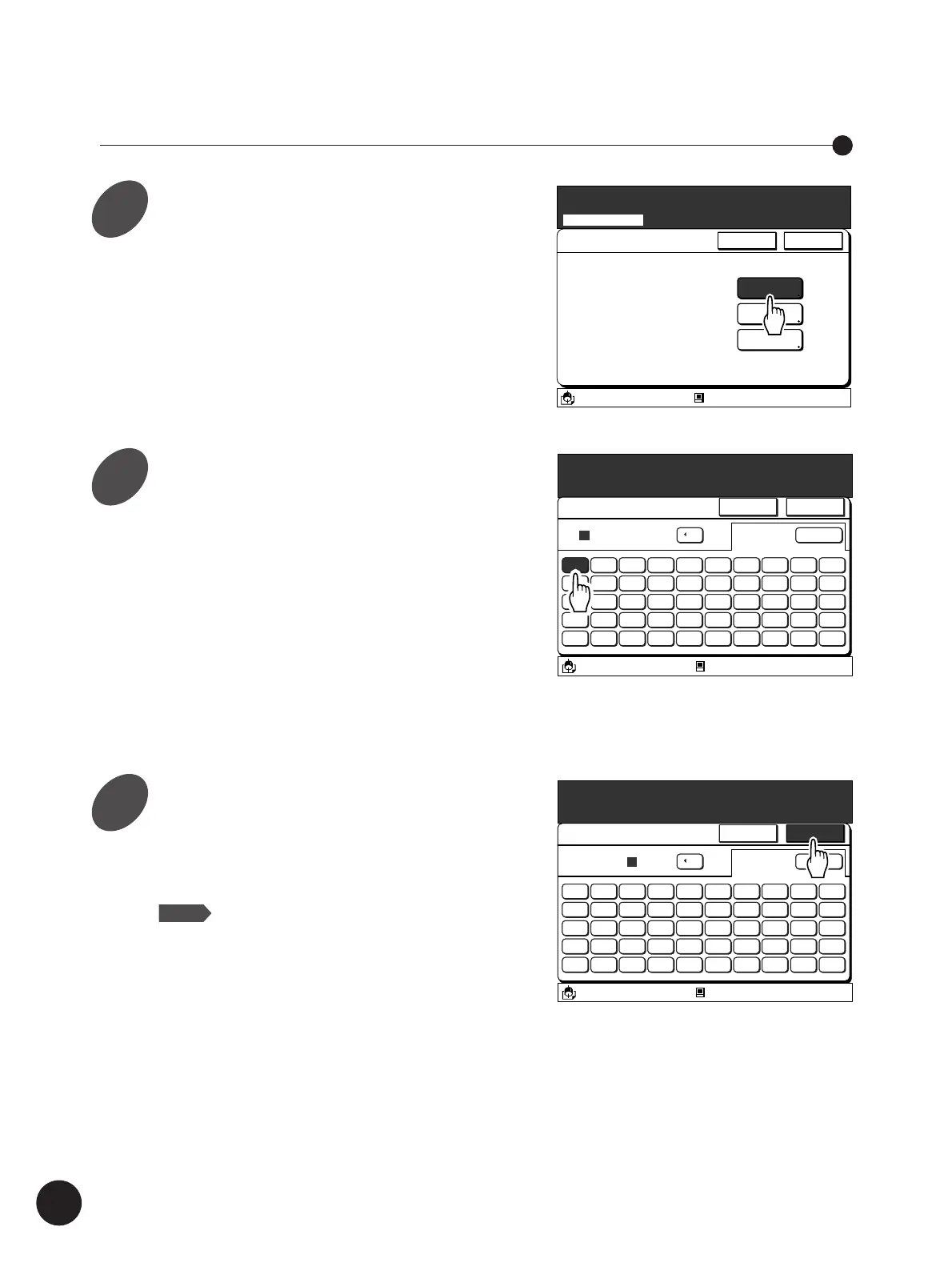
Touch the [OK] button.
The display returns to the [File Storage Stage]
window, showing the new names of the data file
and owner.
NOTE
You can customize the initial owner’s name.
☞ p.51...Customize the Initial Owner’s
Name
A3/Black Blocked
13:59
Cancel OK
Rename
[ ]
1st Original
C
Shift
5 6 7 8 9 04321
t y u i o prewq
g h j k l =fdsa
b n m , . _vcxz
% ^ & * @$#˜!
Touch the [Rename] button for the
[File Name] or [Owner] field on
the [File Storage Stage] window.
The [Rename] window appears.
Refer to step 1 in the section “Scanning and
Saving Document Data” on page 44 for details
on the procedure required for displaying the [File
Storage Stage] window.
Renaming the Scanned Data File and Its Owner
File Storage Stage
Rename
Specify the File Properties for Scanning
Scanning Mode
Page Size
Rename
File Name
Page Size
Owner
SCAN000001
A3
RISO
A3/Black Blocked
13:59
OKCancel
A3/Black
13:59
Shift
5 6 7 8 9 04321
T Y U I O PREWQ
G H J K L :FDSA
B N M < > :VCXZ
( ) [ ]
/-*
+
Cancel OK
Rename
[ ]
C
1
Blocked
˜
Enter each required character
one-by-one.
You can switch between uppercase window and
lowercase window by touching the [Shift] button.
• Up to twenty spaces can be input for the file
name.
• Up to eight spaces can be input for the
owner’s name.
• Numerals can also be input with the Print
Quantity keys.
• Touch the [
h
C] button to erase an entered
letter (one letter will be erased whenever the
button is touched).
Expanding Functions with the Document Memory Card
1
2
3



 To Next Page