80
Press the Start key.
The idling action is started.
Then master-making operation starts subsequently.
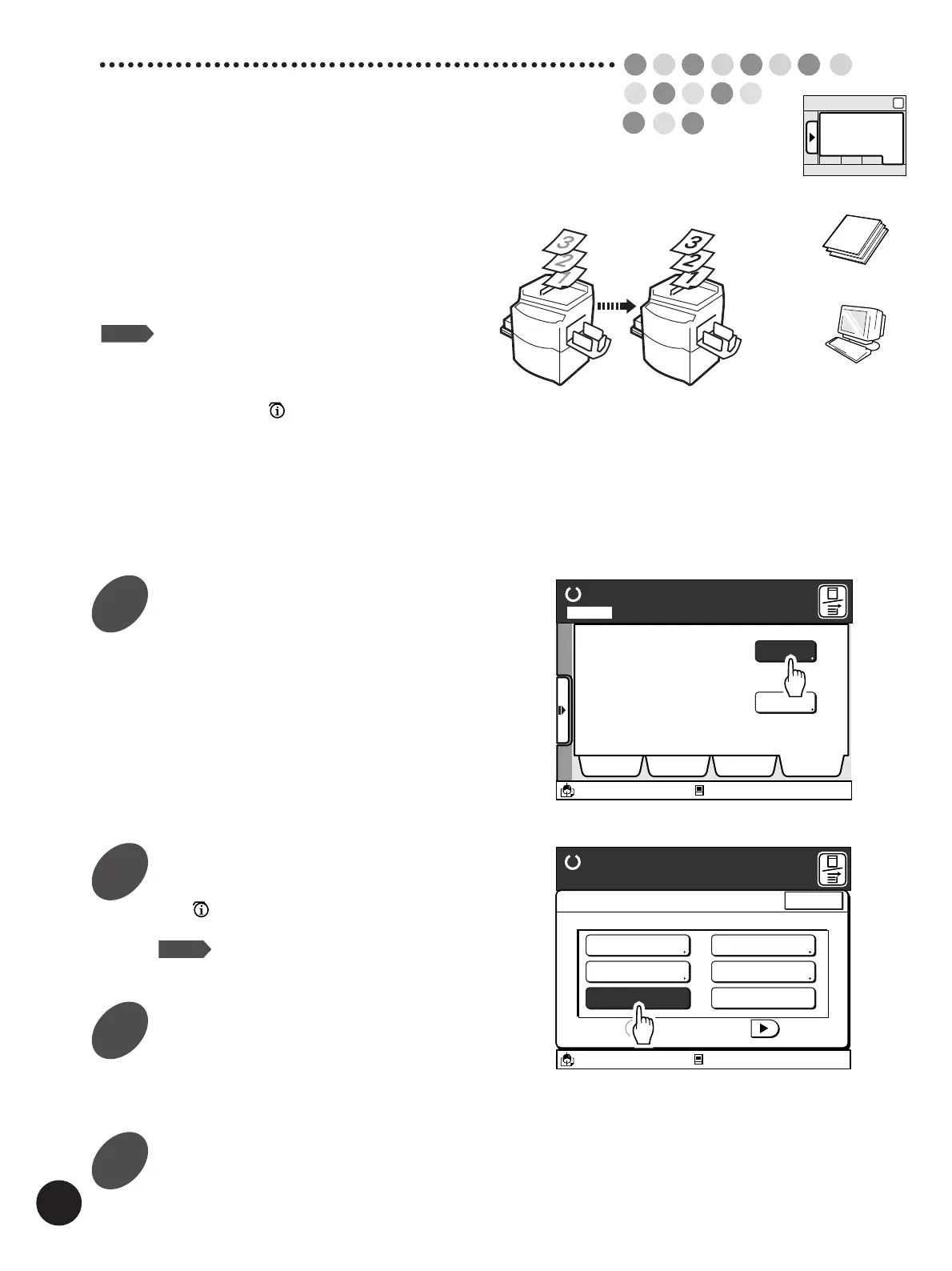
The Idling Action assures consistent print quality even
after a long break by rotating the Print Cylinder (Drum) to
ensure even ink distribution, and saves you from wasting
paper due to faint images in printing.
NOTE
• When [Auto Idling Action] is set to [ON], idling
action is automatically activated just before the
master-making operation if the specified period
has passed without any printing operation. (In
this case, the [
] icon appears in the
message area.)
• You can select the minimum period required
for the automatic activation and the times of
rotation for the idling action.
☞ p.154... Customizing the Initial Settings
Touch the [Idling Action] button.
The [ ] icon appears in the message area.
NOTE
To cancel this operation, touch the [Idling
Action] button again.
Idling Action
Display the [Catalog] tab on the
sub-panel window and then touch
the [Functions] button.
The [Functions] widow appears.
Ready to Make Master
A desired function can be
selected from the list
The properties of your RISO
printer can be changed
Functions
Properties
Selections Job List Program Catalog
A3/Black
13:59
Idle
M
Page No. 1Local
A3/Black
13:59
Close
Functions
P.1/3
Confidential Mode
Renew Page
Idling Action
Multi-Up Print
Book Shadow Editor
Semi-Auto (Master)
Ready to Make Master
Idle
M
Touch the [Close] button.
The window returns to the Main-panel window.
Set the original in place for master-making.
Sub-panel
Catalog
1
2
3
4



 To Next Page