97
Changing Printing
Paper Information
For trouble-free printing, change the following information of the printing
paper to be used when different type/size of paper has been loaded.
[Size]
Select the size of the printing paper to be used.
[Type]
Select the type of the printing paper to be used. (The Paper Feed Pressure
Adjustment lever must also be adjusted when the paper type has been
changed.)
[Finish]
Select the type of finish of the printing paper, whose information will be
displayed on the PC monitor in the Data mode with use of the utility
software RISO-MONITOR.
NOTE
When paper with a different size to the previous one has been set in
place, the [Paper Stock Change] window will be displayed to enable
you to change the setting. On the other hand, when a different type
of paper with the same size is set, modify the setting by yourself on
the [Paper Data Entry] window.
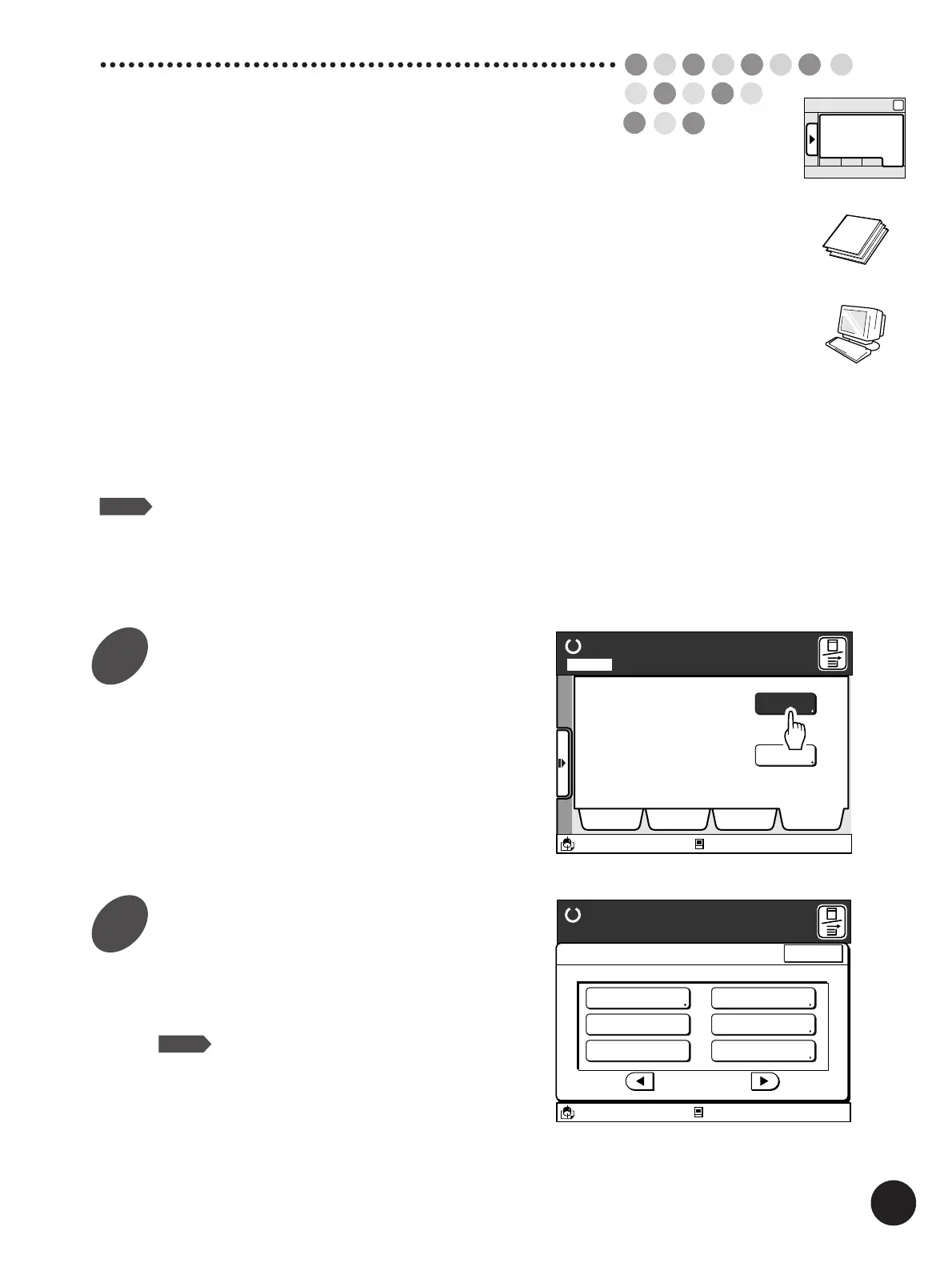
Display the [Catalog] tab on the
sub-panel window and then touch
the [Functions] button.
The [Functions] window appears.
Ready to Make Master
A desired function can be
selected from the list
The properties of your RISO
printer can be changed
Functions
Properties
Selections Job List Program Catalog
A3/Black
13:59
Idle
M
Page No. 1Local
Display the [Paper Data Entry]
button.
Touch the [
h
] or [
g
] button to display this function
button.
NOTE
The number of function buttons will differ
depending on the printer model and the
configuration of the optional devices.
A3/Black
13:59
Functions
P.2/3
Job Separation
Paper Data Entry
Ready to Make Master
Idle
Close
Regist. Mark Skip
Stack Guide Adjust
D-Feed Check
Jump Wing Control
M
Sub-panel
Catalog
1
2



 To Next Page