Section 10: PRS Alpha Control Box Wiring • May 2, 2016
© Copyright 2016 ShopBot Tools, Inc. page 10-3
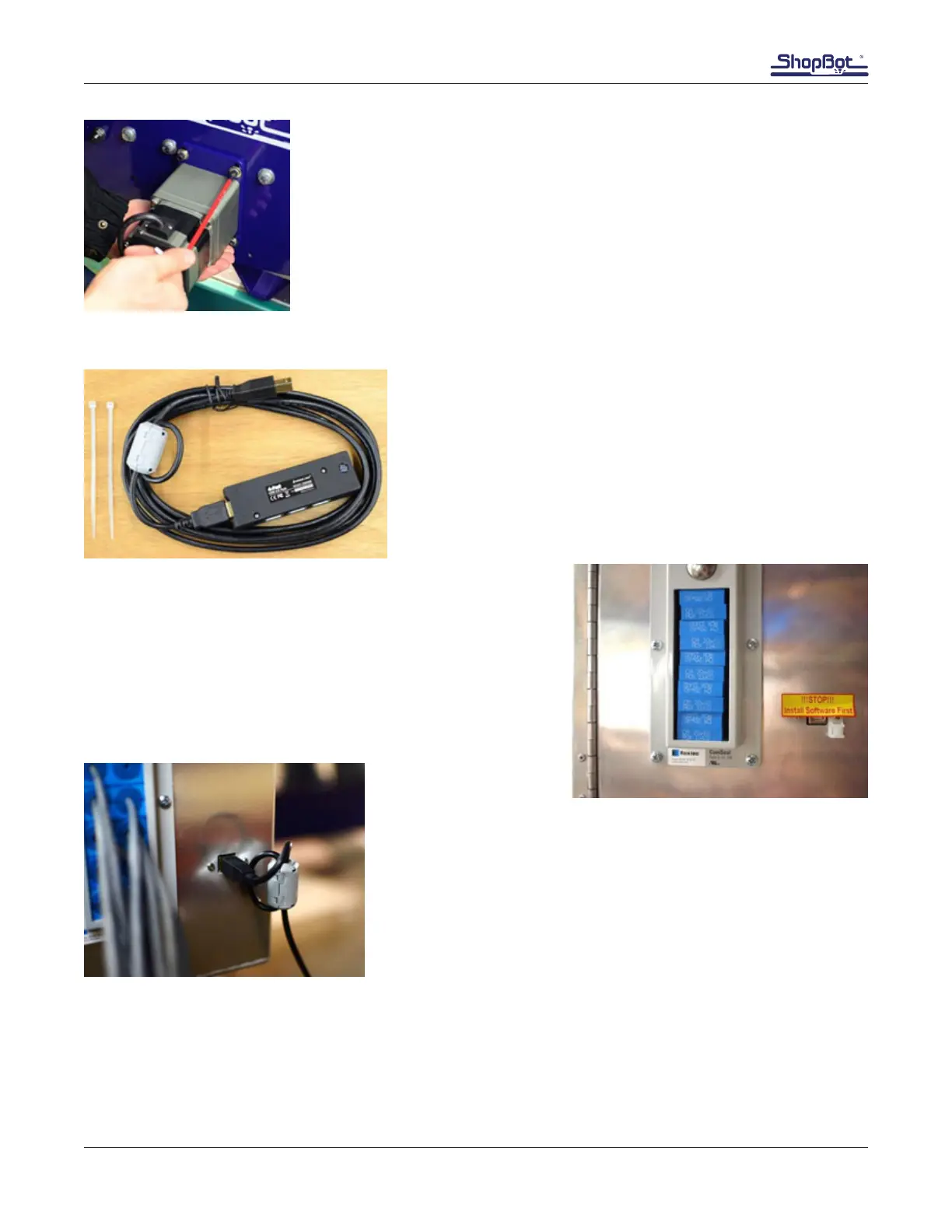
Engage Pinions with Rack
Loosen mounting bolts so motor plate can slide up and down.
Push motor up to engage pinion with the rack. It may be necessary to
slightly jiggle the motor to ensure teeth interlock.
Maintain rm upward pressure (15-20 lbs) with one hand while tightening
mounting bolts.
If necessary, a second person or quick clamp can hold the motor in posi-
tion.
Connect ShopBot to Computer
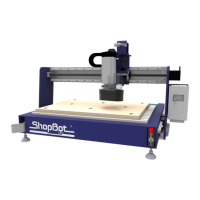
USB Communication Cable
The USB cable is located in a packet inside the control box
door.
Note: The black box pictured at left is a USB hub. It pre-
vents older operating systems from spontaneously reducing
the USB communication rate. Use only the ShopBot commu-
nication cord with this hub.
Locate the control box USB port. The control box ships with
a sticker partially covering the port that reads; “Stop! Install
Software First.” Remove this sticker only after installing the
ShopBot control software.
Plug the cable into the control box and use a zip tie to secure
the cable loop.
Load the Settings File
ShopBot control software is designed to work with all ShopBot models, each with different table di-
mensions, gear ratios, and other parameters. These settings are saved in an initiation (.INI extension)
le that runs each time the software is started. The rst time the software is connected to a tool, you’ll
be prompted to set the default .INI settings le.


 To Next Page