DMS-1200 Release 6 Operations Manual
Section 7 – DAS Device Control 83
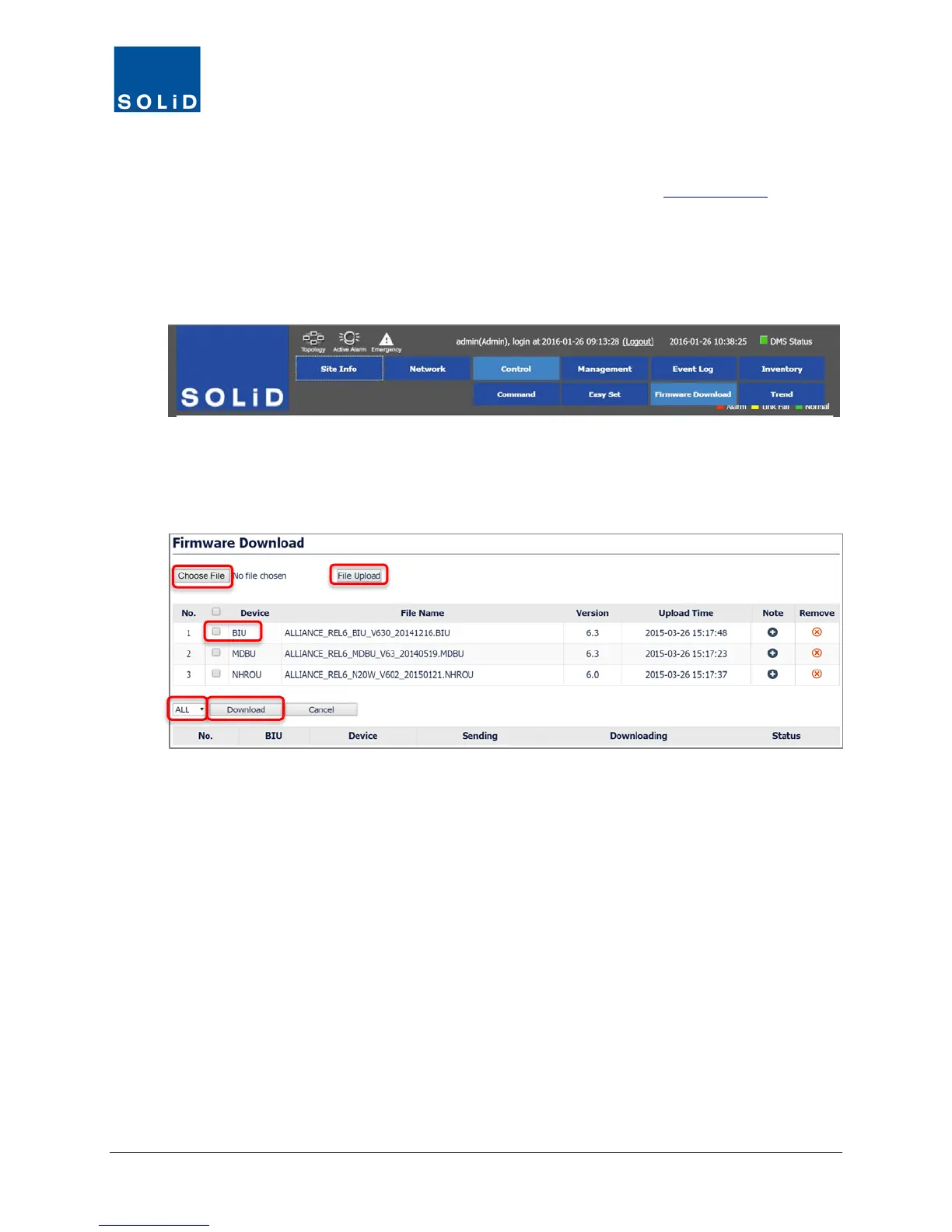
7.6 Upgrading Firmware for DAS Components
SOLiD offers periodic firmware upgrades for DAS components. Contact SOLiD Support to obtain
firmware files. Update firmware for all system components from the Control > Firmware
Download menu.
1. Obtain the latest firmware files from SOLiD Support. Load the firmware on your PC.
2. On the Control menu, click Firmware Download.
3. Click Choose File. Select the firmware file from your PC’s file directory and click Open from
the Windows dialog box to confirm.
4. Click File Upload. Uploaded firmware files are shown in the Device / File Name list.
5. From the Device list, select the target device or select multiple devices.
6. From the drop-down list, select the BIU associated with the target devices.
7. Click Download. Status is shown in the progress bar.
8. Once you have updated firmware for a device (for example, all the MDBUs in the system) you
can delete the firmware file from the DMS server. Select it, then click Remove.


 To Next Page