DMS-1200 Release 6 Operations Manual
Section 9 – Trend Data, Event Logs and System Inventory 97
9.3 Viewing the System Inventory
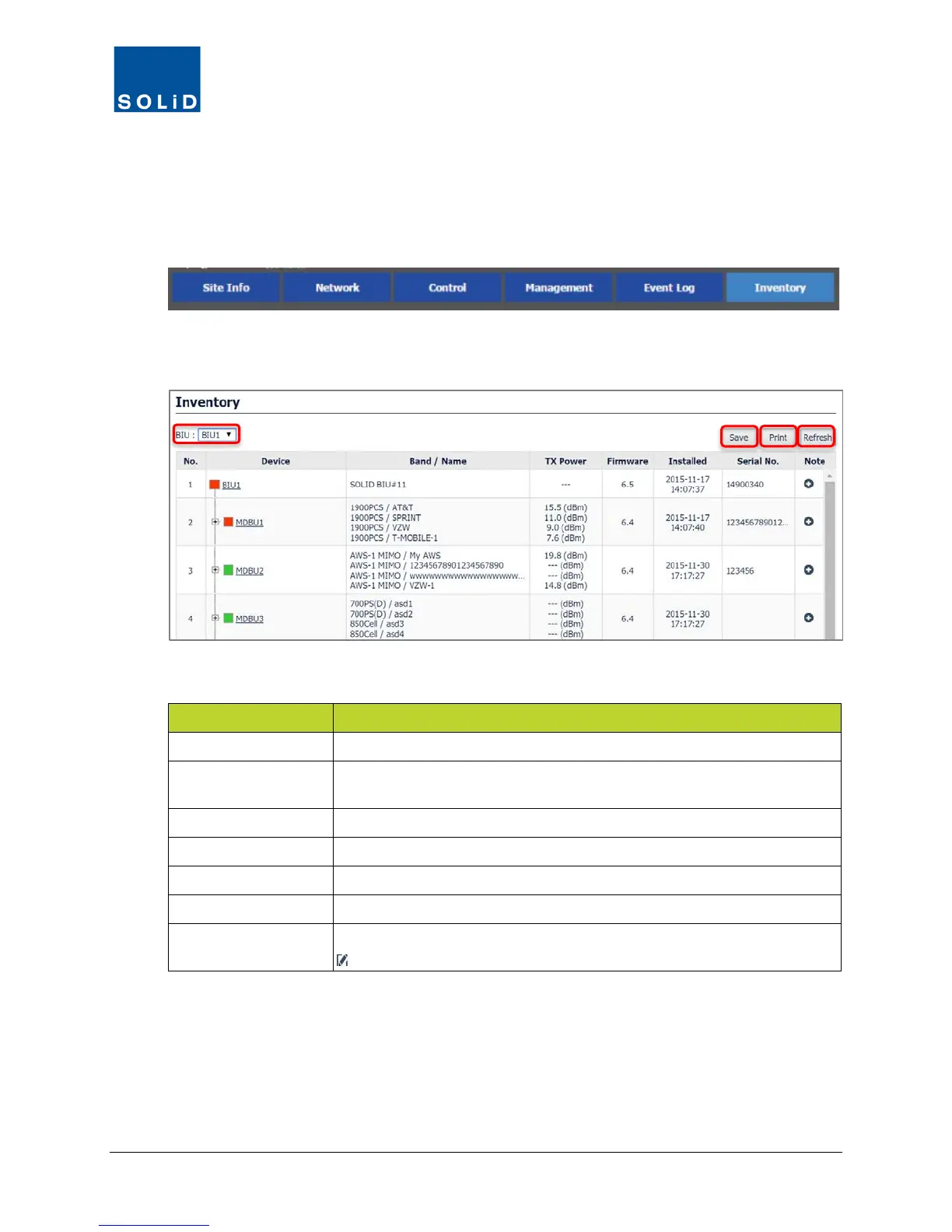
The Inventory screen shows all currently connected DAS network components. You can print the
inventory and download a file in spreadsheet format.
1. On the Navigation Bar, click Inventory.
2. From the BIU drop down list, select a specific BIU or All to show the inventory for all BIUs
connected to the DMS-1200.
The Inventory fields include:
Field Description
Device Device status:
Red = alarm, Yellow = link fail, Green = normal
Band / Name MDBU / RDU band type related to the device (if applicable) and device
name. Names are assigned in the Control > Command menu.
TX Power Current TX power (dBm) for the device, if applicable
Firmware Firmware version of the device
Installed Installation date of the device
Serial No. Serial number of the device
Note
Click the “+” icon to add any additional information about the device.
Indicates that information has been added.
Table 9.3 − Inventory Fields
3. To download a copy in spreadsheet format, click Save.
4. To print a copy of the current inventory report, click Print.
5. To reload the inventory report for the BIU selected, click Refresh.


 To Next Page