DMS-1200 Release 6 Operations Manual
Section 7 – DAS Device Control 76
7.5.7 NHROU (THOR) Setup
This section describes how to set up the THOR high-power remote optic unit (NHROU).
1. In the Tree Menu or Menu bar, click on the NHROU to configure.
In the setup screens, some fields show current settings and are not user configurable. Other
fields allow you to configure parameters for the device. You can see the Min / Max values for the
parameter by clicking in the field.
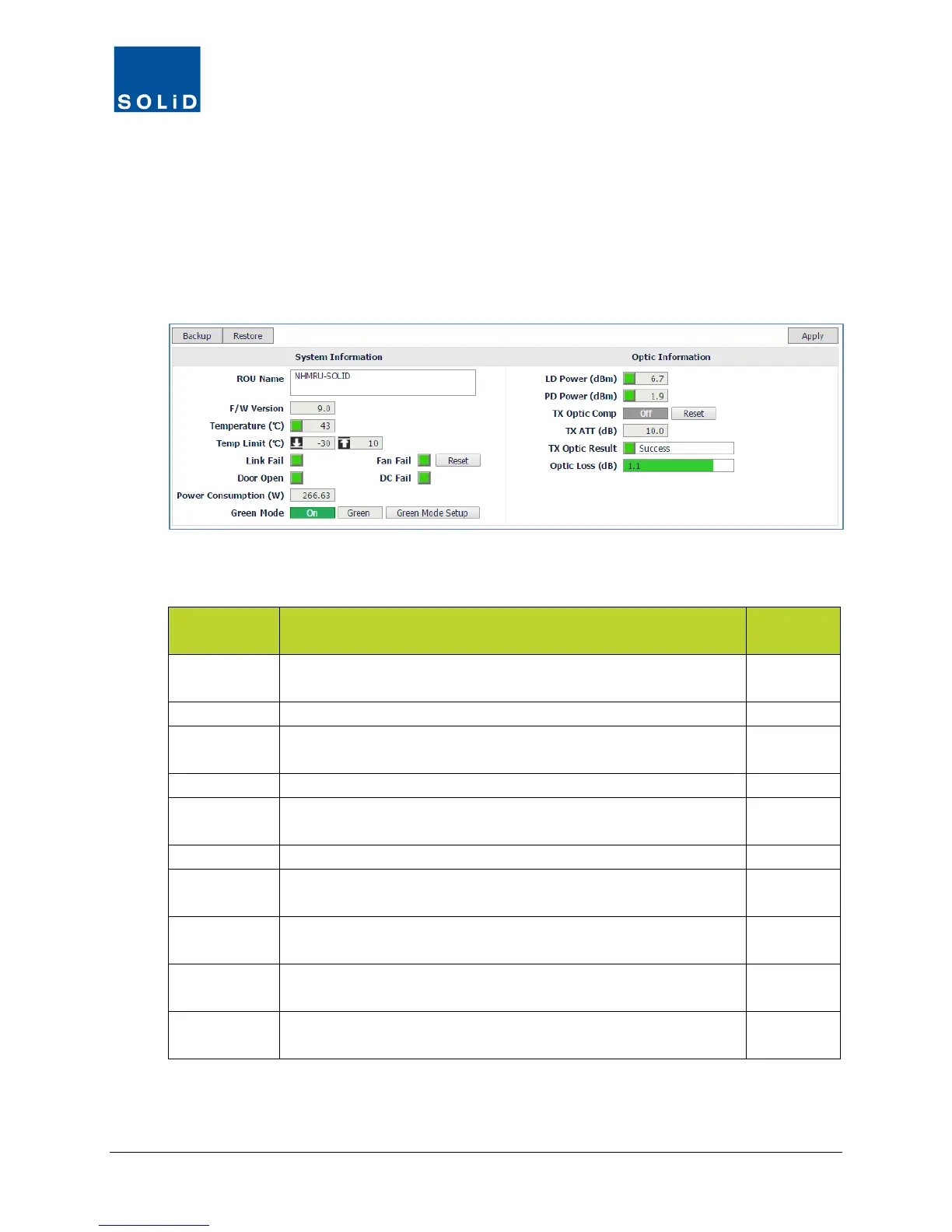
2. Configure the System Information according to these guidelines:
ROU Field Action / Description
User
ROU Name Enter a name to be used to Identify the NHROU throughout the
system. Maximum 40 alpha-numeric characters.
Y
Shows Firmware version of the NHROU CPU.
Temperature Shows Current temperature and Alarm status of NHROU.
Green = temp within limits. Red = temp above/below limits.
N
Shows Low / High temp alarm settings.
Link Fail /
Shows status of BIU communication. Green = normal operation;
Red = link failure. Click Reset to in case of link failure.
Y
Shows status of fan. Green = normal operation; Red = fan failure.
Door Open Shows Door status: Green = normal. Red = Door open or door
N
DC Fail Shows DC Power status: Green = normal. Red = power supply
unit is experiencing over-current or low voltage conditions.
N
Power
Shows current power consumption (W) of NHROU.
N
Backup /
Click Backup to save the current settings for the ROU/RDUs.
Click Restore to apply settings from backup file.
Y
Table 7.23 – HROU Control Screen Fields – System Information


 To Next Page