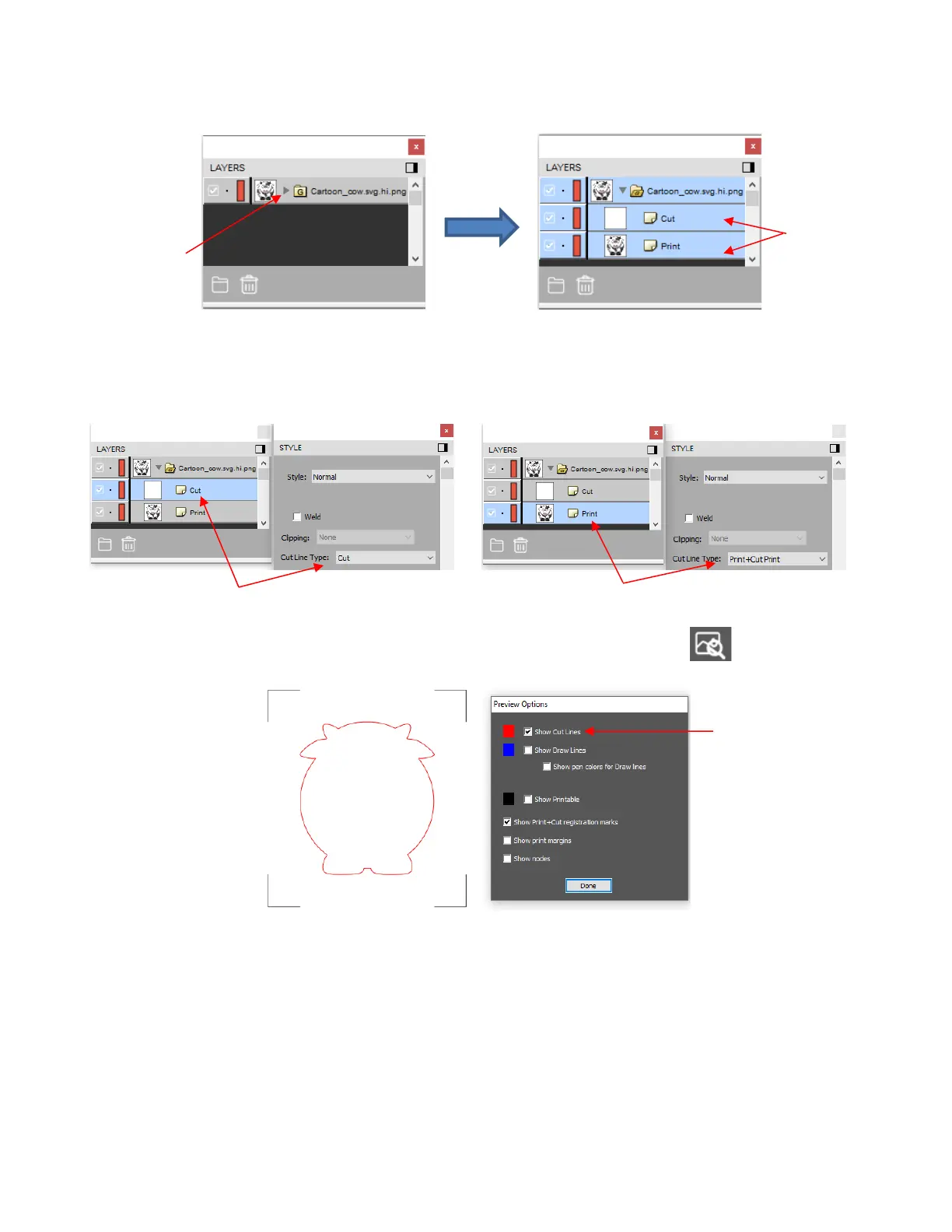
(3) On the Layers Panel, click on the triangle icon to open the grouped layer to see that there is both a cut
layer and a print layer within that group:
(4) When you select just one of the two layers and look at the assignment on the Style Panel, you’ll see that
the Cut layer is assigned as Cut and the Print layer is assigned as Print+Cut Print. This is typically what
you want for this type of PNC application (note that the Cut layer will not print because it doesn’t have a Fill
or Stroke color (Section 4.07.1) assigned.
(5) To verify that Cut line is, indeed, following the printed image click the Preview icon on the Toolbar:
(6) If desired, make multiples or import other images. In this example, the Edit>Duplicate function (Section
2.07.2) is used to add 3 more cows. Before printing, mark the options on the Document Panel for Show
Print Margins and Show Reg Marks. The Page will now indicate the boundaries for your currently select
printer and the registration marks based on their current settings. (Refer to Section 3.04 to learn about
adjusting these settings.)



 To Next Page