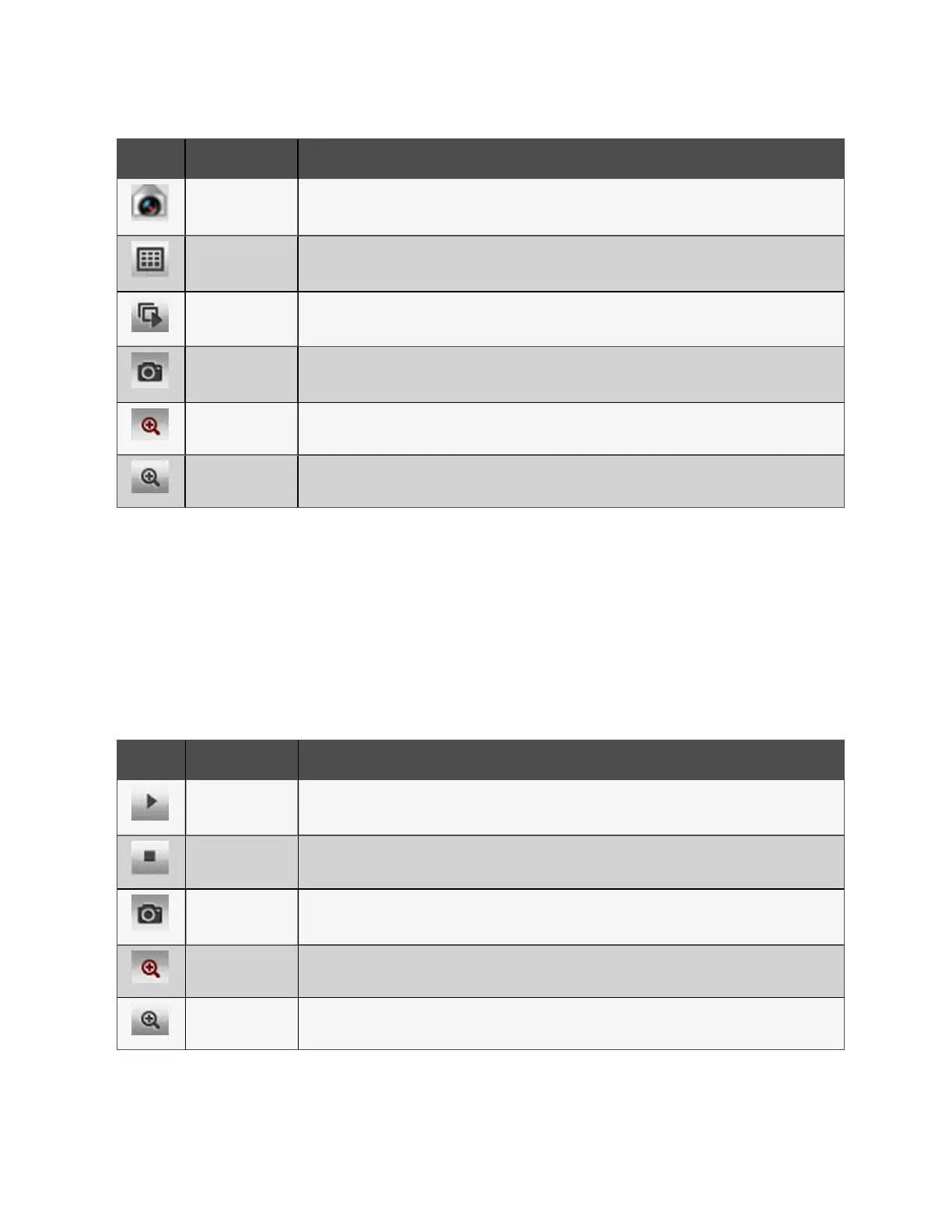
Icon Description Function
Play Start /stop real-time browsing of a single device.
Video Monitoring
Set the current page to browse in 1x1, 2x2, or 3x3 mode. When browsing the current page in 1x1 mode, switch to
browse video monitoring of different devices.
Start All Play Start/stop real-time browsing of all devices.
Snapshot
Capture a snapshot of the live video. The image is saved to this file path: settings\local configuration\corresponding
operation.
Electronic Zoom Turn on the video image magnification.
Electronic Zoom Turn off the video image magnification.
Table 9.4 Live Video Options
Video replay
To navigate through the Video Replay feature:
1. From the Safe Mgmt - Video Surveillance tab, click the Video Replay tab.
2. Select the device from the Device column on the left-hand side to playback the video.
3. Select the date of the playback to find, then click the Play icon.
4. Use the icons on the Video Replay screen to customize the video display. Refer to Video Replay Options below
for icon descriptions.
Icon Description Function
Play Play the video.
Stop Stop the video.
Snapshot
Capture a snapshot of the live video. The image is saved to this file path: settings\local configuration\corresponding
operation.
Electronic Zoom Turn on the video image magnification.
Electronic Zoom Turn off the video image magnification.
Table 9.5 Video Replay Options
102 Proprietary and Confidential ©2024 Vertiv Group Corp.
9 Vertiv™ Liebert® RDU501
Intelligent Monitoring Unit Web User
Interface (UI)
Vertiv™ SmartRow™ 2 Infrastructure Solution User Guide



 To Next Page