3: Management & Configuration
Firmware upgrade
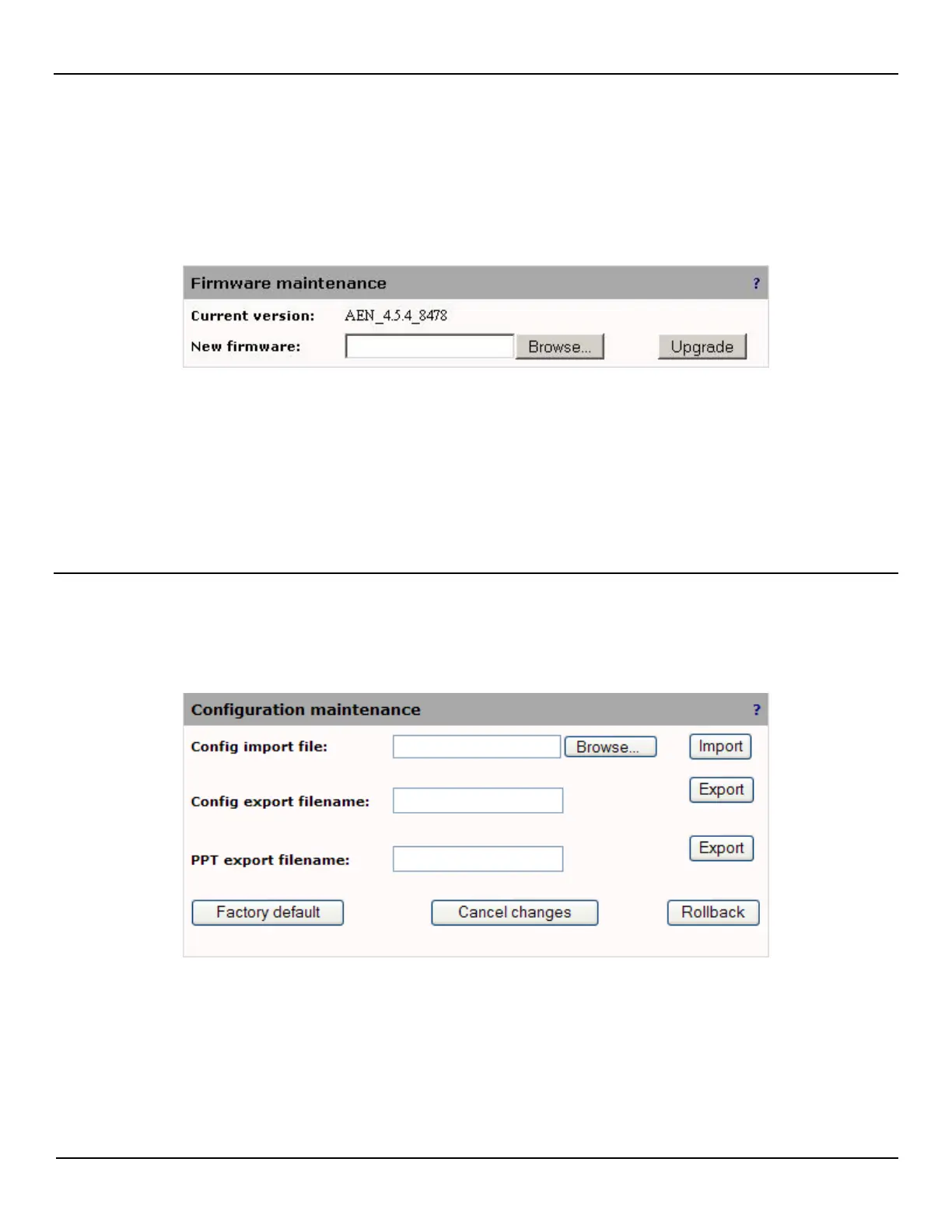
To upgrade the EtherNID firmware, do the following:
1. Open the System > Maintenance > Firmware page.
2. Specify the location and name of the new firmware file or click Browse and select it.
3. Click Upgrade.
4. Once the firmware has been uploaded the unit will restart.
NOTE: All configuration settings are preserved as much as possible. Some changes may occur to reflect the new
functionality of the upgraded firmware.
Configuration maintenance
Use this page to import/export or rollback configurations. The imported/exported file is an agglomeration of all
configuration elements into an ASCII file. Since each product has different configuration elements that may be
incompatible, the file contains, at the top, an identifier to prevent importing the wrong file. Although possible, editing the
file is done at your own risk!
NOTE: A reboot of the unit is required for the new configuration to be activated.
Import a configuration as follows:
1. Click Browse.
2. Select the configuration file and click Open.
3. Click Import.


 To Next Page