AT-TQ5403 and AT-TQm5403 Access Points User’s Guide
139
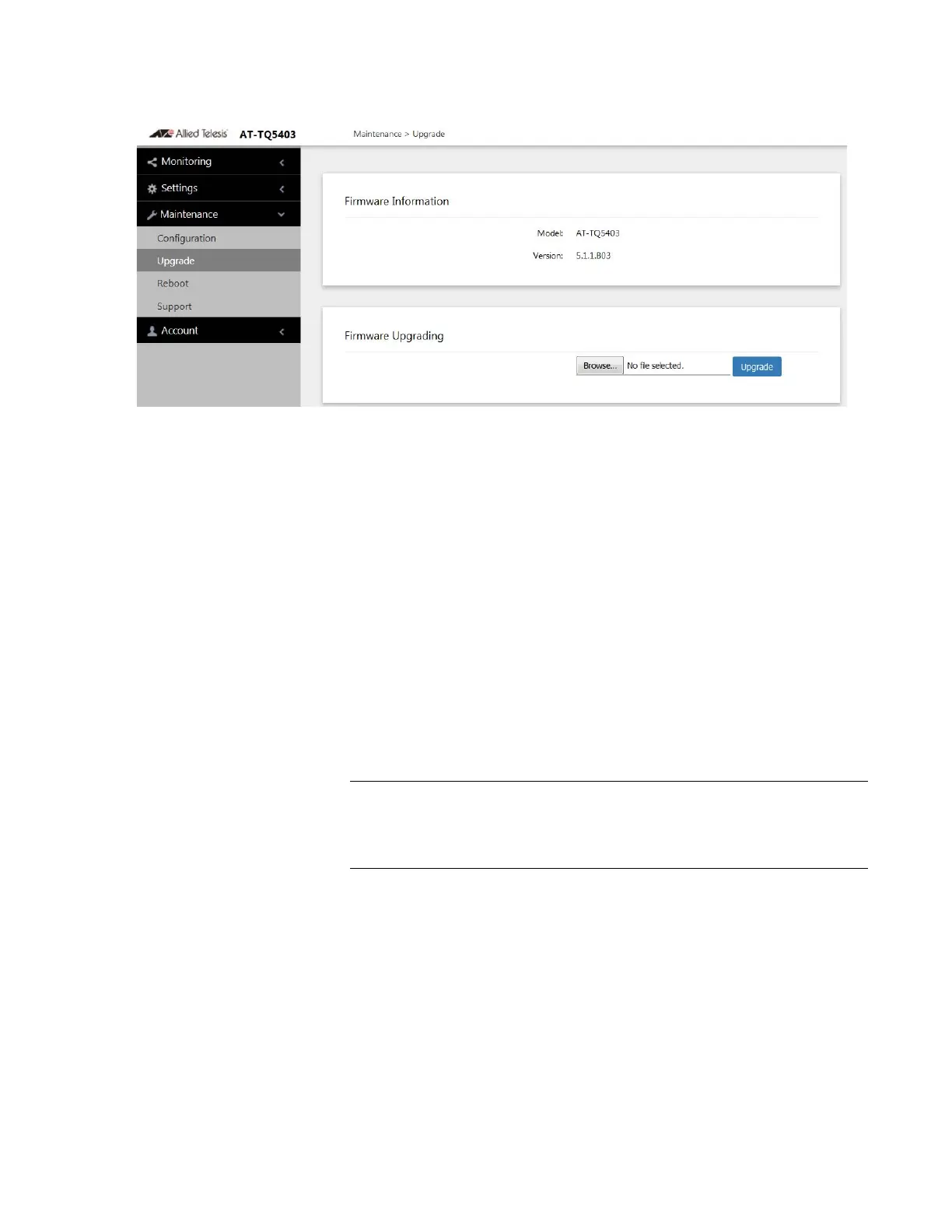
Figure 41. Upgrade Window
The version number of the current firmware is displayed in the
Firmware Information section of the window.
2. Click the Browse button next to the New Firmware Image field and
locate the new image file on your computer or network server.
3. Click the Upgrade button.
The access point displays a confirmation prompt.
4. Click the OK button to upload the new firmware to the access point or
Cancel to cancel the procedure.
5. Wait ten minutes for the access point to upload the firmware, write it
into its flash memory, and reboot.
Do not close the web browser window or change to a different
window until the entire procedure is finished. Interrupting the transfer
may corrupt the file on the access point.
6. To continue managing the device, start a new management session.



 To Next Page
 Loading...