Chapter 6: Running Samples with BD FACSCanto Clinical Software 107
3 Enter new sample information into the worklist.
4 Click to resume.
Importing a Worklist from SPA Software
You can import sample information from a worklist created in BD FACS
Sample Prep Assistant (SPA) software v2.0 or v3.0.
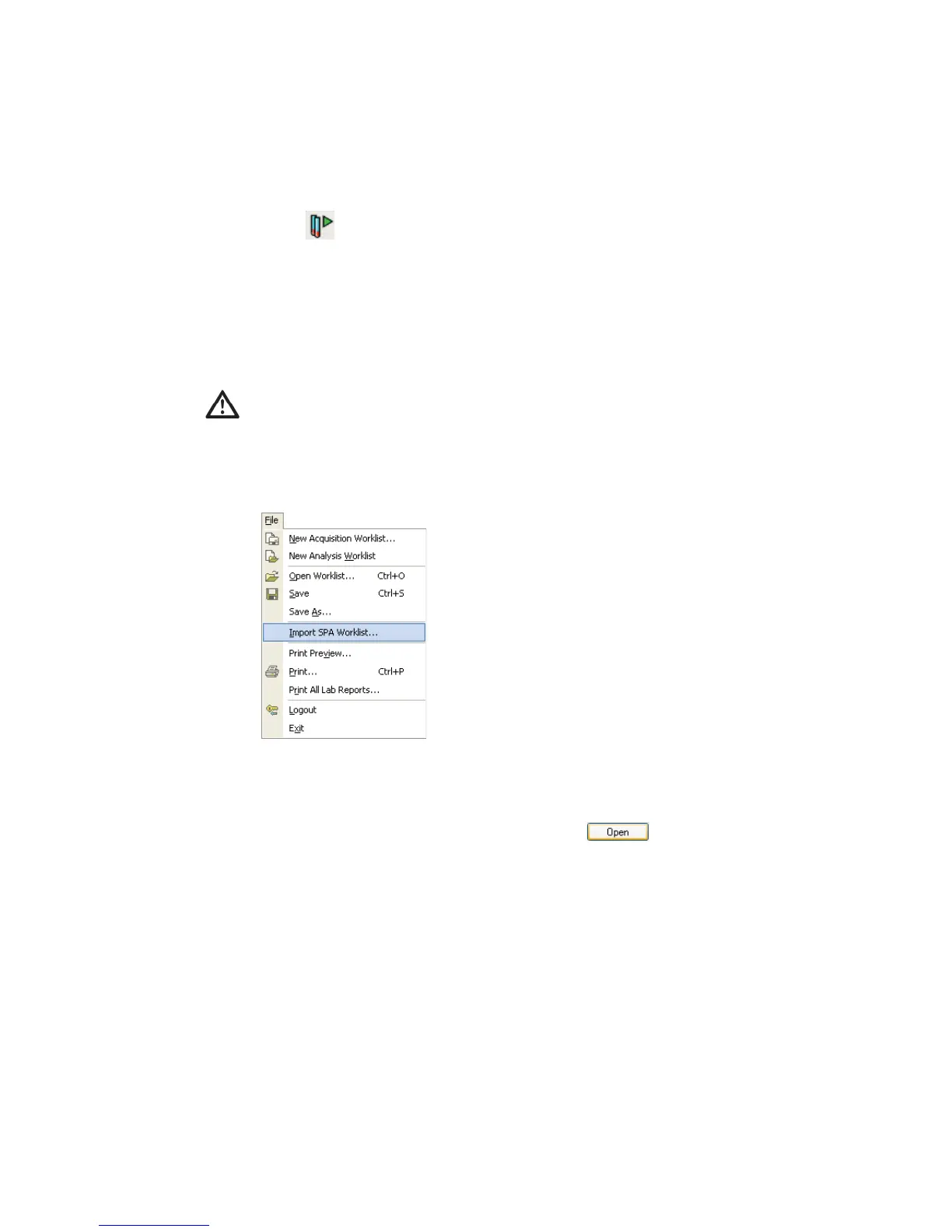
1 Choose File > Import SPA Worklist.
Sample information can be imported only into a new, blank worklist; you
cannot add imported information to a worklist that is already started.
2 Navigate to and select a worklist, and click .
By default, SPA worklists are stored in Program Files/BDApps/SPA/
DataFiles on the system where Sample Prep Assistant software is installed.
Tip Create a SPA Worklist folder within the BD FACSCanto Worklists
folder to help locate files.
3 Review the imported information; edit missing or incorrect entries, if needed.
To import the worklist, all reagent and panel names must exactly match
those used in BD FACSCanto clinical software.



 To Next Page