6.3 Login
General operation
5284 / 08/2023 enBENNING ST 755+ / ST 760+28
6.3 Login
The following procedure describes how to log on to the device [}page64].
Procedure
1. Switch on the device [}page27].
After the start sequence, the device shows the “Registration/login” screen.
2. Select a user. To do this, tap the “Name” input line.
The "User" screen is displayed.
3. Select a user (e.g. admin or guest).
You do not need any password to log in as a guest user. You will have limited access to the
functions of the device.
4. Enter the password.
Preconfigured default password of the admin user: Benning
If the password has been entered incorrectly, the following message appears on the
“Registration/login” screen: “Wrong name or password!” In this case, correct your entry and
confirm the login again. If you have forgotten your password, you can have it recovered
[}page99].
5. Optionally: Enter an order number. The order number will appear in the later test report.
6. Confirm your entry. To do this, tap the “Logon” button.
The main menu is displayed.
To prevent unauthorised access, replace the preconfigured default password and create
new users if necessary. [}page64].
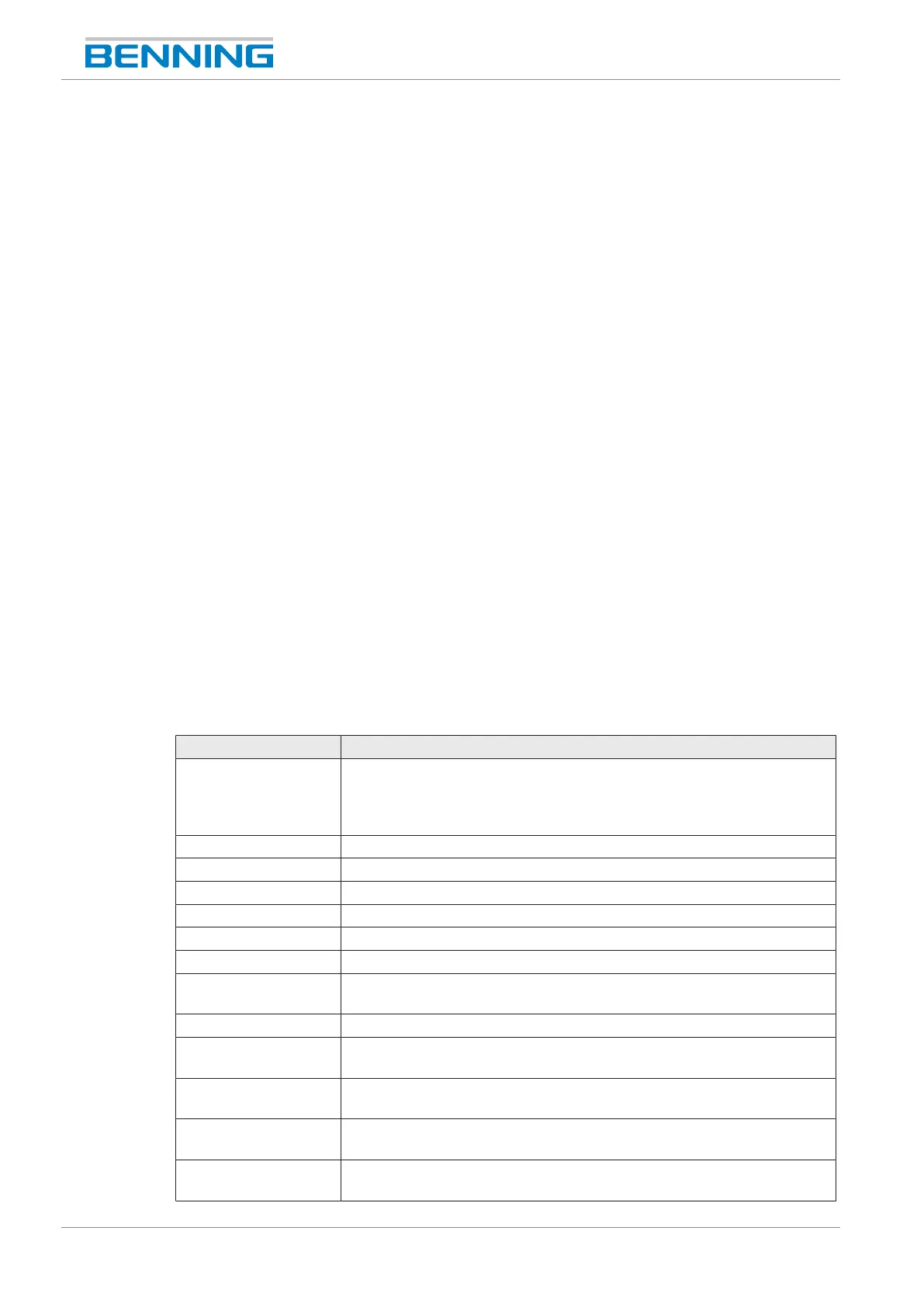
6.4 Buttons in the footer
Button Description
Copy Copies a parameter entry and opens a new screen to display the
contents. On this screen, the copied parameter entries can be
adjusted. This facilitates, for example, the creation of test sample
templates (device templates).
Search Searches for Bluetooth
®
connections.
Save Saves the input.
Help Opens the help menu.
Back Returns to the previous menu. The input is cancelled.
OK Confirms a selection or input.
Start Starts the selected test or measurement.
New Creates a new parameter entry (customer, department, test sample,
etc.).
Delete Deletes the selected parameter.
Update
(WLAN networks)
Searches for new WLAN networks [}page58].
Connect
(WLAN networks)
Connects to the selected network.
Disconnect
(WLAN networks)
Disconnects from the selected network.
All inactive
(device properties)
Disables (OFF) all parameters in the list [}page58].



 To Next Page