- 100 -
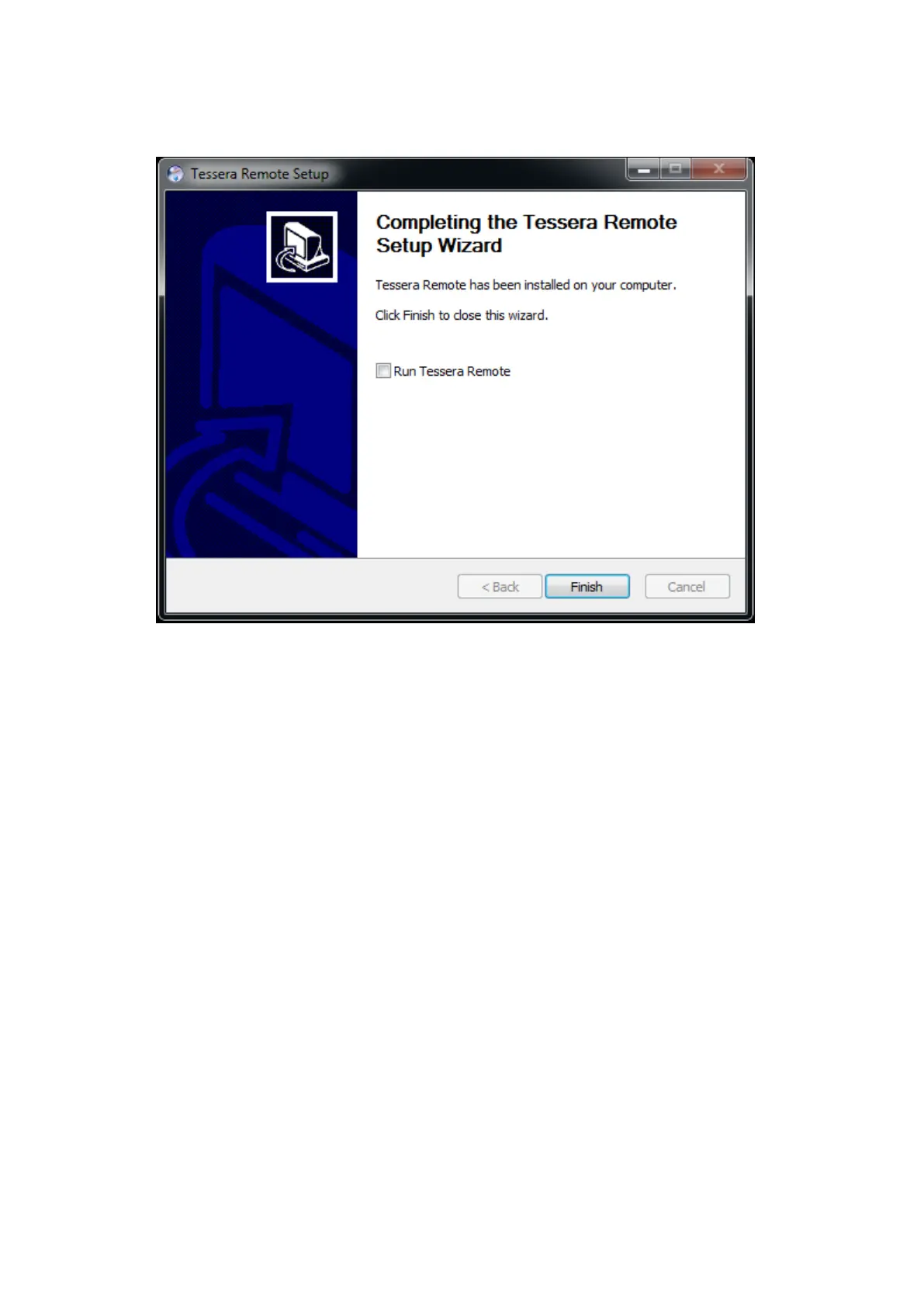
5. When the application has finished installing then you should see the completion dialog
box. Click Finish to finish the installation process.
Network settings for Remote Management
To connect to a Tessera processor you must connect your Mac or Windows PC to a Tessera
processor’s remote network interface via an Ethernet network. As the Tessera processor’s
remote network port supports Auto MDI-X, this network can be as simple as single piece of
Cat 5e cable connected between the Mac or Windows PC and the processor without the
need for a switch. The Remote Application can connect to a processor over a WLAN, but
features like thumbnail previews and video previews will work at a reduced frame rate,
depending on the quality of the signal propagation and the WLAN bandwidth. Connecting
across a WLAN is not recommended when connecting to multiple processors.
The default IP settings for the processor are 192.168.0.50, with a subnet mask of
255.255.255.0.
To set the IP address on a Window PC
1. Click on the start menu and select Control Panel > Network and Internet > Network
Connections. Select the network adapter you are connecting to the Tessera processor



 To Next Page