- 31 -
Format internal storage will overwrite the memory of the processor. This will wipe all project
files from the memory of the processor and also any imported fixture definition files and
fixture firmware not included in the current software release. The current software version
of the processor will be retained after an internal storage format has been performed.
Reload firmware
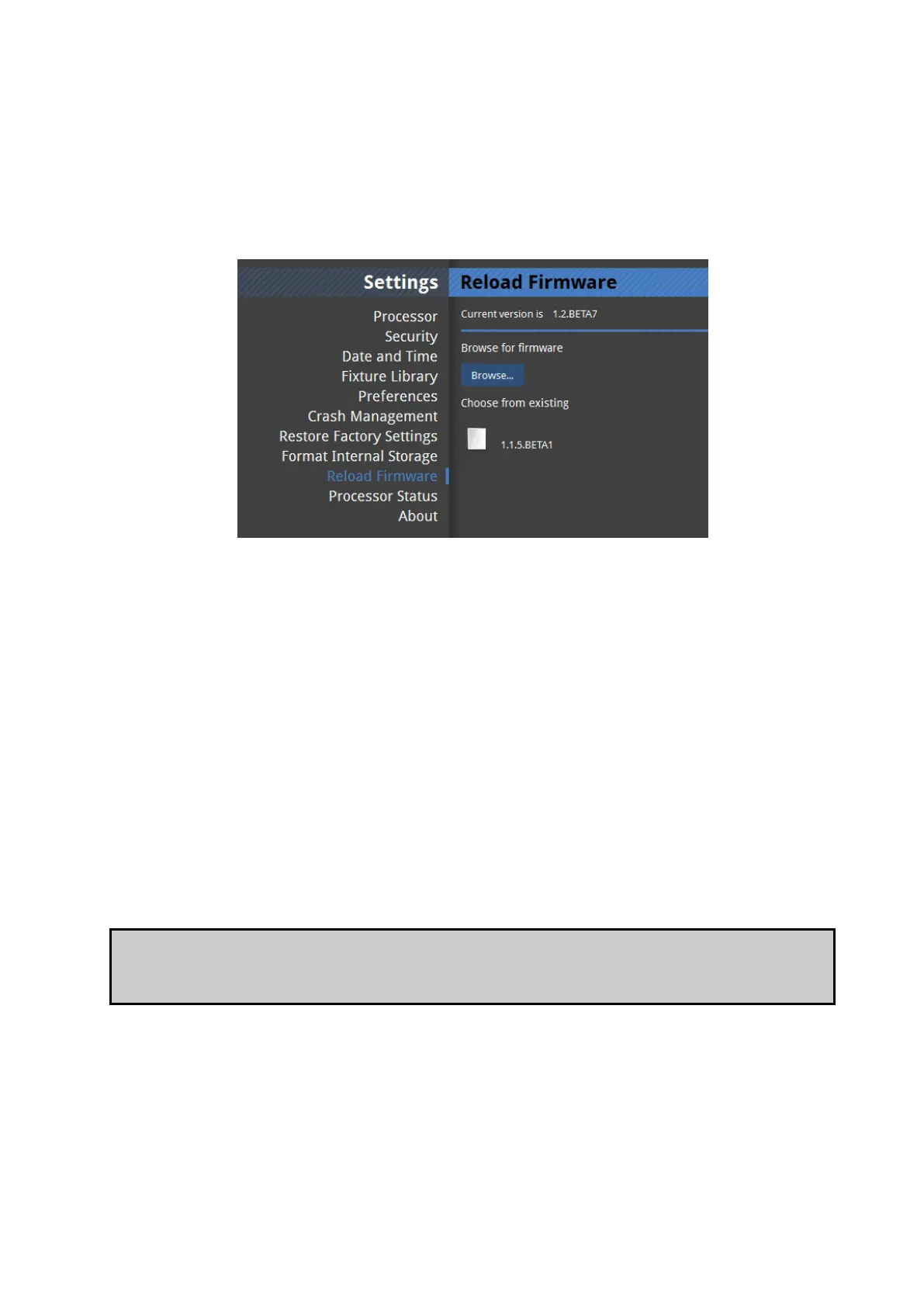
Figure 4-11. Reload Firmware
The reload firmware option allows the user to change the software which runs the
processor. Any firmware builds which are uploaded to the processor are stored in internal
flash memory and so you may see some older or newer builds under the heading Choose
from existing.
If you do not see the build you wish to use in this menu you can load it from a USB flash drive
or from the hard drive of a remote computer running Tessera Remote. To do this click on
Browse and navigate to the location where the firmware is stored. You can download the
latest processor software from our web site: www.bromptontech.com/support.
Once you have uploaded or chosen the build you wish to use you can reload the firmware.
This is a very quick process after which your project files and additional fixture definition files
should still be available to you. However it is wise to have backup copies of important project
files before a firmware upgrade as a precaution.
Note Newer firmware versions will almost always allow you to load project files started on
older versions of firmware. Projects started on newer versions of firmware will not normally
work on older versions of firmware.



 To Next Page