- 29 -
Note. This window does not load firmware to any fixtures. It simply sets the preferred file to be
used if you do decide to reload firmware from this processor. For more information on fixture
firmware and the options for reloading see Reload Fixture Firmware
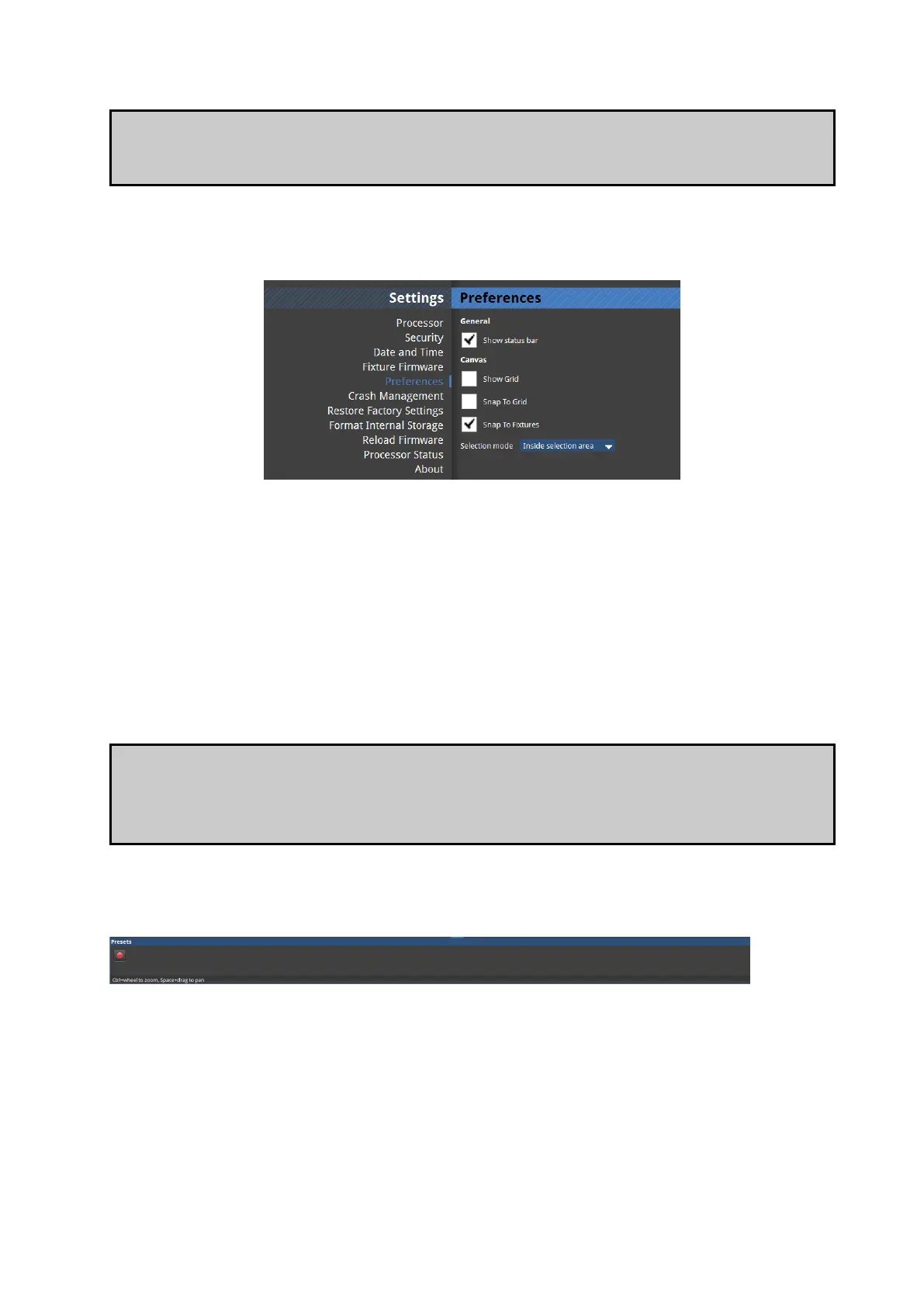
Preferences
Figure 4-7. Preferences
Auto Load
When the processor is turned on you are taken to the Start Screen, which displays Recent
Projects on the right. The last used project file will appear at the top of this list and, if within
10 seconds no other file is selected or no other option is chosen, the processor will
automatically load this file. If you do not want the processor to do this it is possible to disable
this option so that the processor remains on the Start Screen until an option is selected.
Note. It is possible to change the autoload countdown time to a value between 0-3600 seconds.
It may be desirable to set this value to zero before the processor is used on a show, as this will
mean that in the event of a power cut the processor will reboot straight into the current
project file with the minimum of delay.
Status Bar
Figure 4-8. The Status Bar
The status bar is the line of text information in the bottom left corner of the Main Project
Screen. This appears when the cursor is hovered over certain icons or when particular



 To Next Page