- 44 -
1. Disconnect and remove the faulty fixture or controller box.
2. Insert and connect a good fixture into the same position in the string.The processor
will prompt with:
Figure 5-11. The correct association dialog box
3. This message will be on screen for 10 seconds. After this time you can find the Correct
Association option by right clicking on the icon of the affected fixture or by selecting
Correct Association from the Edit menu.
4. Click on the blue Correct Association button.
Changing Topology
It is possible to change the topology manually using the Topology toolbar if the drawn
topology does not match the actual sequence of fixtures. An example of where this might be
useful is a touring production where a screen has been rebuilt at the second venue of the
tour with a different cable layout to that used at the first venue. These instructions assume
the panels are powered and connected and the mistake has just been noticed.
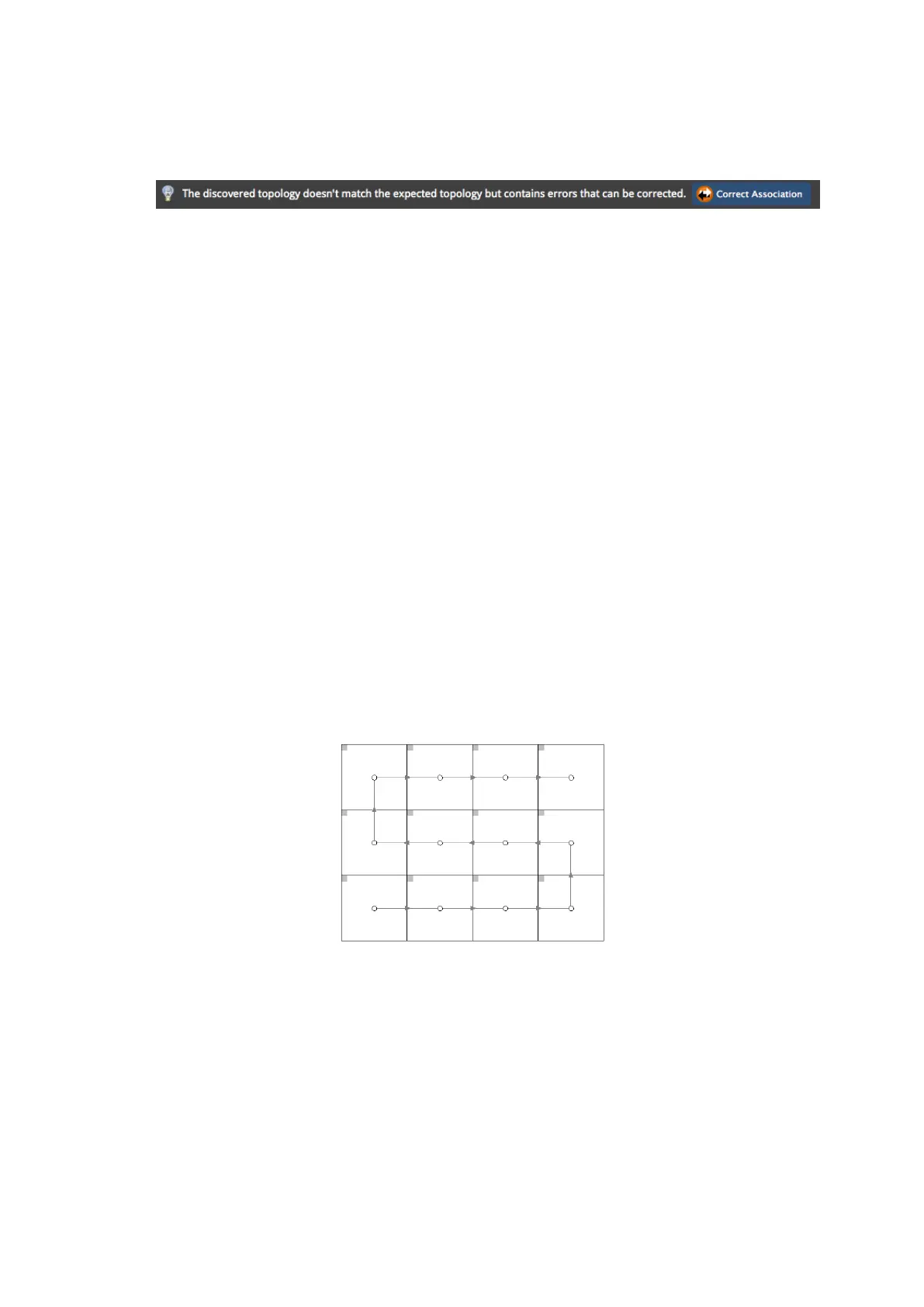
In our example, at the first venue the panels were cabled in a continuous lace from left to
right and from bottom to top as viewed from the front of the screen ("First venue
topology." below).
Figure 5-12. First venue topology.
Owing to a mistake during the load in at the second venue the panels are now cabled
differently ("Second venue topology." on the next page). It will be too time-consuming to re-
cable the screen correctly so another solution must be found



 To Next Page