- 22 -
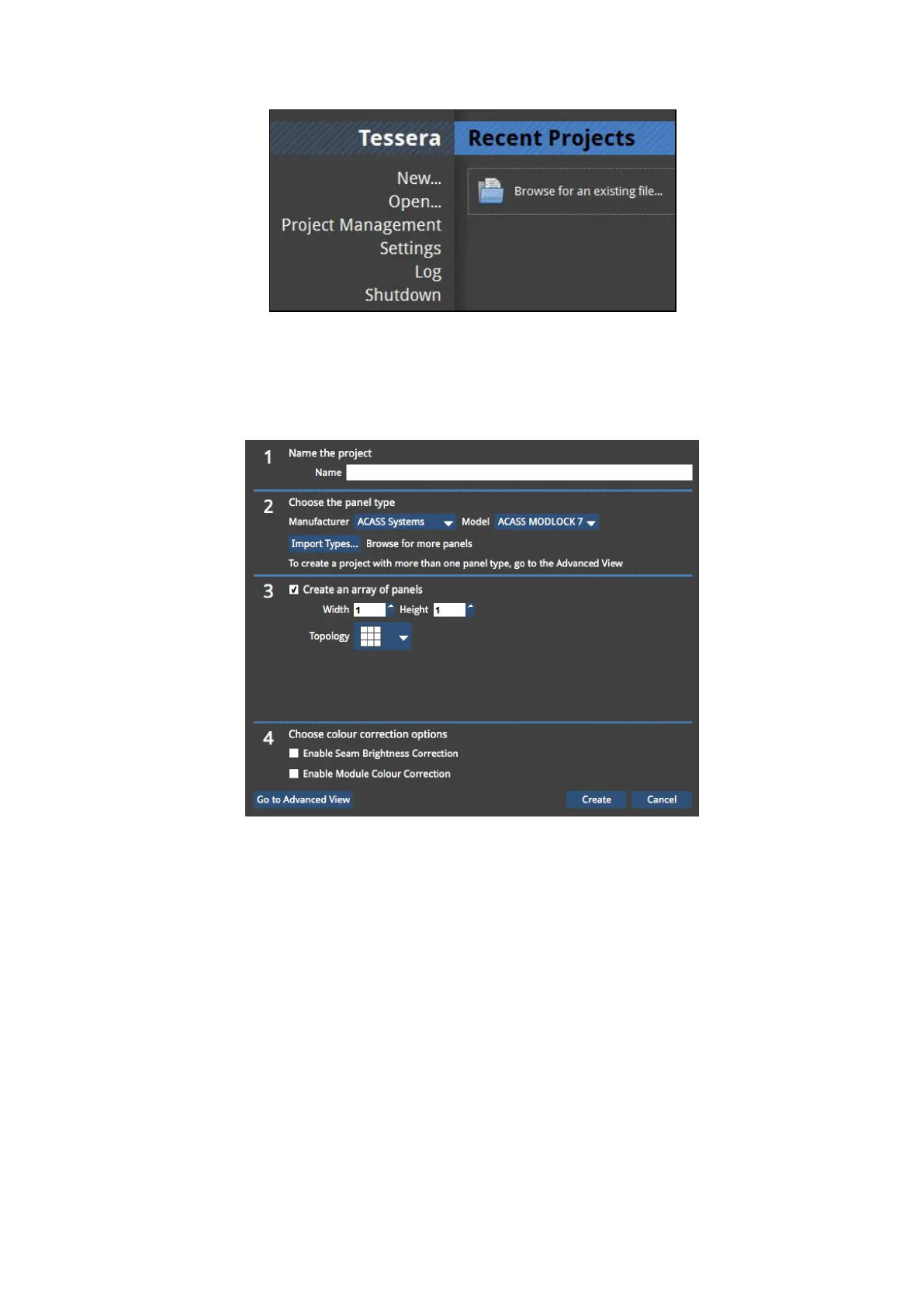
Figure 3-2. The Start Screen
Setting up your project
5. From the Start Screen, select New… The New Project Wizard will launch.
Figure 3-3. The New Project Wizard
6. Type in a name for your project. If you are using Tessera Remote in offline mode, you
can also select the location in which it is to be saved (if you are accessing the processor
directly, the project will be saved to its internal storage).
7. Select the fixture type from the dropdown menu and uncheck the Create an array of
panels box. If you are using more than one fixture type, click the Go To Advanced View
button. Select the fixtures required. You can hold CTRL whilst selecting to select mul-



 To Next Page