- 64 -
Snap Active Area to Selection
To automatically size the incoming image to fit on a particular group of fixtures, select the
chosen fixtures and click the Snap to Selection button
The Active Area will then be sized and positioned to fit over the selected fixtures.
4:3 and 16:9
The 4:3 and 16:9 buttons will automatically adjust the width parameter of the Active Area to
the chosen ratio based on the height. For example, if the Active Area dimensions are width
200 x height 90, clicking the 16:9 button would reduce the width to 160 and the height
would remain 90.
Zoom
The Viewport is scaled and mapped onto the Active Area according to the Zoom mode. The
zoom options are:
1:1 The original Viewport image size.
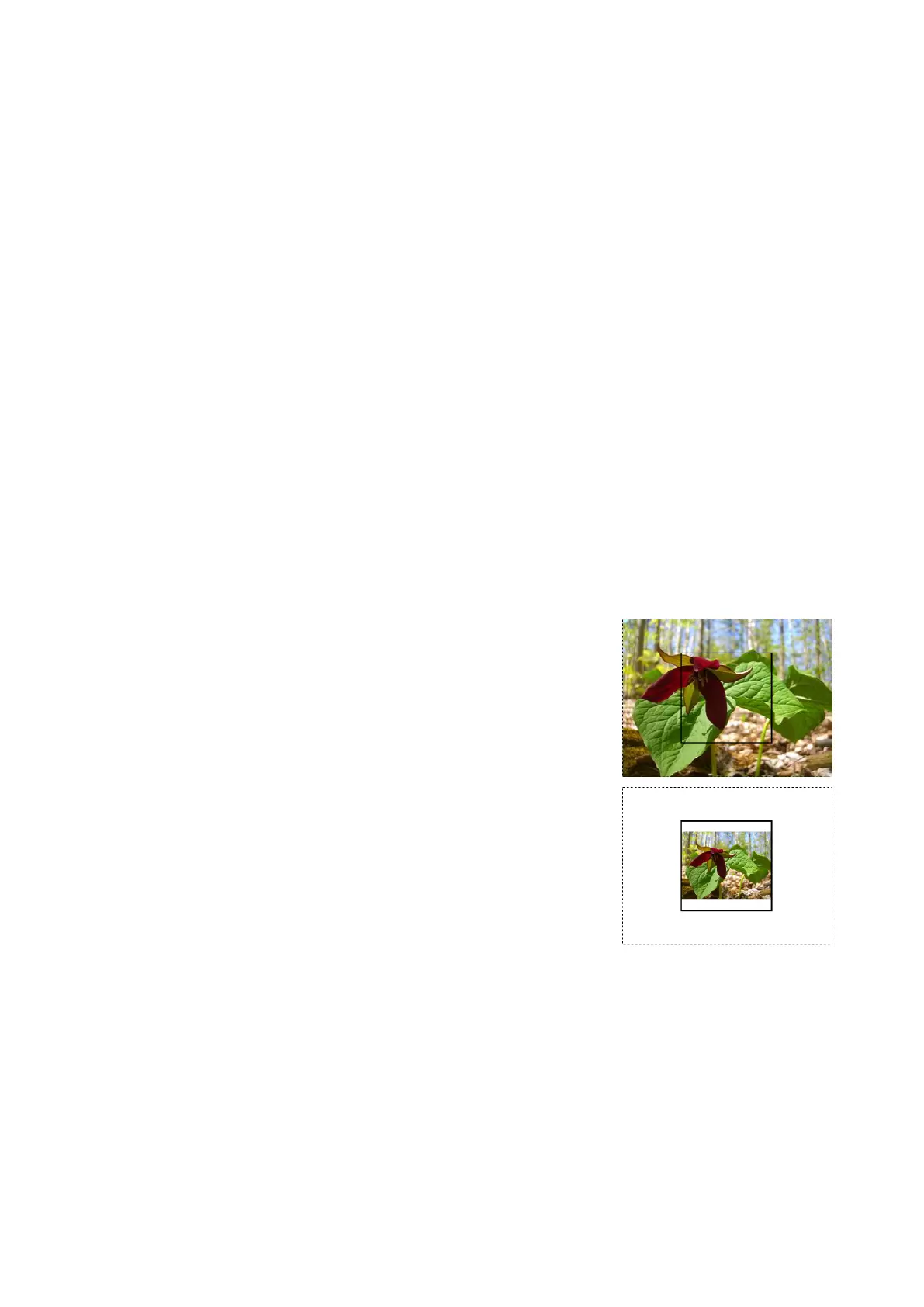
Fit
The aspect ratio of the Viewport is maintained with the
image scaled to fit within the active area.



 To Next Page