- 112 -
The On-Screen Colour Adjustment window displays the fixtures in the project as they are
positioned on the canvas and has a toolbar that is particular to fixture colour and luminance
adjustments.
Fixtures can be selected the same way as on the Project Screen. Layers can be particularly
helpful with selecting panels for OSCA adjustment. Please see "Layers" on page59 for more
details.
Putting the processor into OSCAmode outputs a solid colour on the connected fixtures. By
default this will be white. However it is possible to display each of the primary colours (red,
green and blue)or secondary colours (cyan, magenta, and yellow).
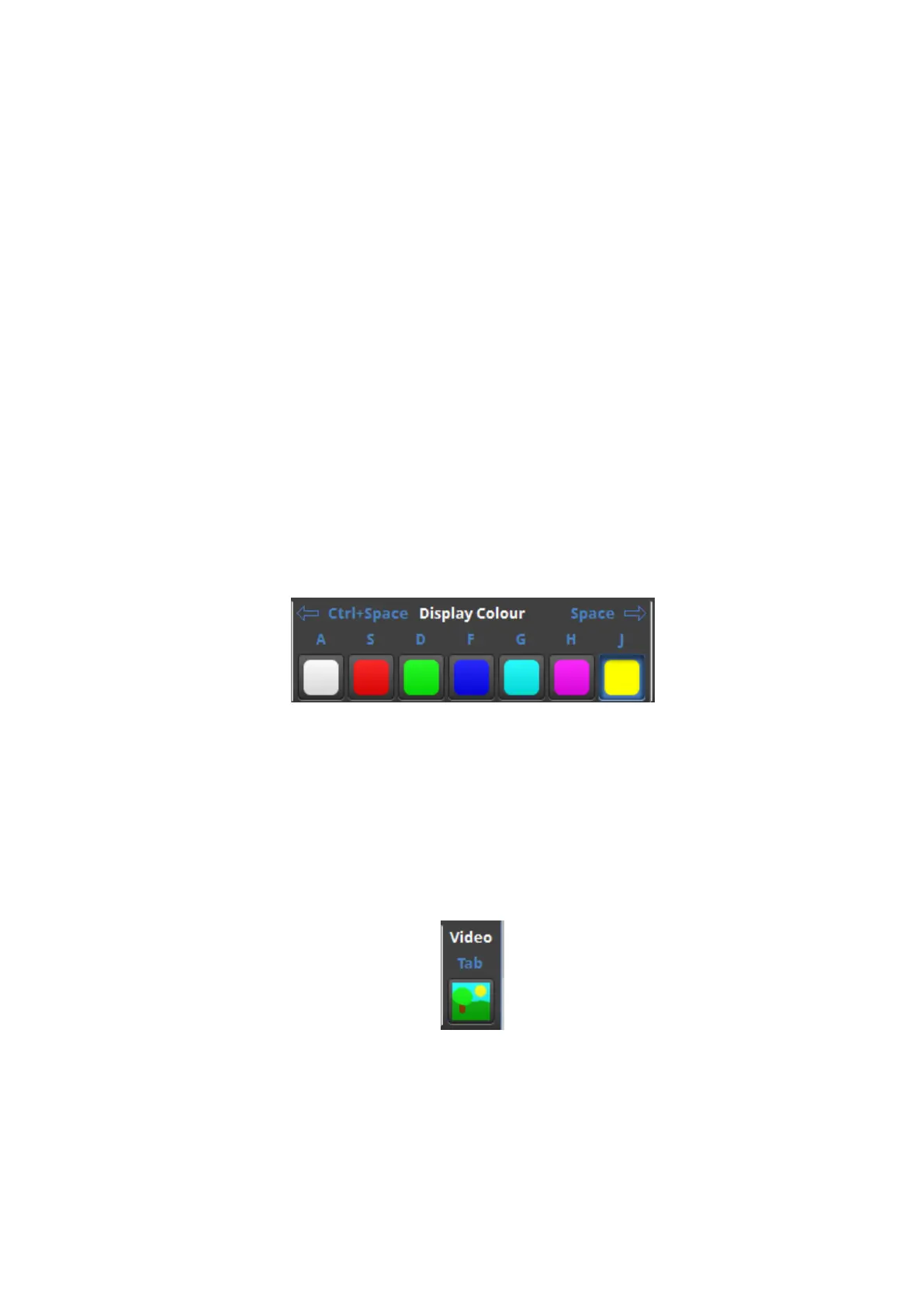
Display Colour
Changing the colour displayed on the fixtures can help to assess differences in seam
luminance, or colour variances between fixtures. Changing the colour can be done either by
selecting the colour from the OSCAtoolbar, using it's keyboard shortcut, or by using Space
or Ctrl-Space to cycle through the different colours.
Figure 11-9. The Display Colour section of the OSCAtoolbar
Display Video
Video can be displayed temporarily in OSCAMode by pressing the Video icon on the
OSCAtoolbar, or by holding the Tab key down. The video displayed will be whatever the
processor was displaying before it was put into OSCAMode.
Figure 11-10. The Display Video icon on the OSCAtoolbar



 To Next Page