- 40 -
Adding Fixtures From Network
Once the fixtures are physically connected to the network, the processor will auto-detect
them (provided the fixture types were selected when the project was created) and the Add
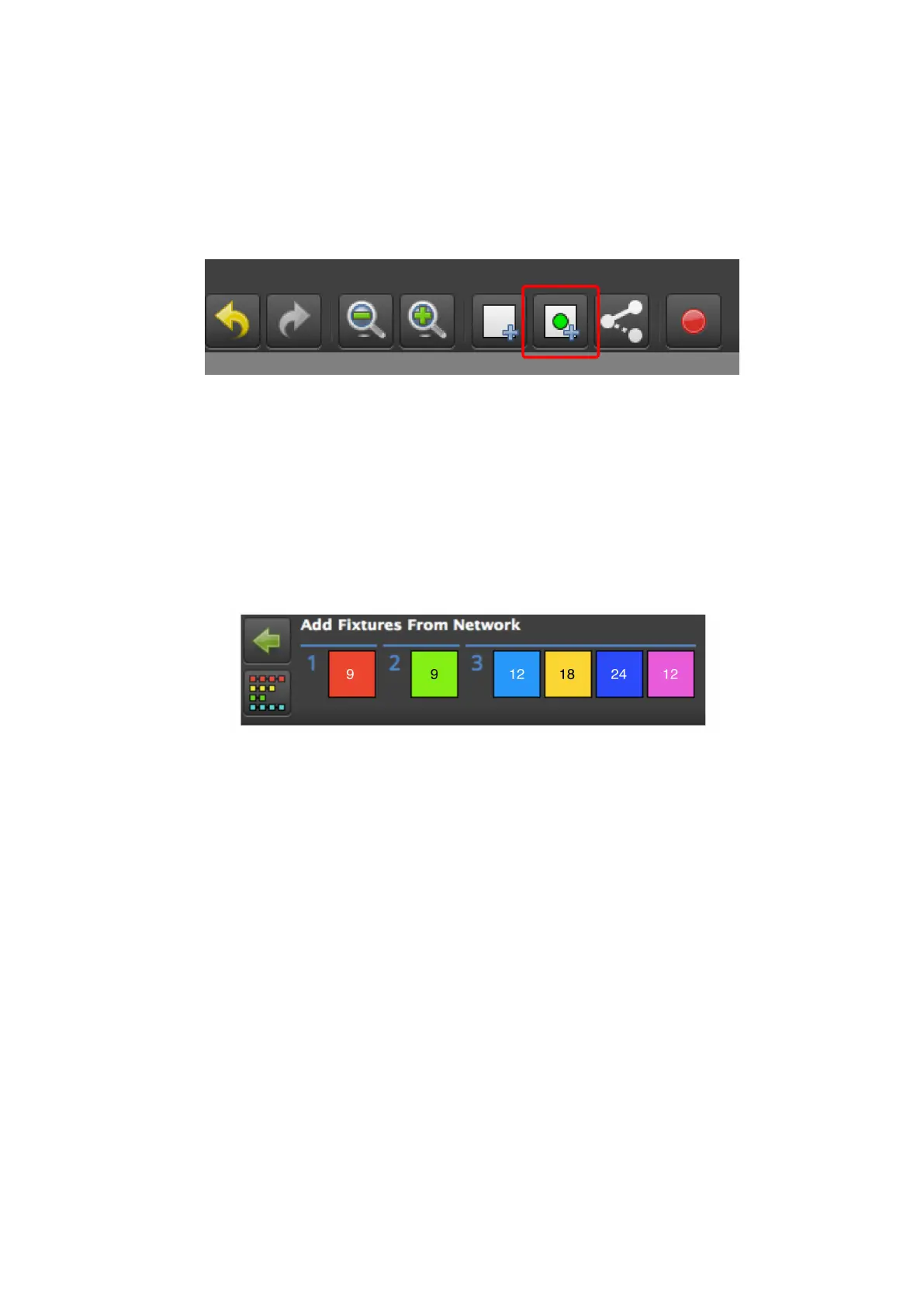
Fixtures From Network toolbar ("Add Fixtures From Network toolbar. " below) will turn
green. If fixtures are connected but not appearing see"Troubleshooting" on page 1 .
Figure 5-5. Add Fixtures From Network button.
Clicking on the button will switch to the 'Add Fixture from Network toolbar in the Main
Project Screen.
The picture below shows how a typical system with multiple strings might appear once
fixtures are connected and have been auto-detected . The blue numbers indicate the output
port and the numbers in the coloured boxes denote the number of fixtures in each string
(see "Add Fixtures From Network toolbar. " below).
Figure 5-6. Add Fixtures From Network toolbar.
As new strings are added they can be given a colour by clicking the Highlight Strings button.
The actual fixtures will then display the colour shown in the Add Fixtures from Network
toolbar and can then be quickly and easily added to the canvas in their correct position by
first clicking on the coloured square then on the canvas.



 To Next Page