- 61 -
Although it is possible to crossfade from input to another ("Crossfading " on page70), it is
not possible to display multiple inputs simultaneously, either as picture-in-picture or as
discrete windows.
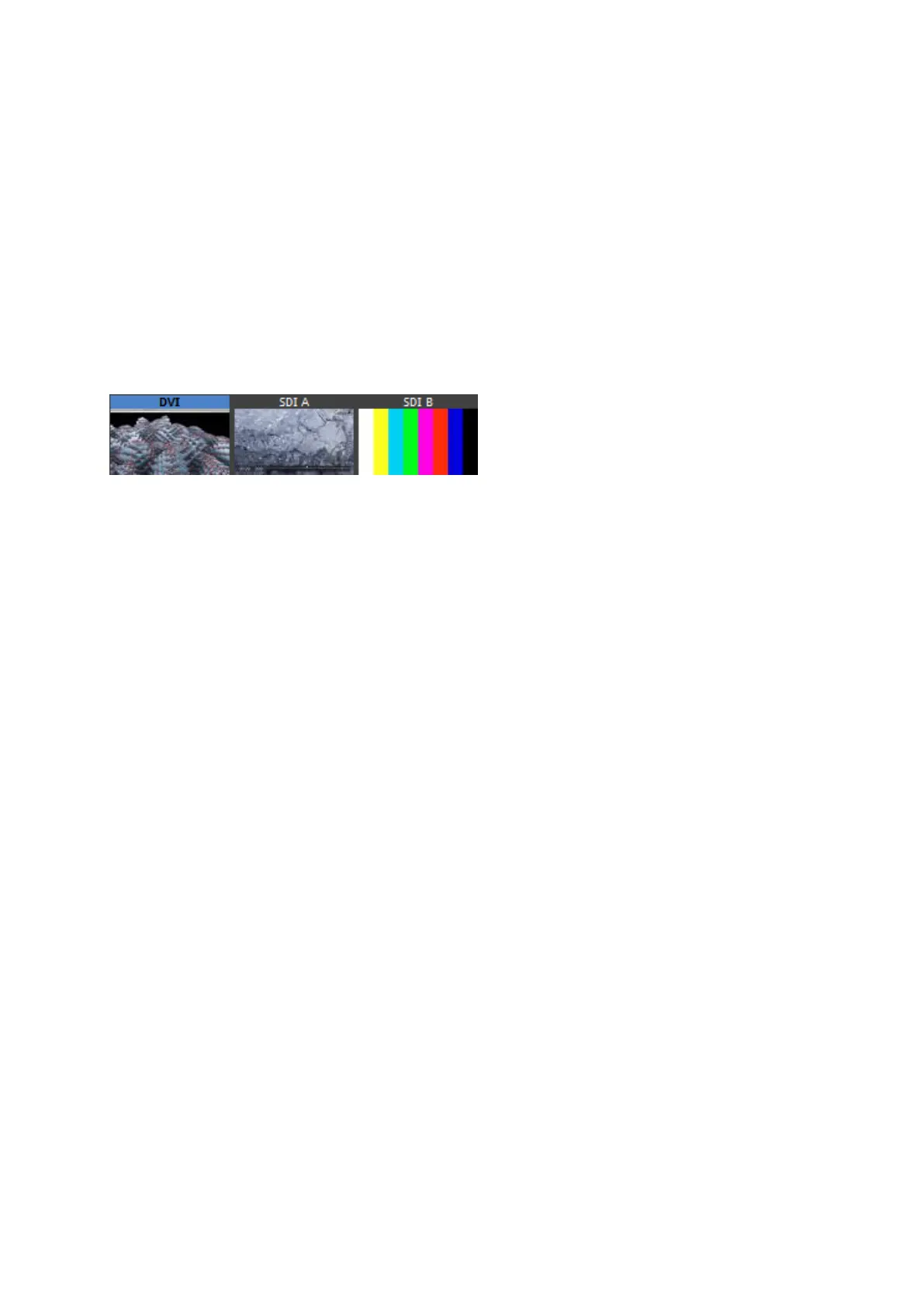
The incoming video on each of the three inputs can be quickly viewed in the Main Project
Screen where you will see the three Input Thumbnails ("Source preview thumbnails."
below).
Figure 6-1. Source preview thumbnails.
The currently selected input will have its legend highlighted in blue. The quickest way to
change inputs is to double click on the input you wish to switch to. Alternatively, you can
click on the Input tab to see the Source drop down menu and select the different inputs from
here.
Any of the inputs may be used as a reference signal for genlock (See section "Genlock
Settings" on page92).
Scaling and Cropping
The Tessera M2 processor achieves scaling and cropping of the incoming feed by use of three
settings in the input tab: Viewport, Zoom and Active Area.
Viewport
The Viewport settings define the region of interest of the incoming feed which is captured to
the canvas. Typically this will be captured in full, so an incoming HD feed would have settings
of:



 To Next Page