- 50 -
selection area to Overlaps selection area. If 'Inside selection area' is enabled, the line must
completely enclose fixtures in order to select them. If 'overlaps selection area' is enabled, a
fixture will be selected if any part of it falls within the selection area.
Grouping Fixtures
If there are several fixtures in your configuration that you always want to move and adjust
together, it may be helpful to put them into a group. To do this select the required fixtures,
right-click and choose Group from the dropdown menu. You can also Ungroup in a similar
manner.
Moving Fixtures
You can move fixtures anywhere on the Canvas, either within or outside of the Active Area,
by selecting the fixture and dragging or pressing the arrow keys on the keyboard. Pressing
the arrow keys will move the fixture by grid-space increments if the grid is displayed and snap
to grid is enabled or, if not, by pixels.
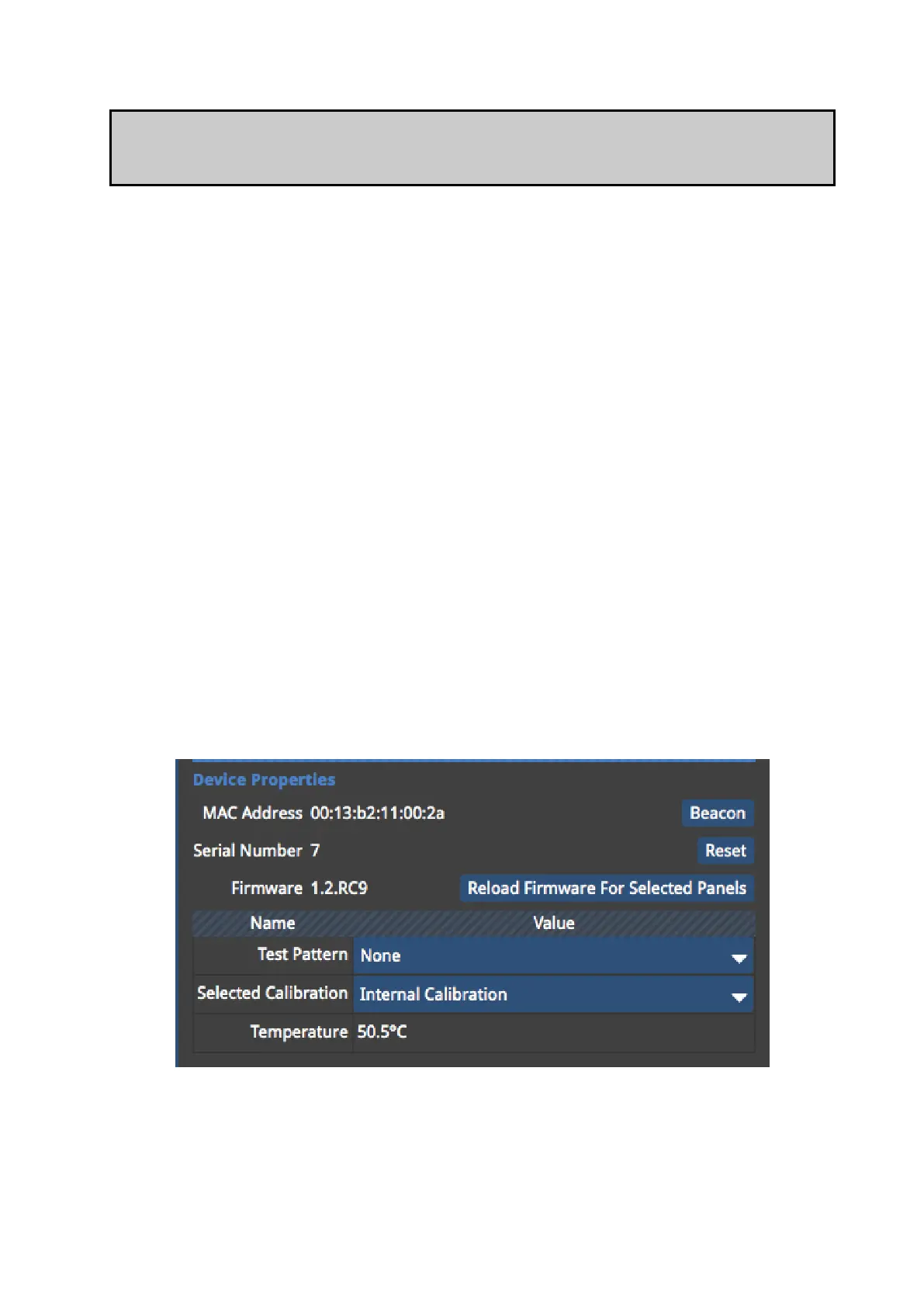
Device Properties
Device Properties displays the selected fixture's device properties in the Properties Tab.
These include the fixture's MAC address, serial number and firmware version.
Figure 5-19. Device Propertie



 To Next Page