- 28 -
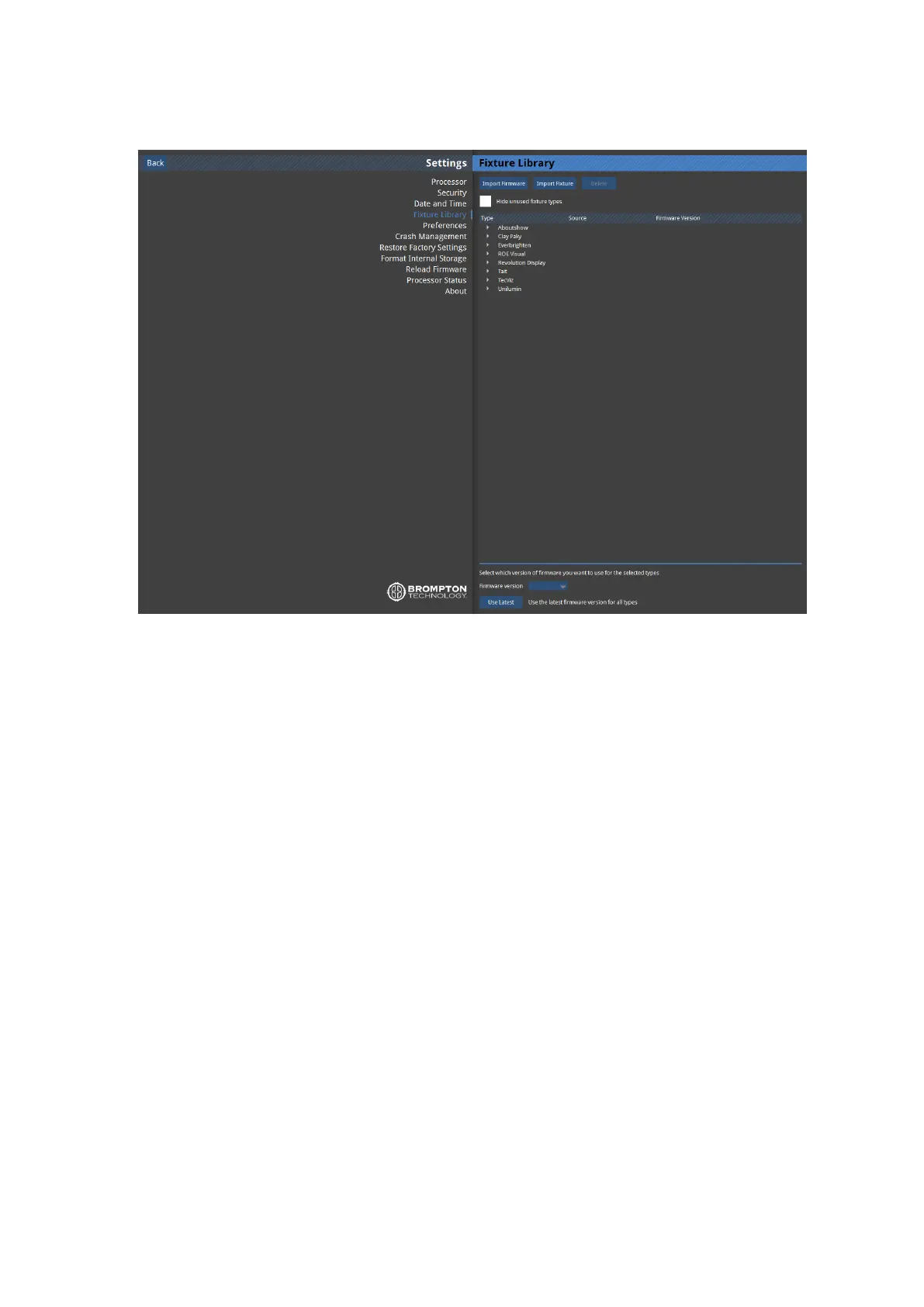
Fixture Firmware
Figure 4-6. Fixture Firmware screen
This window allows you see which version of fixture firmware is currently set as the preferred
for each type of supported fixture. Typically this will be the firmware version included with
that version of processor software.
Should you wish to set the processor to upload a different version of fixture firmware which
was not included with the release software of the processor it is possible to load newer (and
older) versions of fixture firmware and assign these as the default for a particular fixture.
To do this:
1. Click on the Import... button at the top of the screen. You can now load new firmware
from a USB flash drive or from the hard drive of a connected PC if using Tessera
Remote.
2. Once the firmware is loaded assign that file to be the default by selecting the type from
the list and selecting the firmware version from the dropdown menu at the bottom of
the screen.



 To Next Page