- 63 -
Figure 6-4. The Geometry Tab
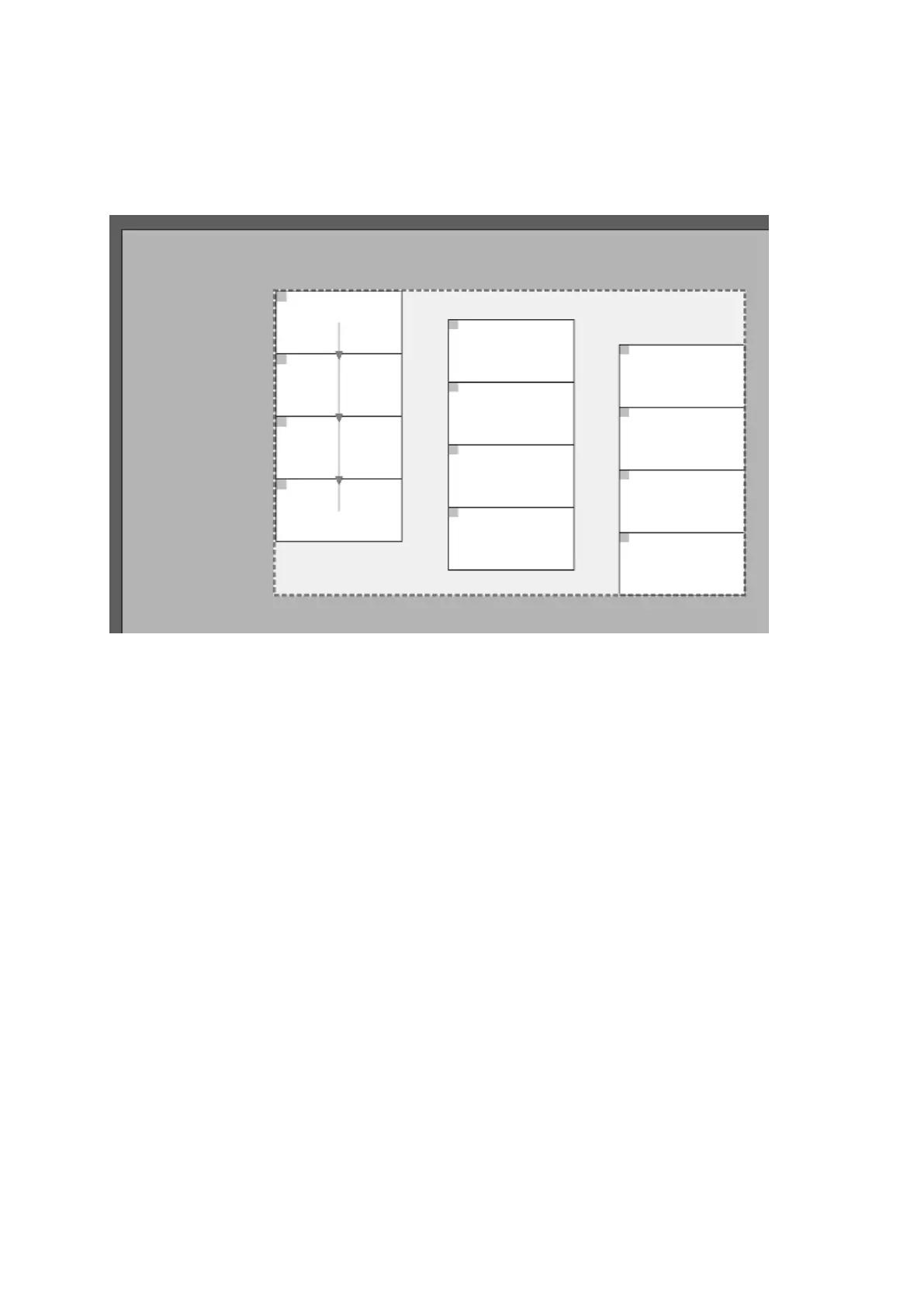
Figure 6-5. The canvas with the Active Area shown by a dashed border.
Having determined the region of interest to be captured from the incoming feed using the
Viewport, that region can then be sized or moved to the appropriate part of the canvas.
To set the Active Area to the same dimensions as the Viewport click the Snap to Viewport
button. Content will be shown with no scaling but with cropping according to the Viewport
Settings. As with the Viewport setting, the Active Area will default to the same parameters
as the incoming video feed.
To scale the content, you can set the Active Area dimensions to values greater or smaller
than the Viewport. You can change the size of the Active Area by dragging the dashed line
on the canvas or entering values in the Width and Height fields. The active area may not be
greater than what the maximum canvas size has been set to.
To change position use hand cursor or adjust the top left coordinates manually.



 To Next Page