- 24 -
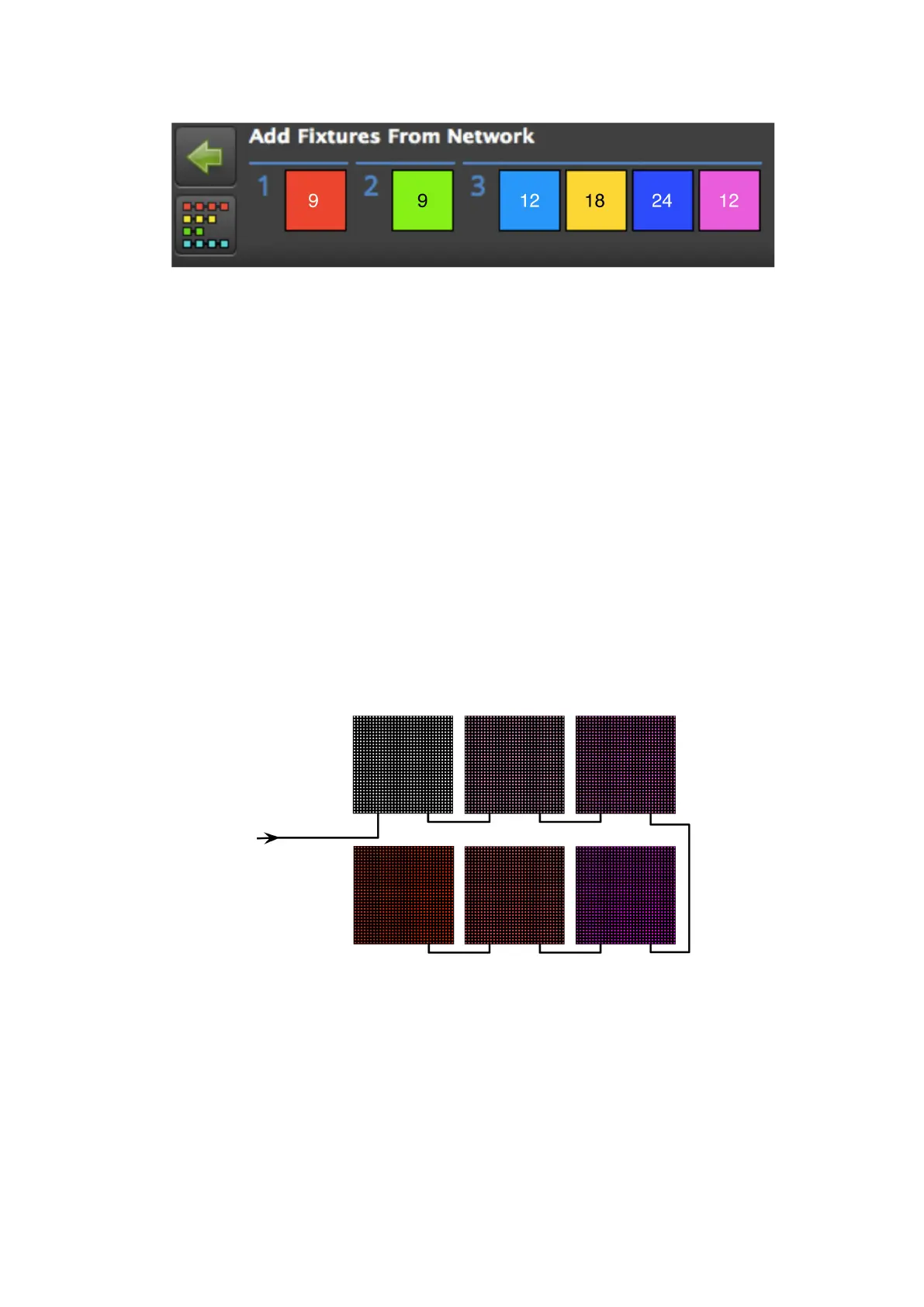
Figure 3-6. The Add Fixtures From Network toolbar.
1. The processor will show any attached strings of fixtures and the number of fixtures on
each string. In the picture above, the processor can see fixtures connected to outputs
1, 2 and 3. Outputs 1 and 2 have a single string of 9 fixtures on each output, whilst Out-
put 3 has 4 strings with 12, 18, 24, and 12 fixtures.
2. Click on the string of fixtures you wish to add. The first fixture in the string will be high-
lighted white, while the other fixtures will display varying shades of the same colour to
denote the the order of the fixtures in the string from dimmest to brightest.
3. Click on the canvas to add the first fixture in the string, then add subsequent fixtures
in the string using the same method.
4. Repeat the process for all strings, then click the green Back arrow to return to the
Main Project Screen. The connected fixtures will start to output video and the fixtures
on the canvas will display a green circle to indicate they are online.
Figure 3-7. A highlighted Recoloured string



 To Next Page