1. GET STARTED
1-2 Setting Custom Default
You have the ability to create a set of menu commands as your own, custom
defaults.
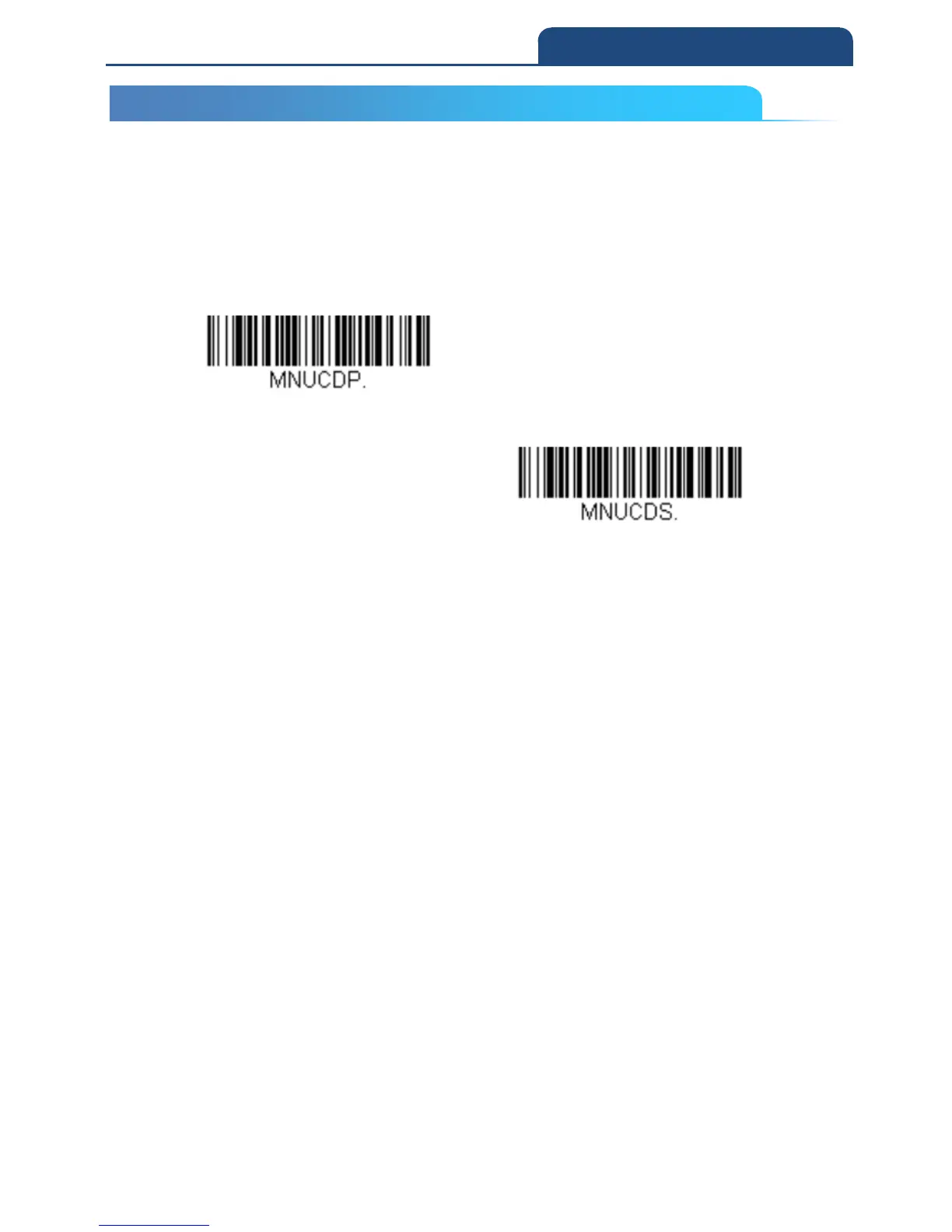
To do so, scan the Set Custom Defaults bar code below before scanning the
menu commands for your custom defaults. If a menu command requires
scanning numeric codes from the back cover, then a Save code, that entire
sequence will be saved to your custom defaults.
When you have entered all the commands you want to save for your custom
defaults, scan the Save Custom Defaults bar code.
Set Custom Defaults
Save Custom Defaults
You may have a series of custom settings and want to correct a single setting.
To do so, just scan the new setting to overwrite the old one.
For example, if you had previously saved the setting for Beeper Volume at Low
to your custom defaults, and decide you want the beeper volume set to High,
just scan the Set Custom Defaults bar code, then scan the Beeper Volume
High menu code, and then Save Custom Defaults.
The rest of the custom defaults will remain, but the beeper volume setting will
be updated.
1-2 Setting Custom Default


 To Next Page