59
3. INPUT/OUTPUT SETTINGS
3-9-3 Presentation Centering
Use Presentation Centering to narrow the scanner’s field of view when it is in
the stand to make sure the scanner reads only those barcodes intended by the
user. For instance, if multiple codes are placed closely together, Presentation
Centering will insure that only the desired codes are read.
Note: To adjust centering when the scanner is hand-held, see Centering If a
barcode is not touched by a predefined window, it will not be decoded or output
by the scanner. If Presentation Centering is turned on by scanning
Presentation Centering On, the scanner only reads codes that pass through
the centering window you specify using the Top of Presentation Centering
Window, Bottom of Presentation Centering Window, Left, and Right of
Presentation Centering Window barcodes.
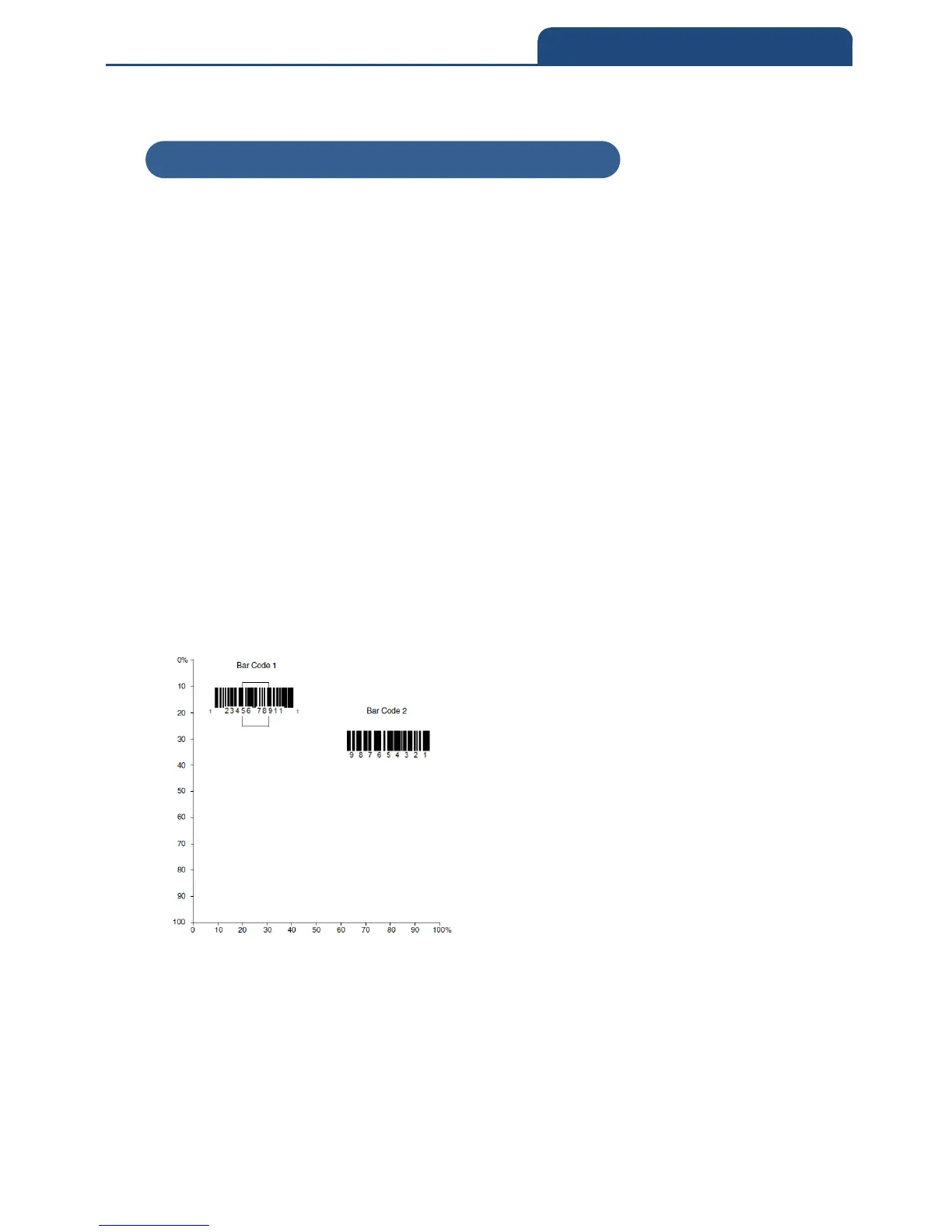
In the example below, the white box is the centering window. The centering
window has been set to 20% left, 30% right, 8% top, and 25% bottom. Since
Bar Code 1 passes through the centering window, it will be read. Bar Code 2
does not pass through the centering window, so it will not be read.
A barcode needs only to be touched by the centering window in order to be
read. It does not need to pass completely through the centering window.Scan
Centering On, then scan one of the following barcodes to change the top and
bottom of the centering window. Then scan the percent you want to shift the
centering window using digits on the inside back cover of this manual. Scan
Save. Default Centering = 40% for Top, 60% for Bottom.
3-9-3 Presentation Centering


 To Next Page