85
5. DATA FORMATTING
5-1 Data Format Editor Introduction
You may use the Data Format Editor to change the scan engine’s output. For
example, you can use the Data Format Editor to insert characters at certain
points in barcode data as it is scanned. The selections in the following pages
are used only if you wish to alter the output.
Default Data Format setting = None
Normally, when you scan a barcode, it is output automatically. However, when
you create a format, you must use a “send” command within the format
program to output data.
Multiple formats may be programmed into the scan engine. They are stacked
in the order in which they are entered. However, the following list presents the
order in which formats are applied:
Specific Terminal ID, Actual Code ID, Actual Length
Specific Terminal ID, Actual Code ID, Universal Length
Specific Terminal ID, Universal Code ID, Actual Length
Specific Terminal ID, Universal Code ID, Universal Length
Universal Terminal ID, Actual Code ID, Actual Length
Universal Terminal ID, Actual Code ID, Universal Length
Universal Terminal ID, Universal Code ID, Actual Length
Universal Terminal ID, Universal Code ID, Universal Length
The maximum size of a data format configuration is 2000 bytes, which includes
header information.
If a barcode is read that fails the first data format, the next data format, if there
is one, will be used on the barcode data. If there is no other data format, the
raw data is output.
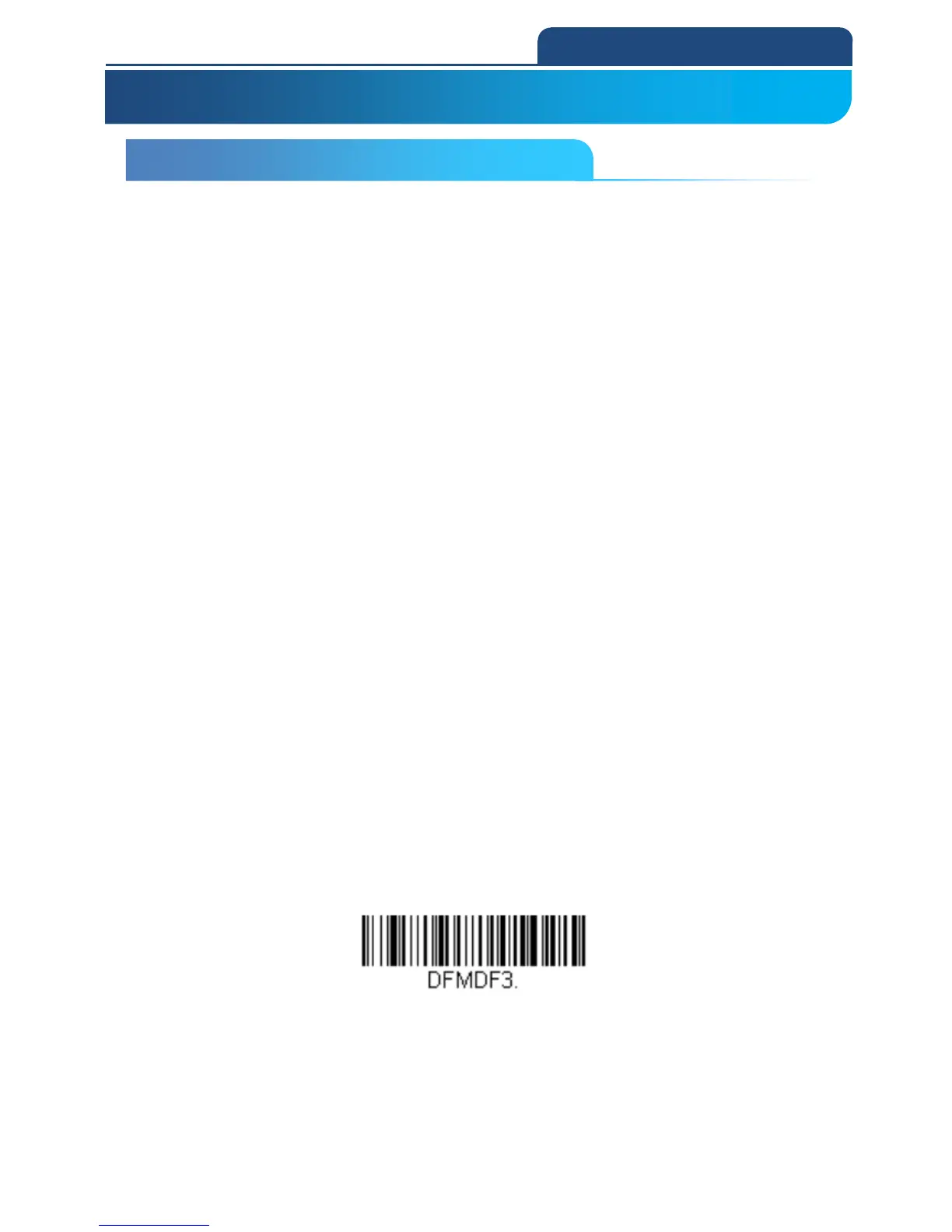
If you have changed data format settings, and wish to clear all formats and
return to the factory defaults, scan the Default Data Format code below.
Default Data Format
5. DATA FORMATTING
5-1 Data Format Editor Introduction


 To Next Page