16 Chapter 3 Software Overview
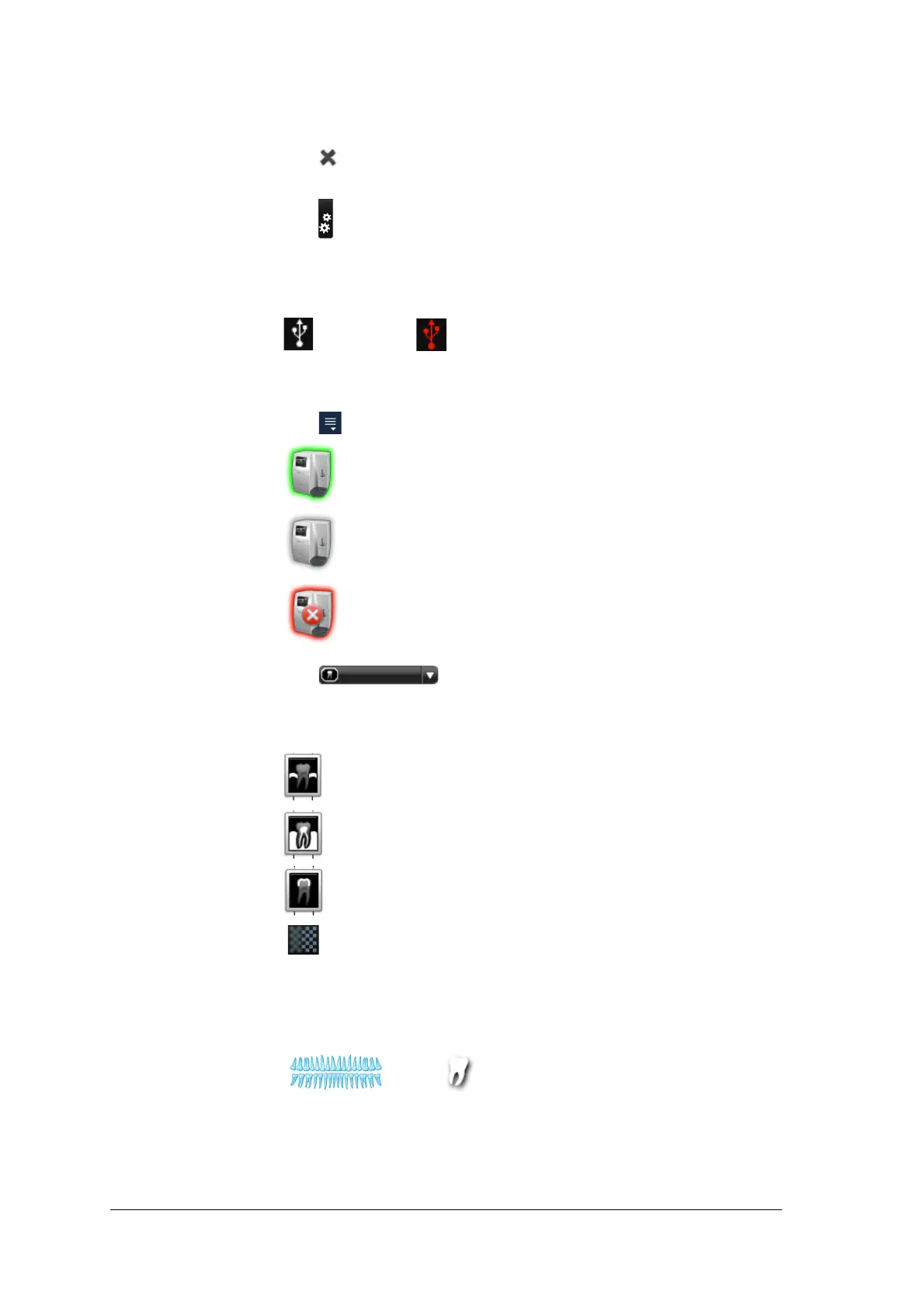
Table 1 Image Acquisition Interface Key
1 Exit
Click to exit the CS 7600 image Acquisition interface.
2 Settings
Click Settings to customize the default settings. See “Working with Settings” on
page 23.
3Scan & Go
Status
The Scan & Go’s active connection status (white color indicates connection, red indicates
no connection).
USB (connected) USB (not connected)
4 Scanner Area Allows browsing of all active connected scanners (if there are multiple scanners in the
same network).
Click Scanner List to list all scanners.
Green frame indicates a connected scanner
Grey frame indicates a disconnected scanner
Red frame indicates a scanner in error state (click the scanner icon to display
the error tool tip)
Click the arrow, to display the images in the memory of the
selected scanner.
5 Image
Enhancement
Buttons
Click to enhance a different zone of interest:
Click to optimize the display of periodontal tissues (Perio)
Click to optimize the contrast over the entire image (Endo)
Click to optimize the contrast at the dentin to enamel junction (DEJ)
Click to toggle between softness and sharpness
6 Patient
Information
Displays the patient information.
7 Tooth
Selection
FMS or Image Acquisition template.
When using an FMS template, the tooth associated with the selected frame is highlighted
green in the panoramic arch icon.






 To Next Page