Printing 295
For Windows Server 2008 R2/Windows 7: Click
Start
Devices and
Printers
.
2
Right-click the printer and select
Printing Preferences
.
The
Paper/Output
tab appears.
3
From
Paper Source
, select
Tray 1
or
Tray 2
.
4
From
Duplex
, select
Flip on Long Edge
or
Flip on Short Edge
.
NOTE: For details on the Flip on Long Edge and Flip on Short Edge
options, see
"
Flip on Long Edge
"
and
"
Flip on Short Edge.
"
5
Click
OK
.
A window that shows the instructions for manual duplex printing appears.
The even-numbered pages are printed from the printer.
Clicking the
OK
button on your printer driver will first print the even-
numbered pages of your document. If your document consists of six pages,
its even-numbered pages are printed in the order of page 6, 4, and then 2.
After the even-numbered pages are printed, a message
Insert Output
to Tray 1
(
Tray 2
) (
071-920
or
072-920
) appears on the operator
panel
.
6
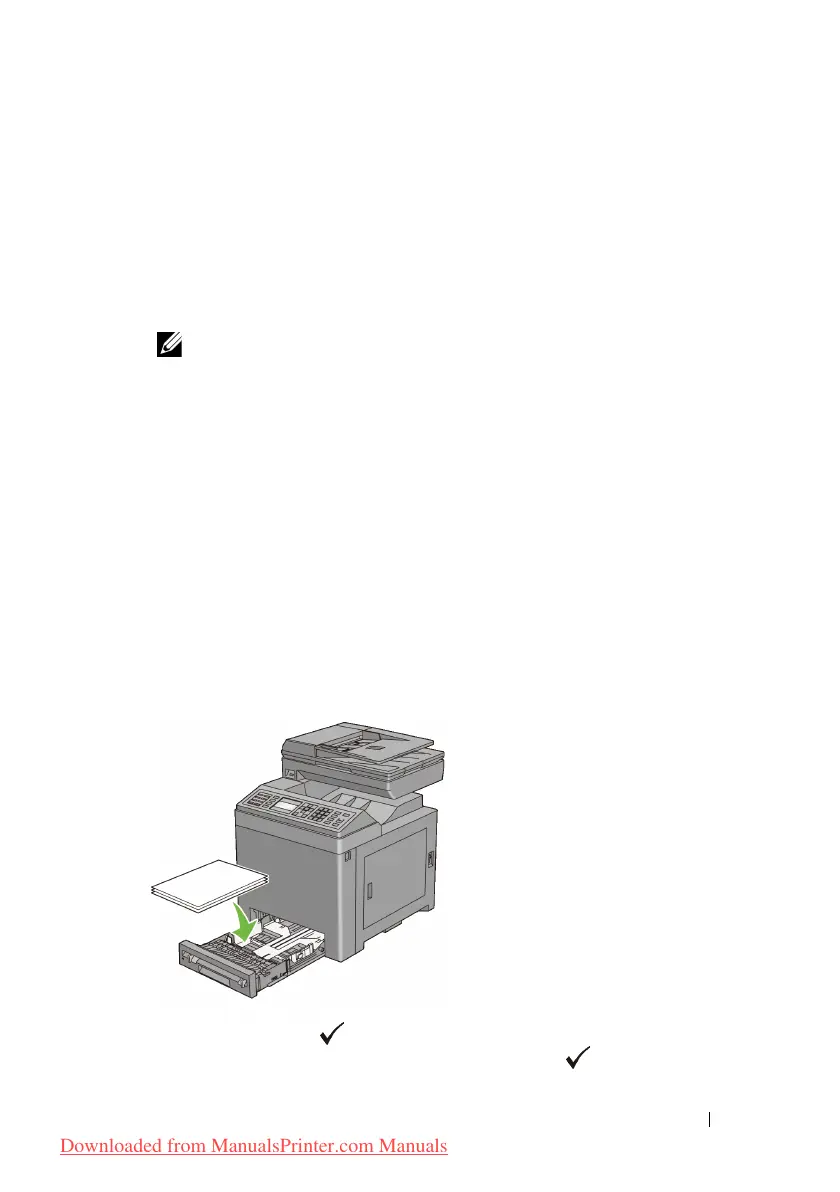
Remove the stack of output from the output tray. Load the stack back into the
tray without turning it over (with the blank side face up).
7
A message
Press to continue printing
(
071-921
or
072-921
) appears on the operator panel. Press the
(Set)
button.
Downloaded from ManualsPrinter.com Manuals











 To Next Page