Understanding Your Printer Software 567
FILE LOCATION: C:\Users\fxstdpc-
admin\Desktop\0630_UG??\Mioga_AIO_UG_FM\Mioga_AIO_UG_FM\section23.fm
DELL CONFIDENTIAL – PRELIMINARY 9/13/10 - FOR PROOF ONLY
Opening and Closing the Status Monitor Widget
Opening the Status Monitor Widget
1
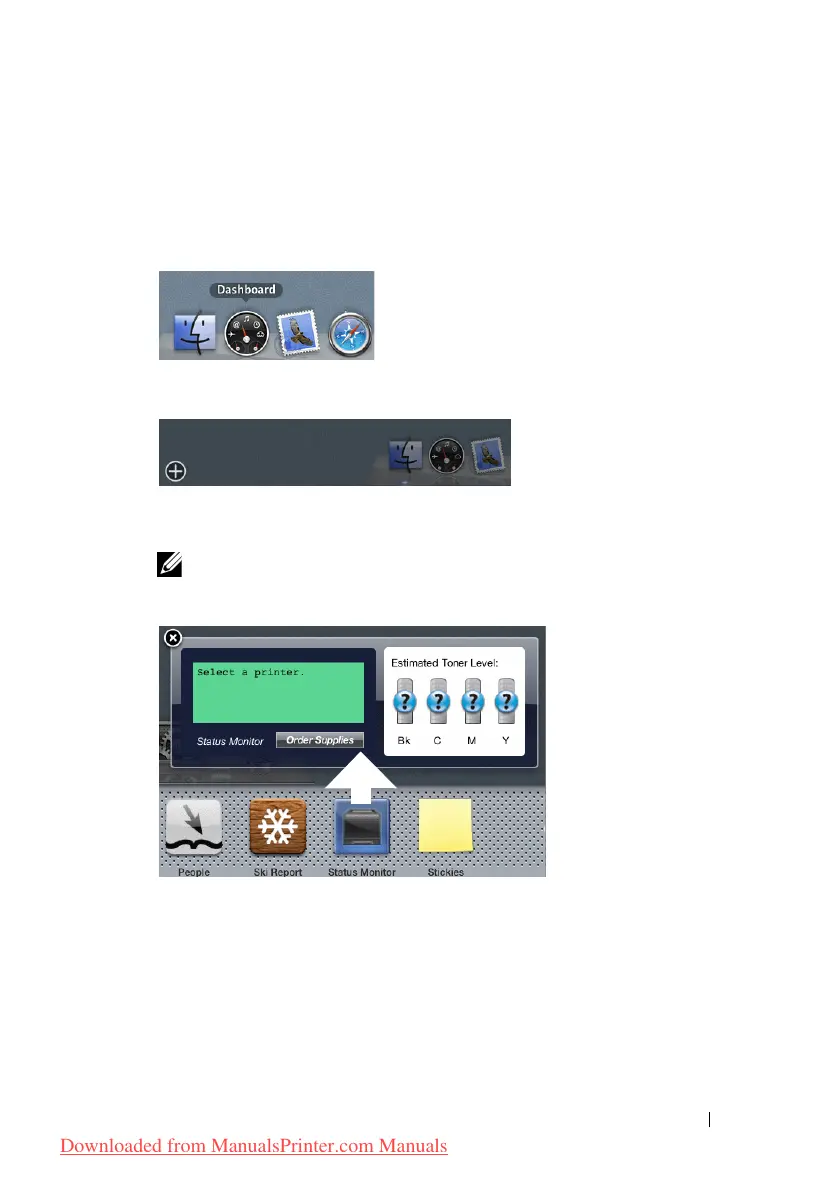
Click the Dashboard icon in the Dock to launch Dashboard.
2
Click the Plus (+) sign to display the Widget Bar.
3
Click the icon of
Status Monitor
in the Widget Bar. The
Printer Status
window appears.
NOTE: If the message Select a printer is displayed, select your printer in
Preferences. (For more information on Preferences, see "Preferences.")
Closing the Status Monitor Widget
1
Click the Close (x) button in the upper-left corner of the
Printer Status
window.
Downloaded from ManualsPrinter.com Manuals











 To Next Page