Operator Panel 287
FILE LOCATION: C:\Users\fxstdpc-
admin\Desktop\0630_UG??\Mioga_AIO_UG_FM\Mioga_AIO_UG_FM\section16.fm
DELL CONFIDENTIAL – PRELIMINARY 9/13/10 - FOR PROOF ONLY
19
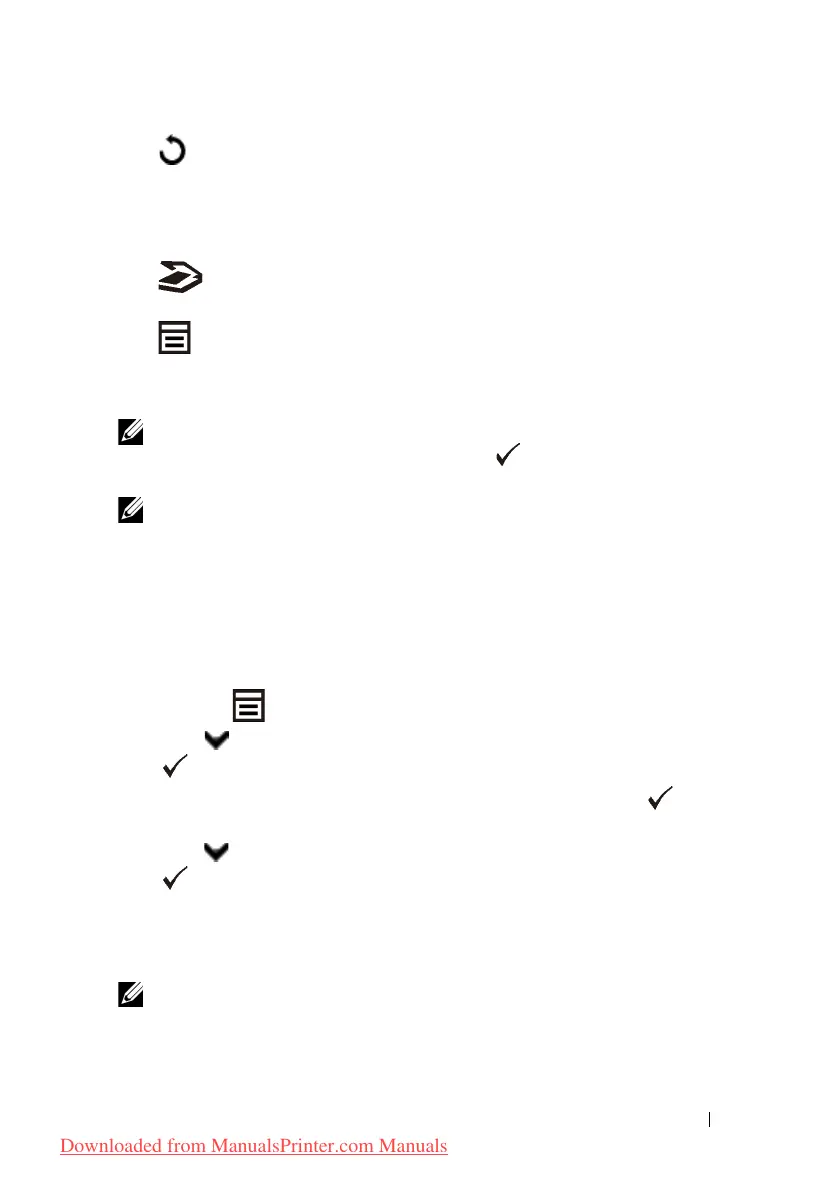
(Back)
button
• Returns to the previous screen.
20
LCD panel
• Displays various settings, instructions, and error messages.
21
(Scan)
button
• Moves to the top level of the
Scan
menu.
22
(Menu)
button
• Moves to the top level of the
Print from USB Memory
,
Job
Status
, and
System
menus.
NOTE: Moving to a different menu or returning to a previous screen cancels the
current entry or setting. Make sure to press the (Set) button to save the current
entry or setting.
NOTE: For details on how to use the numeric keypad to enter alphanumeric
characters, see "Using the Numeric Keypad to Enter Characters."
Printing a Panel Settings Page
The panel settings page shows current settings for the operator panel menus.
When Using the Operator Panel
1
Press the
(Menu)
button.
2
Press button until
System Setup
is highlighted, and then press the
(Set)
button.
3
Ensure that
Report/List
is highlighted, and then press the
(Set)
button.
4
Press button until
Panel Settings
is highlighted, and then press the
(Set)
button.
The panel settings page is printed.
When Using the Tool Box
NOTE:
1
Click
Start
All Programs
Dell Printers
Dell 2155 Multifunction
Color Printer
Tool Box
.
Downloaded from ManualsPrinter.com Manuals











 To Next Page